In Apple's Home app, you can set particular HomeKit scenes and accessories as "Favorites" so that you can access them quickly and easily from the app's Home tab and in Control Center on your iPhone or iPad.
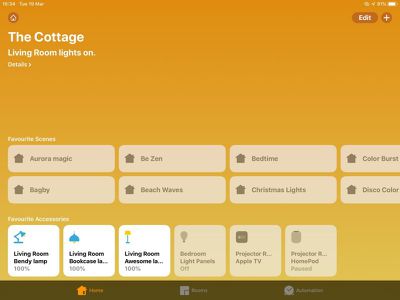
Once you've added some HomeKit accessories and/or created some scenes, follow the steps below to start adding them to your Favorites. The second set of steps shows you how to access them in Control Center.
How to Set HomeKit Favorites
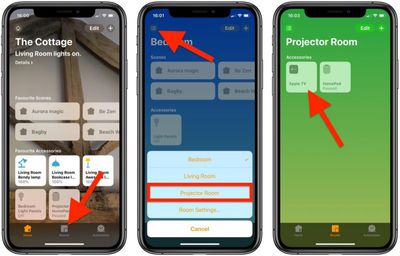
- Launch the Home app on your iPhone or iPad.
- Tap the Rooms tab at the bottom of the screen.

- Tap the Room selector icon at the top left of the screen.
- Using the pop-up menu, select the room where the device you want to "Favorite" is located.
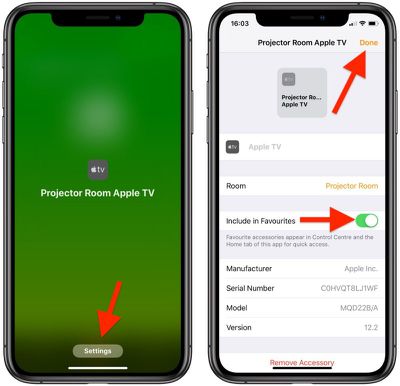
- Press and hold on the device in question.
- Tap Settings at the bottom of the screen.
- Next to Include in Favorites, toggle the switch to the green ON position.
- Tap Done.
How to Access Favorites in Control Center
Note: You may need to add the Home icon to Control Center if it isn't already there. To learn how, see our separate guide on customizing the Control Center.
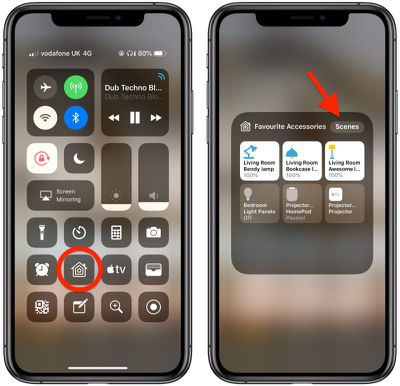
- To open Control Center on an iPad with a Home button, double-tap the Home button; on iPhone 8 or earlier, swipe up from the bottom of the screen; and on a 2018 iPad Pro or iPhone X/XR/XS/XS Max, swipe down from the upper right of the screen.
- Press and hold the Home icon.
- You can switch between Favorite Accessories and Favorite Scenes using the relevant button at the top of this panel.
When you have a lot of HomeKit products, the built-in Favorites option is a great way to put the devices that you need to access most right on the main page of the Home app, such as lights and smart plugs. Devices like motion sensors that don't need frequent access can be removed from favorites to prevent clutter, but all of your devices can be seen when browsing via the "Rooms" tab at the bottom of the Home app.