In iOS 14, Apple introduced a new Sleep Tracking feature that lets you monitor how much sleep you're getting each night and improve your sleep habits with the help of bedtime reminders and a winding down process.
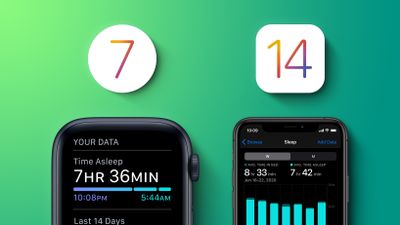
In the Health app on iPhone or using an Apple Watch, you can set up a Sleep Schedule with the amount of sleep you want to get each night. You can also select and adjust your Sleep Goal, and that's what we're going to show you how to do here.
The following steps guide you through the process of setting a Sleep Goal on iPhone and Apple Watch. If you're tracking sleep, it will also let you know if you're hitting your sleep goals on a nightly basis.
How to Set a Sleep Goal on iPhone
- Launch Apple's Health app on your iPhone.
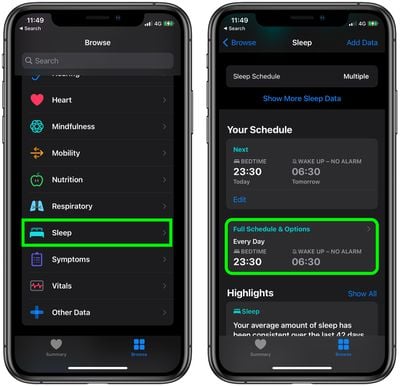
- Tap the Browse tab in the bottom-right corner of the screen.
- Scroll down and select Sleep.
- Under "Your Schedule," tap Full Schedule & Options. If this is your first time using the feature, tap on "Get Started."

- Under "Additional Details," tap Sleep Goal and select the amount of time you'd like to sleep in hours and minutes. Use the + and - buttons if it's your first time setting a Sleep Goal.
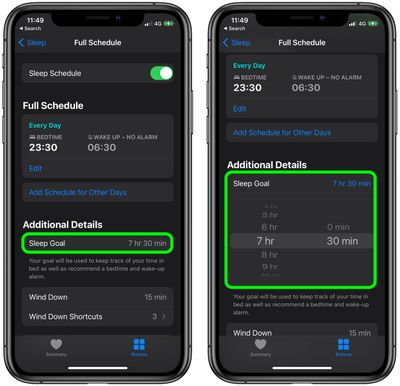
After adjusting your Sleep Goal, you may want to change the bedtime and wakeup times in your Sleep Schedule to ensure you're getting enough sleep to hit your goal.
How to Set a Sleep Goal on Apple Watch
- Press the Digital Crown on your Apple Watch to open the App View.
- Launch the Sleep app.
- Tap Full Schedule.
- Scroll down and tap Sleep Goal, then use the plus and minus buttons to select the amount of time you'd like to sleep in hours and minutes.
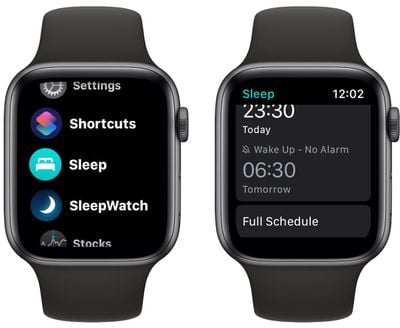
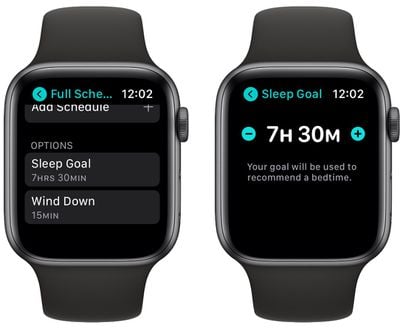
After adjusting your Sleep Goal, you may want to change the bedtime and wakeup times in your Sleep Schedule to ensure you're getting enough sleep to hit your goal.