 Apple's FaceTime app lets you make video or audio calls from your Mac to any of your friends and family for free, as long as they have an iPhone, iPad, iPod touch or Mac.
Using your Mac's built-in FaceTime or iSight camera and built-in microphone, you can talk face to face. If you want, you can optionally use a connected camera and microphone instead.
Alternatively, if you're put off by a video call, you can just use FaceTime Audio to make an audio call, which should be a lot clearer than a typical phone call.
Setting up FaceTime on your Mac is easy – just make sure you have a working internet connection, then follow the steps below. Note that you'll need an Apple ID to use FaceTime – if you don’t have one, go to Apple's webpage and click Create Your Apple ID.
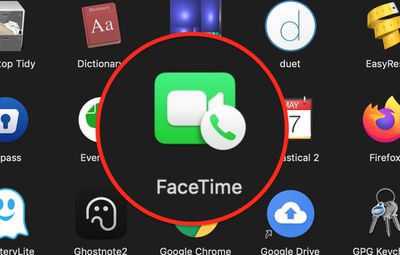
- Launch the FaceTime app on your Mac. If it's not in your Dock, you can find it in the Applications folder.

- If FaceTime is off, click the Turn On button.
- Log in with your Apple ID and password.
- Wait a moment while you're signed in.
- From the menu bar at the top of your screen, select FaceTime -> Preferences.
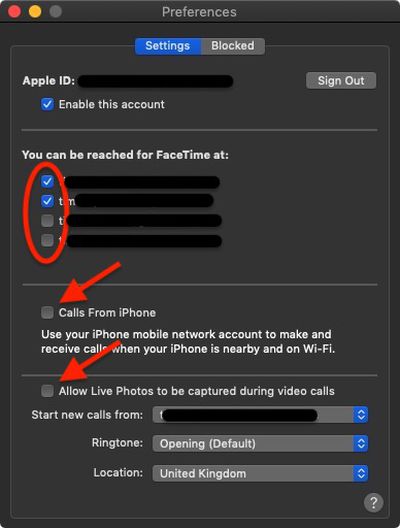
- In the Settings tab, deselect any email addresses that you don't want to be associated with your FaceTime account (work email addresses, for example).
- Check the box next to Calls from iPhone if you want to use your iPhone's cellular number to make and receive calls when it's nearby and connected to the same Wi-Fi network as your Mac.
- If you want people to be able to take Live Photos during FaceTime calls, check the box next to where it says Allow Live Photos to be captured during video calls.
- Select an email address to Start new calls from: using the associated dropdown menu.
- If you like, you can choose a ringtone for incoming FaceTime calls from the Ringtone dropdown menu.
- Using the last dropdown menu, select your correct Location.


Note that you can block people from contacting you over FaceTime (or phone calls, messages, and email) by clicking the Blocked preferences tab and then using the plus (+) button to add numbers from your contacts list.
























![Apple Pulls Keynote, Pages and Numbers From App Store [Update: Back]](https://images.macrumors.com/t/Okb7kitB_gNr6qe5Pex9nQIysD8=/112x112/article-new/2026/01/Apple-Creator-Studio-iWork-suite.jpg)