Set Up Out-of-Office Replies in iCloud Mail - MacRumors
Skip to Content

Set Up Out-of-Office Replies in iCloud Mail

by

Apple's native Mail app for macOS does not offer an automatic reply or out-of-office option for standard email accounts. However, if you use an iCloud email address, you can set up automatic replies via the ‌iCloud‌ website. Keep reading to learn how it works.

iCloud General Feature Redux
Surprisingly, Apple's Mail app still doesn't feature an auto-reply option. The only exception to this state of affairs is if you have an Exchange or Office 365 account, in which case you should be able to find the option in Mail Settings ➝ Accounts, under the "Account Information" section.

For anyone who sends and receives emails from a standard ‌iCloud‌ account, there's another solution that exists on the ‌iCloud‌ website. These simple steps guide you through the process of setting up auto-replies for the holidays or whenever you're out of the office.

  1. Open a browser and navigate to icloud.com.
    iCloud

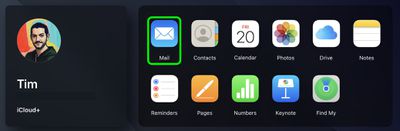
  2. Log in using your ‌iCloud‌ credentials, then click the Mail icon.
    mail

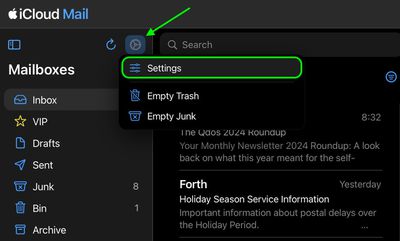
  3. Click the cog icon at the top of the Mailboxes side column, then click Settings.
    mail

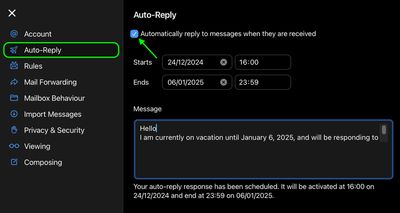
  4. Select Auto-Reply (the airplane icon).
  5. Check the box beside "Automatically reply to messages when they are received."
  6. Enter the dates/times that you want auto-replies to start and end.
  7. Compose your auto-reply response in the Message input field.
  8. Click the X in the top-left corner of the panel to finish.
    mail

Obviously, this solution will only be useful to Apple users who use an ‌‌iCloud‌‌ email address. Other account holders looking for an out-of-office solution are better off using the web mail interface provided by their account service or an email client app for Mac such as Mozilla Thunderbird.


Popular Stories

iOS 26

iOS 26.4 Adds Two New Features to CarPlay

Tuesday March 24, 2026 1:55 pm PDT by
iOS 26.4 was released today, and it includes a couple of new features for CarPlay: an Ambient Music widget and support for voice-based chatbot apps. To update your iPhone 11 or newer to iOS 26.4, open the Settings app and tap on General → Software Update. CarPlay will automatically offer the new features so long as the iPhone connected to your vehicle is running iOS 26.4 or later....
Apple Business hero

Apple Unveils 'Apple Business' All-in-One Platform

Tuesday March 24, 2026 8:53 am PDT by
Apple today announced Apple Business, a new all-in-one platform that unifies device management, productivity tools, and customer outreach features. The service is designed to be a consolidated replacement for several of Apple's existing business-focused offerings, including Apple Business Essentials, Apple Business Manager, and Apple Business Connect. It provides organizations with a single...
AirPods Pro Firmware Feature

Apple Releases New Firmware for AirPods Pro 3, AirPods Pro 2 and AirPods 4

Tuesday March 24, 2026 12:31 pm PDT by
Apple today released new firmware for the AirPods Pro 2, AirPods Pro 3, and the AirPods 4. The firmware has a version number of 8B39, up from 8B34 on the AirPods Pro 3, 8B28 on the AirPods Pro 2, and 8B21 on the AirPods 4. There is no word on what's included in the firmware, but Apple has a support document with limited notes. Most updates are limited to bug fixes and performance...