If you have an iPhone with a notch, you'll have noticed that the battery level indicator in the top-right corner of the screen doesn't show the actual percentage of battery that's left.
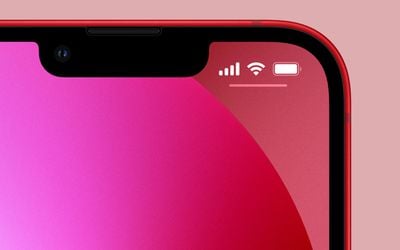
With older iPhones that feature no notch, Apple includes an option within settings to toggle the percentage on or off, but if your iPhone has a notch, there's no setting that will enable it.
Fortunately, there are a few other ways you can keep tabs on your iPhone's battery percentage. And with the advent of iOS 16, you can use widgets to display the battery percentage directly on your Lock Screen. Keep reading to learn how.
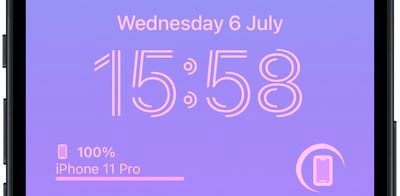
In iOS 16, the ability to show your iPhone battery percentage comes courtesy of Apple's introduction of Lock Screen widgets. The Batteries widget comes in both square and rectangular versions showing your iPhone's battery level, just note that only the rectangular variant displays this as a percentage.
Add Battery Percentage Widget to Lock Screen
The following steps show you how to add these widgets to the Lock Screen on an iPhone running iOS 16.
- Raise your iPhone to wake it and unlock with Face ID or Touch ID, and then long press on the Lock Screen to enter the Lock Screen gallery.
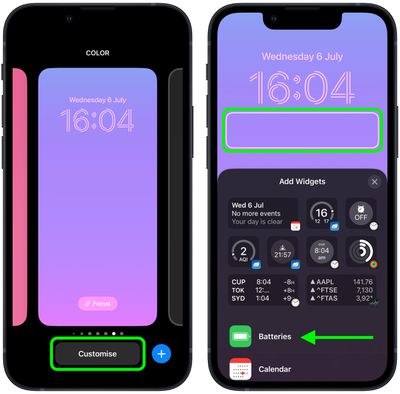
- Swipe to the wallpaper that you want your iPhone battery level to appear on, and then tap Customize.
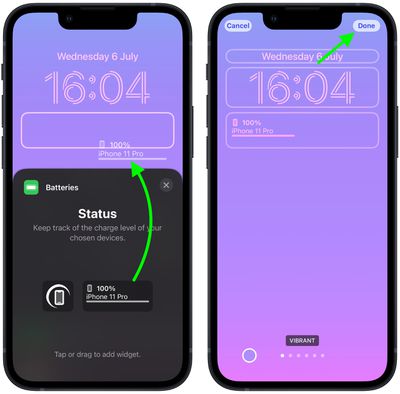
- Tap the frame below the digital clock to bring up the widgets selector.
- Below the suggested widgets, select Batteries from the column list of widgets.

- Tap the rectangular battery widget to add it below the time on your Lock Screen, or manually drag it to the frame to place it.
- When you're finished arranging your widgets, close the widget selector by tapping the X in the top-right corner of the panel, then tap Done in the top-right corner of the screen.
- Lastly, tap the current Lock Screen in the wallpaper gallery to activate it.
That's all there is to it. Bear in mind that if you connect AirPods to your iPhone, their battery level will be shown in the widget instead of the battery level of your iPhone.