

On computers and mobile devices, file extensions are the suffixes that apps append to filenames. When you see an item like "document.docx" for example, the .docx extension tells the computer and the user what the file is and what to open it with.
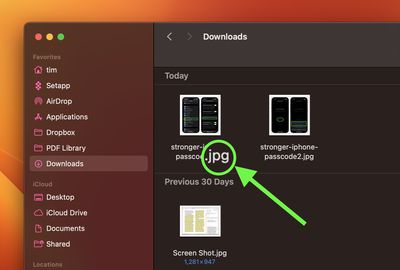
Some users don't feel the need to see the extensions of files when viewing them in a file manager, but others prefer to have them displayed to help with identifying files and their associated apps. Indeed, many workflows would suffer without extensions being front and center.
Fortunately, if you work with Apple devices, you can choose to have them made visible or hidden. Whether you work on Mac, iPhone or iPad, the choice is up to you. The following series of steps show you how it's done.
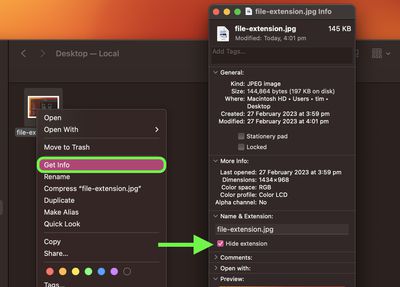
Show or Hide Extension for One File on Mac
- On your Mac, select a file, then choose File -> Get Info from the dropdown.
- Click the arrow next to "Name & Extension" to expand the section.
- To show or hide the filename extension, check or uncheck the box next to Hide extension.
Show or Hide Extensions for All Files on Mac
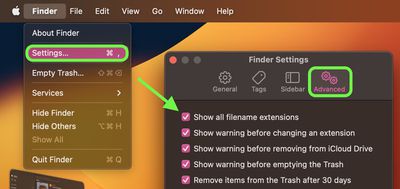
- Open a Finder window on your Mac.
- Select Finder -> Settings... from the menu bar.
- Select the Advanced tab.
- Check or uncheck the mark next to Show all filename extensions.
Show or Hide Extensions for All Files in iOS
Since iOS 11, Apple's Files app has made file management a more realistic proposition on iPhone and iPad. It provides access not only to the files stored on your device and in iCloud, but also access to files stored in third-party services that support integration with the app, like OneDrive or Dropbox.
The only issue until recently was that the Files app did not support the displaying of file extensions. With the release of iOS 16, however, Apple quietly added an option to show file extensions in the currently viewed folder. The following steps show you how to enable it.
- In the Files app, navigate to a folder.
- On iPhone, tap the encircled ellipsis (three dots) button in the top-right corner of the screen. On iPad, tap the icon made up of four small squares.
- Select > View Options at the bottom of the dropdown menu.
- Choose Show All Extensions.
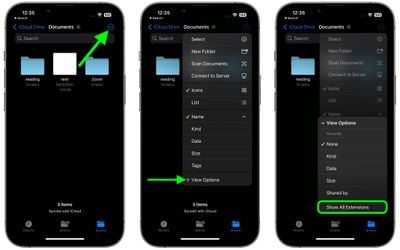
That's all there is to it. All the files in the current folder will now display their extensions. To revert, simply unselect the same option in the View Options submenu.




















