In iOS 16, Apple lets you display the local weather forecast directly on your iPhone's Lock Screen using widgets. Keep reading to learn how it's done.
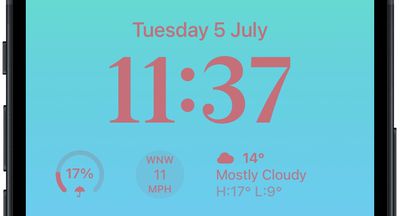
Thanks to watch face complications, many Apple Watch owners are used to being able to glance at their wrist to check the weather forecast. With the advent of iOS 16 and Lock Screen widgets, you can view the weather information right on your iPhone without even having to unlock the device.
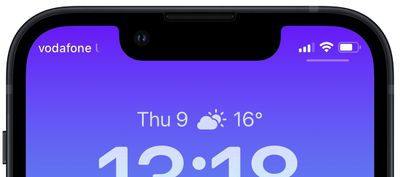
The weather Lock Screen widget comes in several flavors. If you insert a widget alongside the date above the digital clock, you can opt to display moon events, sun events, conditions, location, rain, air quality, UV index, or wind.
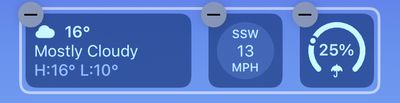
Directly below the digital clock there is a larger oblong space where you can place widgets horizontally next to each other. Eight optional weather widgets are available here to see moon events, sun events, conditions, location, rain, air quality, UV index, or wind. Note that only the current weather conditions and moon events come in the larger widget format.
To get started adding widgets, all you need to do is unlock your iPhone with Face ID or Touch ID, and then long press on the Lock Screen to enter the Lock Screen gallery. The following steps guide you through the rest of the process.
Add Weather Forecast Widgets to Your Lock Screen
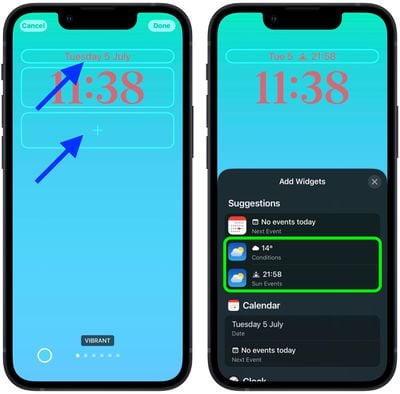
- Tap the frame either above or below the time to bring up the widgets selector.
- Tap the suggested weather widget at the top of the widgets selector to add it to the selected frame.

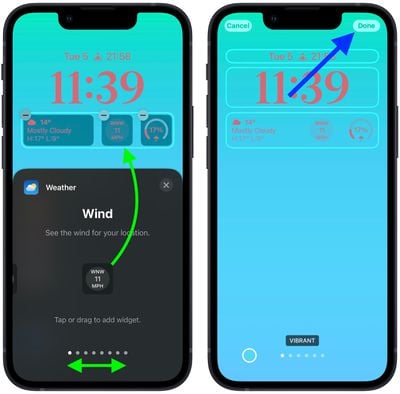
- You can also tap Weather in the column list of apps to choose from a selection of variants. Swipe to the one you want, then tap it or drag it to the frame to place it.
- When you're finished arranging your widgets, tap Done in the top-right corner of the screen.
- Tap the current Lock Screen in the wallpaper gallery to activate it.
In iOS 16, developers can create widgets for third-party apps using Apple's new WidgetKit API, so expect plenty more Lock Screen widgets to come.