Apple on November 1, 2019, launched its new streaming television service, which offers up original movies and TV shows for $4.99 per month or $49.99 per year, plus there's a free year of service for those who have recently purchased an Apple device.
You can use Apple TV+ on the iPhone, iPad, Mac, Apple TV, and iPod touch in the Apple TV app, or visit tv.apple.com on the web, and all of these devices can also be used to sign up for a new subscription. You can also access Apple TV on the Roku, Amazon Fire TV, and some smart TVs from Samsung.

To sign up for an Apple TV+ subscription, you're going to need an Apple ID, which you can sign up for right when creating a subscription or on Apple's Apple ID website. Make sure you're signed in to the Apple TV app on all of your devices with your Apple ID.
You'll also want to make sure that whatever device you're signing up on is running the latest version of iOS, iPadOS, tvOS, or macOS, as Apple TV+ requires iOS 13, iPadOS 13, tvOS 13, or macOS Catalina or later to work.
How to Sign Up for an Apple TV+ Subscription on the Web

- Visit tv.apple.com in Safari, Chrome, or Firefox.
- Sign in with your Apple ID.
- Click on "Start Your Free Trial."
- Follow the steps and enter your credit card information if required, then confirm your subscription.
Once you've activated your account on the web, you can watch Apple TV+ on any of your Apple devices that are signed in to the same Apple ID account where the subscription is activated.
How to Sign Up for an Apple TV+ Subscription on iPhone or iPad
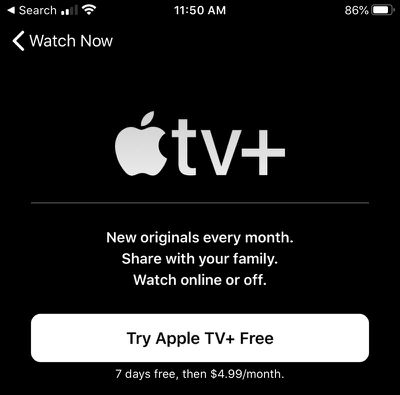
- Make sure you're signed in to your Apple ID on your iPhone or iPad. You can do so in the Settings app or by tapping on your profile in the Apple TV app.
- Open up the Apple TV app.
- Swipe down to Apple TV+ channel.
- Tap on "Try Apple TV+ Free."
- Follow the steps to sign up for and confirm your subscription and activate a free trial.
How to Sign Up for an Apple TV+ Subscription on Mac
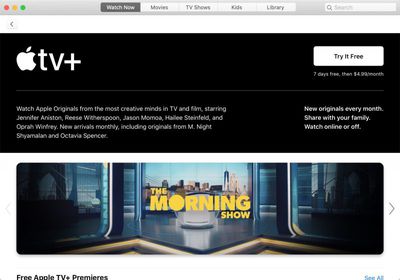
- Make sure you're signed in to your Apple ID on your Mac. You can do so through System Preferences or right in the TV app.
- Open the Apple TV app.
- Scroll down to Apple TV+ channel.
- Click on "Try It Free."
- Follow the steps to sign up for and confirm your subscription and activate a free trial.
How to Sign Up for an Apple TV+ Subscription on Apple TV
- Make sure you're signed in to your Apple ID on your Apple TV. You can do so in the Settings app.
- Open the Apple TV app.
- Use the remote to navigate down to the Apple TV+ channel.
- Select "Try Apple TV+ Free."
- Follow the steps to sign up for and confirm your subscription and activate a free trial.
How to Get Your Free Year of Apple TV+ With Device Purchase
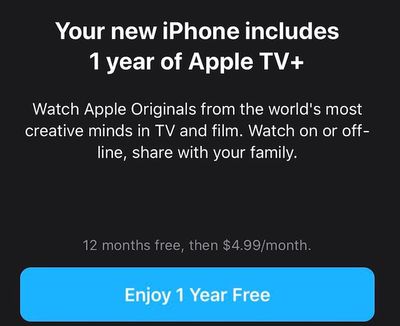
If you have an Apple ID that's associated with a purchase of an iPhone, iPad, Apple TV, iPod touch, or Mac after September 10, 2019, you can get a free one-year subscription to Apple TV+.
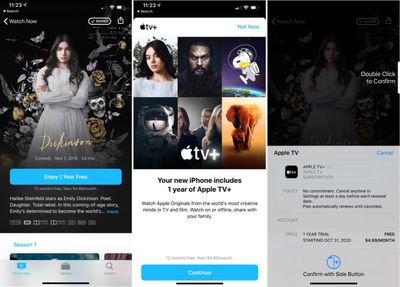
This should show up automatically when you go to sign up for an Apple TV+ subscription following the steps above on your device of choice. Here are the steps to confirm a subscription:
- Open the Apple TV app on an iPhone, iPad, or Mac, or visit the tv.apple.com website.
- Choose the "Enjoy 1 Year Free" option that pops up.
- Tap "Continue" on the screen that lists which device came with a free year of service.
- Confirm the purchase with Apple ID password, Face ID, or Touch ID depending on which device you're using.
These steps activate your free one year trial of Apple TV+ for all family members that participate in Family Sharing. Multiple device purchases do not stack -- it's one free year per family.
Your subscription will automatically renew at the end of one year for $4.99 per month, and the subscription can be canceled at any time ahead of when you're charged. Make sure not to cancel an Apple TV+ subscription early, however, as the free access ends immediately when you do so even if you still have time left.
You can use your subscription on any compatible Apple device where you're signed in to your Apple ID, as can any family members who participate in Family Sharing.
What to Do If Your Free One-Year Trial Isn't Showing Up
If you recently purchased a new device but aren't seeing the above options to activate your free trial on an iPhone, here's what to do.
- In Chrome, Safari, or Firefox, visit tv.apple.com.
- Sign in with your Apple ID.
- Your free one-year trial offer should show up through the web interface.
- Click on Enjoy 1 Year Free and follow the steps.
After activating the free year option, you can access Apple TV+ on any compatible device where you're signed in with your associated Apple ID.