

If you've ever been reading, following instructions, or watching video on your iPad only to have the screen dim at the most inconvenient moment, you're not alone.
Automatic dimming helps preserve battery life, but it can be frustrating when you need your screen to stay bright and active. Fortunately, you can prevent your iPad screen from dimming automatically, and all it involves is a change in settings.
The following steps show you how it's done.
- Open the Settings app on your iPad.
- Tap Accessibility.
- Select Display & Text Size.
- Scroll down to the bottom and toggle off the switch next to Auto-Brightness.
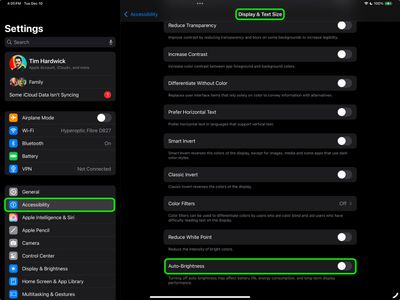
Now that you have disabled Auto-Brightness, which relies on the ambient light sensor to make adjustments, you'll have to use the manual route the next time that you want change the brightness of the screen.
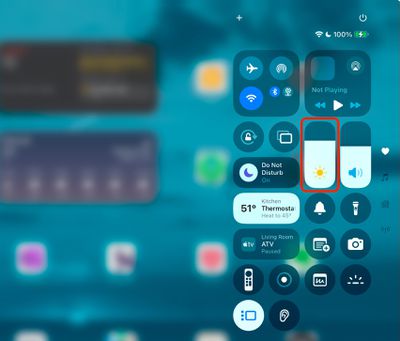
The easiest way to do this is to invoke the Control Center by swiping down diagonally from the top right-hand corner of your iPad. Then drag the brightness slider with your finger to adjust it to your preference. Alternatively, you can adjust the brightness slider found in Settings ➝ Display & Brightness.
Night Shift
If your screen tends to look dimmer at nighttime, it's possible that the Night Shift feature is enabled. Designed to reduce eye strain during the evening hours, Night Shift automatically adjusts the colors of the iPad display to make them look warmer. If this is something you'd prefer not to see, go to Settings ➝ Display & Brightness, then tap Night Shift, and disable the schedule by turning off the switch.
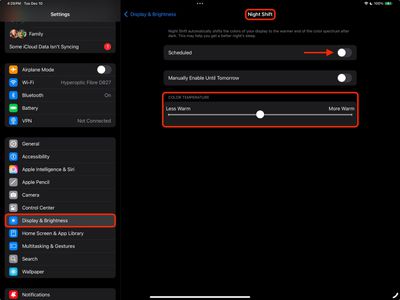
You can also optionally change the Color Temperature of the screen on the fly using the slider, which makes it Less Warm or More Warm.
















