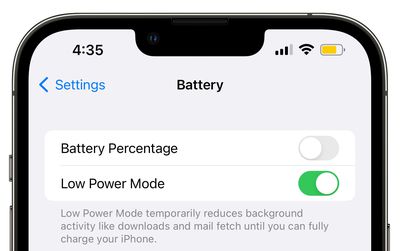
Whether your iPhone or iPad is long overdue a battery replacement, or you just want to get more juice out of a single charge, here's a way to keep your device's Low Power Mode on all the time.
ios 16 battery low power mode beta 6
Most ‌iPhone‌ and iPad users will be familiar with the way their device throws up a prompt to turn on Low Power Mode when the battery falls to 20 percent. The special mode conserves what remaining battery life the device has left by limiting some features, but by default the mode automatically turns off when a charging iPhone or iPad reaches 80 percent. If that irks you, don't worry – there is a solution.

Perhaps you're running the latest version of iOS or iPadOS on an older device and you've found that the battery life is inadequate to get you through the day. Or maybe you just want to reduce the amount of times you have to charge your iPhone or iPad. Either way, you can keep Low Power Mode enabled regardless of the battery level with the help of an automation.

iPhone/iPad Features Disabled by Low Power Mode

Before you follow the steps in this article to create the automation, it's worth highlighting which of the features it disables to reduce your device's power consumption. According to Apple, Low Power Mode turns off the following:

  • 5G (except for video streaming) on iPhone 12 models
  • Auto-Lock (defaults to 30 seconds)
  • Display brightness
  • Display refresh rate (limited up to 60 Hz) on iPhone and iPad models with ProMotion display
  • Some visual effects
  • iCloud Photos (temporarily paused)
  • Automatic downloads
  • Email fetch
  • Background app refresh

If you're happy to live without the above features for as long as Low Power Mode is on, follow the steps below to create your automation.

Creating an Always-On Low Power Mode Automation

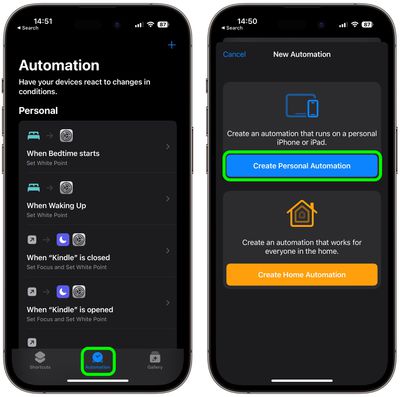
  1. Launch the Shortcuts app on your iPhone, then tap the Automation tab at the bottom.
  2. Tap the + button in the top right, then select Create Personal Automation.
    shortcuts

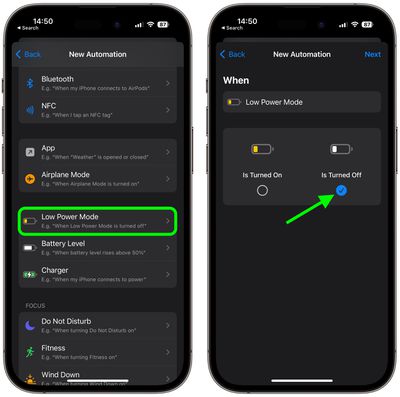
  3. Scroll down and choose Low Power Mode.
  4. Deselect the Is Turned On option and select the Is Turned Off option instead, then tap Next.
    shortcuts

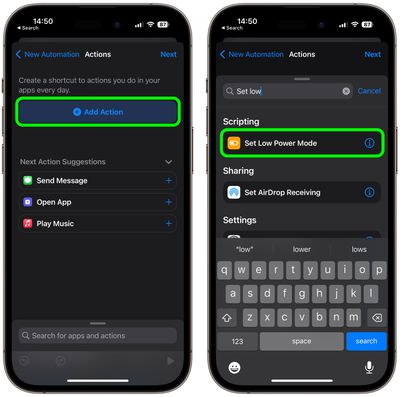
  5. Tap Add Action.
  6. Tap inside the search field and search for the Set Low Power Mode script, then select it below.
    shortcuts

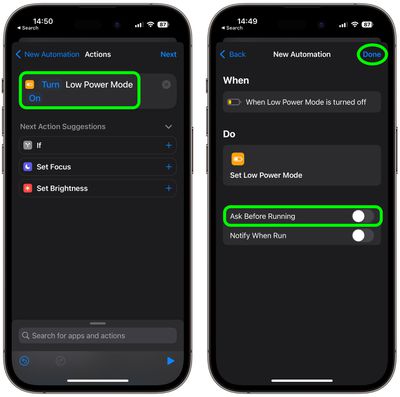
  7. Make sure the Turn and On options in blue are selected, then tap Next.
  8. Toggle off the switch next to Ask Before Running, then tap Don't Ask in the prompt to confirm.
    shortcuts

  9. Tap Done to finish.

Low Power Mode can be turned on and off manually at any time by going to Settings -> Battery and toggling on the switch next to Low Power Mode. Just bear in mind that if you want to turn it off, you'll have to disable your automation. You can do this in Shortcuts by selecting the automation and toggling off the switch next to Enable This Automation.


Top Rated Comments

George Dawes Avatar
34 months ago
This should definitely be an option in the actual os without all this farting about
Score: 27 Votes (Like | Disagree)
TheYayAreaLiving ?️ Avatar
34 months ago
Excellent tips! Thank you!!

Question: Is there a way to set Automation feature for the iPhone not to charge pass 80% of the battery life? ??
Score: 16 Votes (Like | Disagree)
Corefile Avatar
34 months ago

Genuine question: given that low power mode restricts a lot of the background functions, what good does this do a majority of users that are frequently pulling out their phone to refresh social media?

How much extra time are you really saving?

Note: I'm an outlier, since I never use Low Power Mode, and my 13 mini goes from 100 to 80 typically throughout a work day before I dock it for the night.
I'm an outlier too in that I keep low power mode on all the time and don't use socialist media.
Score: 12 Votes (Like | Disagree)
Corefile Avatar
34 months ago
This might be the greatest tip for iPhones today. Permanent low power mode should be the default.
Score: 8 Votes (Like | Disagree)
BrownyQ Avatar
34 months ago
Genuine question: given that low power mode restricts a lot of the background functions, what good does this do a majority of users that are frequently pulling out their phone to refresh social media?

How much extra time are you really saving?

Note: I'm an outlier, since I never use Low Power Mode, and my 13 mini goes from 100 to 80 typically throughout a work day before I dock it for the night.
Score: 5 Votes (Like | Disagree)
sw1tcher Avatar
34 months ago

Excellent tips! Thank you!!

Question: Is there a way to set Automation feature for the iPhone not to charge pass 80% of the battery life? ??
Just tell Siri to set it up for you :D
Score: 4 Votes (Like | Disagree)

Popular Stories

Apple Logo Zoomed

Tim Cook Teases Plans for Apple's Upcoming 50th Anniversary

Thursday February 5, 2026 12:54 pm PST by
Apple turns 50 this year, and its CEO Tim Cook has promised to celebrate the milestone. The big day falls on April 1, 2026. "I've been unusually reflective lately about Apple because we have been working on what do we do to mark this moment," Cook told employees today, according to Bloomberg's Mark Gurman. "When you really stop and pause and think about the last 50 years, it makes your heart ...
wwdc sans text feature

Apple Rumored to Announce New Product on February 19

Thursday February 5, 2026 12:22 pm PST by
Apple plans to announce the iPhone 17e on Thursday, February 19, according to Macwelt, the German equivalent of Macworld. The report, citing industry sources, is available in English on Macworld. Apple announced the iPhone 16e on Wednesday, February 19 last year, so the iPhone 17e would be unveiled exactly one year later if this rumor is accurate. It is quite uncommon for Apple to unveil...
Finder Siri Feature

Why Apple's iOS 26.4 Siri Upgrade Will Be Bigger Than Originally Promised

Friday February 6, 2026 3:06 pm PST by
In the iOS 26.4 update that's coming this spring, Apple will introduce a new version of Siri that's going to overhaul how we interact with the personal assistant and what it's able to do. The iOS 26.4 version of Siri won't work like ChatGPT or Claude, but it will rely on large language models (LLMs) and has been updated from the ground up. Upgraded Architecture The next-generation...
iOS 26

iOS 26.3 and iOS 26.4 Will Add These New Features to Your iPhone

Tuesday February 3, 2026 7:47 am PST by
While the iOS 26.3 Release Candidate is now available ahead of a public release, the first iOS 26.4 beta is likely still at least a week away. Following beta testing, iOS 26.4 will likely be released to the general public in March or April. Below, we have recapped known or rumored iOS 26.3 and iOS 26.4 features so far. iOS 26.3 iPhone to Android Transfer Tool iOS 26.3 makes it easier...
iphone 17 pro dark blue 1

iPhone 18 Pro Max Rumored to Deliver Next-Level Battery Life

Friday February 6, 2026 5:14 am PST by
The iPhone 18 Pro Max will feature a bigger battery for continued best-in-class battery life, according to a known Weibo leaker. Citing supply chain information, the Weibo user known as "Digital Chat Station" said that the iPhone 18 Pro Max will have a battery capacity of 5,100 to 5,200 mAh. Combined with the efficiency improvements of the A20 Pro chip, made with TSMC's 2nm process, the...