

In one of our previous macOS how-to guides, we explained how using tags can help you organize your files and folders and quickly locate them when they're needed. In this article, we're going to show you how to tag items in Finder using a simple custom keyboard shortcut, for even faster tagging.
The first series of steps below shows you how to create a handy key shortcut to activate Finder's inline tagging menu. Once you've done that, we explain how you can use one or more custom shortcuts to directly apply specific color tags to selected items in a Finder window.
This more powerful color tagging method requires creating a simple Automator service. If that sounds scary, don't worry – it's a simple process, and if you're a frequent user of tags then you'll find this quick recipe well worth the effort. Keep reading to learn how it's done.
How to Create a Shortcut for Tagging Items in Finder
- Launch System Preferences from the Apple menu bar ( -> System Preferences...).
- Select the Keyboard preference pane.
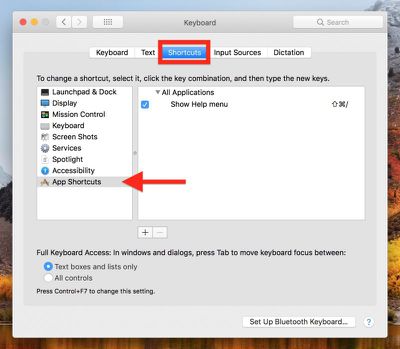
- Click the Shortcuts tab.

- Select App Shortcuts in the left column and click the + button.
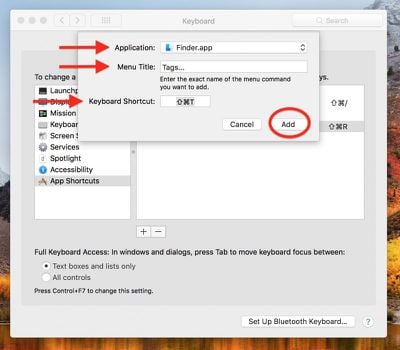
- Select Finder.app in the Application field.
- Type Tags... in the Menu Title field.
- Click inside the Keyboard Shortcut field and press your preferred key combination for activating the service. In our example, we've used Shift-Command-T.
- Click Add.
Now your shortcut is set up, it's time to try it out. Open a Finder window and select an item (or several) for tagging. Hit your chosen key combination and you should see a tag menu pop up beneath the selected item(s), like so.
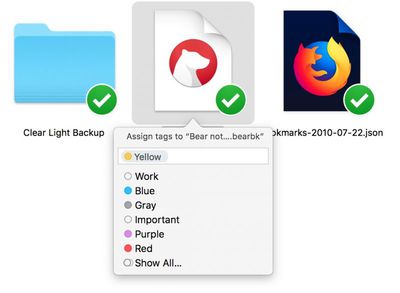
From there, just start typing the name of the tag you want to use and it should appear in the input field. Hit Enter to apply it. Alternatively, use the down arrow key to choose the tag you want from the dropdown list, and hit Enter.
How to Create a Color Tagging Service in Automator
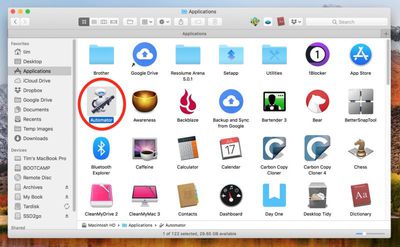
- Launch Automator from the Applications folder.
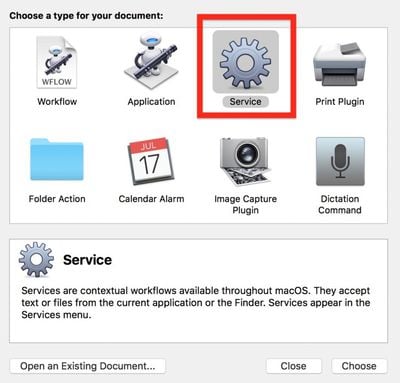
- Click New Document.
- Choose Service as the type of your document.
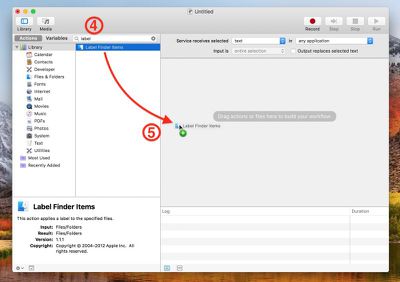
- Type label into the Library search field at the top of the Automator sidebar.
- Drag the Label Finder Items action into the empty workflow area.
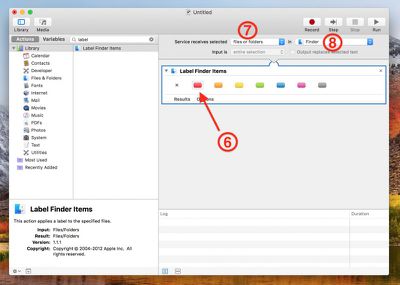
- Click the tag color you want to use for your first keyboard shortcut. (We're going for red in our example.)
- Select files or folders in the Service receives selected dropdown.
- Select Finder in the in application dropdown.
- Select File -> Save from the Automator menu bar, and give your service a name. We'll be using the name "Tag Red".
- Click Save.
How to Assign a Shortcut to Your New Tagging Service
- Launch System Preferences from the Apple menu bar ( -> System Preferences...).
- Select the Keyboard pane.
- Click the Shortcuts tab.
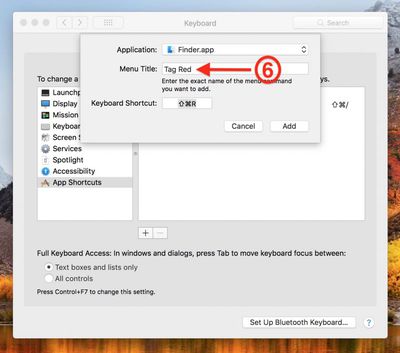
- Select App Shortcuts in the left column and click the + button.
- Select Finder.app in the Application field.
- In the Menu Title field, type the exact name of the service you just created in Automator ("Tag Red" in our example).
- Click inside the Keyboard Shortcut field and press your chosen key combination for activating the service. We've used Shift-Command-R.
- Click Add.
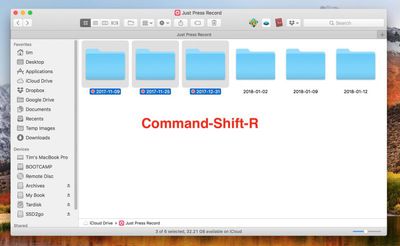
You should now be able to tag selected items in Finder with your chosen color using the keyboard shortcut you created.
To create additional shortcuts for applying other tag colors, simply follow the Automator steps again but choose another color, and save the service under a corresponding name. Then simply assign a shortcut to the named service in the Keyboard preference pane as described above.





















Top Rated Comments
I love tags. I'm not great at using them yet -- still very much default to organizing with folders because of many years of habit but the idea of being able to apply multiple tags is a lot more powerful, ultimately, than the folder paradigm. Probably not going to give up folders anytime soon, but it's great to have an Apple-supported way to cross reference files and folders that may be in different folders or even different drives.
The previous "color the whole file name" design that labels used to use starts to seriously break down when there's more than one tag applied. It was too much visual clutter to have a folder look like a rainbow of crazy colors if a bunch of files were tagged. Tagging something with a red tag shouldn't mean I'm now reduced to looking at a strip of bright red with black text inside it, bordered by another file that's a strip of blue, then orange... it was quick to see the labels, but man was it a mess after a while.
If it's hard to make out what labels are applied (and yeah, agreed, it can be awfully subtle) you can make them more visible and legible in list view by enabling the "tags" column.
Or, you can change your Automator action to run a shell script with this tool: https://github.com/jdberry/tag
But Tags are far more powerful than labels. You can apply multiple, you can give them names, you can search by them, etc. And Apple added some more useful UI, such as setting tags right from the save file dialogs.
More: https://arstechnica.com/gadgets/2013/10/os-x-10-9/8/#tags