

When Apple introduced its paid-for iCloud+ service with iOS 15, it included a new security feature called iCloud Private Relay, which is designed to encrypt all of the traffic leaving your device so no one can intercept it or read it.
Private Relay sends web traffic to a server that is maintained by Apple in order to strip the IP address. Once IP info has been removed, Apple sends the traffic to a second server maintained by a third-party company that assigns a temporary IP address and then sends the traffic to its destination, a process that prevents your IP address, location, and browsing activity from being used to create a profile about you.
However, Apple recognizes there may be times when you want your true IP address to be visible to certain websites, such as when you're remotely logging into work or accessing a particular online service. For that reason, Apple in iOS 16.2 includes an option to selectively and temporarily disable Private Relay when using a particular website.
The following steps show you how it's done. Note that this feature only works in Apple's Safari, and not third-party browsers. To stop hiding your IP address from a website when using, say, Firefox or Chrome, you'll need to completely disable iCloud Private Relay.
- In Safari, visit the website that you are happy to reveal your true IP address to.
- Tap the aA icon in the left-hand side of the address bar.
- Select Show IP Address from the pop-up menu.
- You will see a prompt asking for you to confirm that your want the website and your network provider to see your IP address. Tap Continue to confirm.
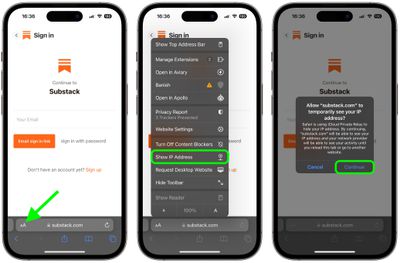
That's all there is to it. Private Relay will be automatically re-enabled the moment you reload the current tab to visit another website.
If you don't see the Show IP Address option in Safari, make sure the Private Relay toggle is turned on in Settings -> Apple ID -> iCloud -> Private Relay. Note that Private Relay requires a paid-for subscription to Apple's iCloud+ service.
















