If you buy a new iPhone to replace your existing one and you use the Google Authenticator app to access online accounts protected by two-factor authentication (2FA), you should transfer those accounts to your new phone as soon as possible, because without the 2FA codes close at hand, you could find yourself locked out of your online accounts.

2FA adds an extra layer of security to your online accounts by requiring a randomly generated six-digit code after you've entered your password. In doing so, 2FA ensures you're the only person who can access your account, regardless of whether someone learns your password – as the result of a hack or a phishing scam, for example – so it's well worth taking the time to enable the feature for every online account that offers it. (Every MacRumors forum account offers 2FA.)
Most websites these days give you the option of using the Google Authenticator app to generate 2FA codes, because it's more secure than receiving the codes via SMS texts. Unfortunately, the iOS app doesn't offer the ability to transfer your accounts between iPhones, so you need to do it manually by transferring them individually. The following steps explain how to do this.
How to Transfer Your Google Authenticator Codes to a New iPhone
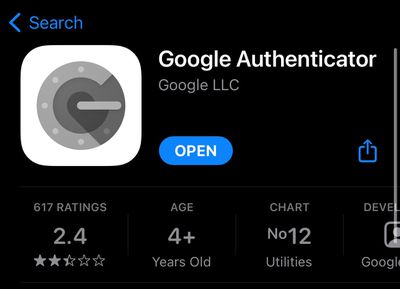
- Install the Google Authenticator app on your new iPhone [Direct Link]

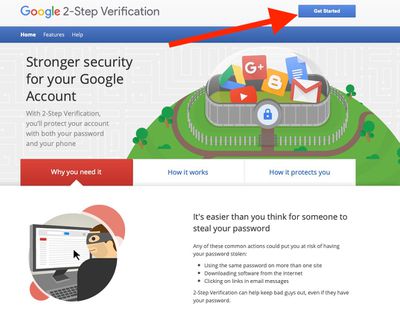
- On your computer, visit Google's two-step verification webpage in your browser.
- Click Get Started.
- Enter your Google account password, then click Next.
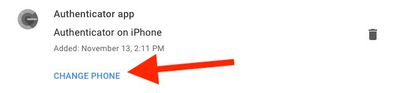
- Under the Authenticator app section, click CHANGE PHONE.
- Select iPhone, then click NEXT.
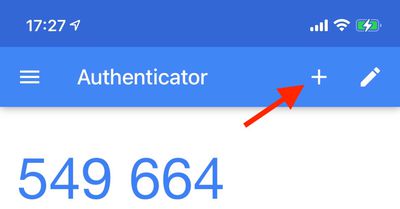
- In the Authenticator app on your iPhone, tap the + icon, then select Scan barcode at the bottom of the screen.
- Using your iPhone camera, scan the barcode you see on Google's website.
- Enter the six-digit code that displays in the app into the webpage dialog.
Once you've completed the above steps, the codes on your old device will no longer be valid. You'll need to repeat the steps for every service that you use with Google Authenticator. The important thing to remember is not to delete the app on your old iPhone until you've moved all accounts to your new phone, otherwise you'll be locked out of those accounts.