Much has been made of Apple Intelligence since its announcement at WWDC in June. Apple brought the first features to compatible iPhones in October with iOS 18.1, followed by a iOS 18.2 point update in December that brought a more fleshed-out set of AI-powered updates. However, not everyone is interested in using the features, so we've provided this quick guide explaining how to turn them off.
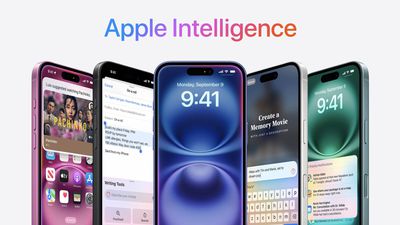
You can disable Apple Intelligence completely, or you can turn off specific features, depending on your requirements. If you don't want messages summarised, for example, you can stop that from happening without also losing the benefits of Writing Tools. Let's take a look.
Turn off Apple Intelligence Completely
Disabling Apple Intelligence completely is simply a matter of flipping the associated switch in Settings ➝ Apple Intelligence & Siri.
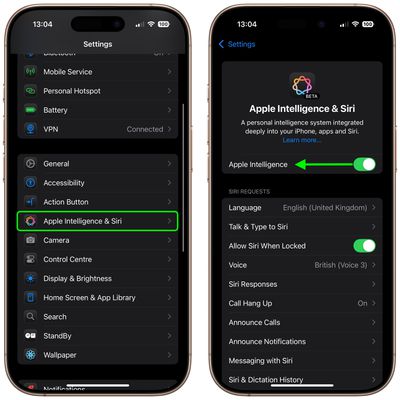
Doing so will knock out the following features:
- Writing Tools
- Notification summaries
- Genmoji
- Image Playground
- Image Wand
- Intelligent Breakthrough & Silencing in Focus
- Priority notifications in Mail
- Summaries in Messages, Mail, and Safari
- Siri ChatGPT integration
- Visual Intelligence
- Memory Movie in Photos
- Type to Siri
Turning Off Specific Apple Intelligence Features
If you don't want to turn off Apple Intelligence completely, there are some features that you can disable individually. Other features, like Intelligent Breakthrough & Silencing in Focus, or Clean Up in Photos, only spring into action if you actively use them, so you can essentially ignore these features. If you don't want to use Image Playground, simply delete the app from your Home Screen.
Priority in Mail
In Mail's inbox screen, tap the More (three dots) button in the top-right corner and uncheck Show Priority.
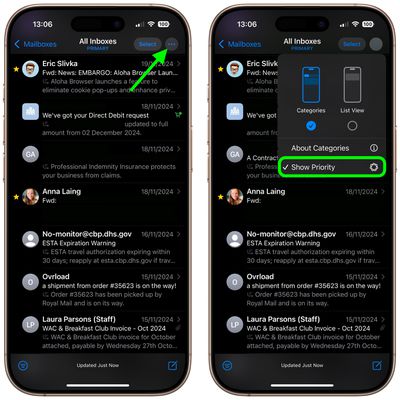
With Show Priority disabled, Mail will no longer surface priority emails to the top of your inbox.
Summary Notifications
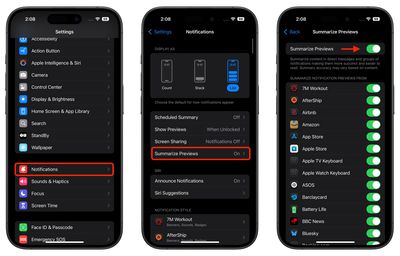
The new summarization feature works by analyzing notification content and creating more concise versions that highlight the most important information. By default, it's enabled for compatible apps, but you can easily turn it off. You can disable the feature entirely or customize which apps use the feature, giving you complete control over how your notifications appear on the Lock Screen and in Notification Center on your iPhone.
- Open Settings on your iPhone.
- Scroll down and tap Notifications.
- Tap Summarize Previews.
- Toggle off the switch at the top to completely disable Summarize Previews. Alternatively, toggle off the switches for individual apps only.
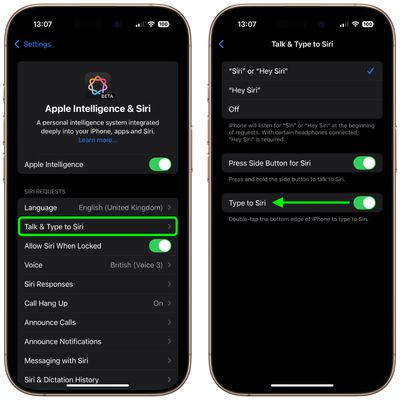
Type to Siri
With Type to Siri, you can summon the typing interface with a quick double-tap at the bottom edge of your iPhone's display. To turn off the function, head to Settings -> Apple Intelligence & Siri -> Talk & Type to Siri, then toggle off the switch next to Type to Siri.
If you don't see any of the features described in this article on your iPhone, your specific model likely doesn't support Apple Intelligence, so you don't have anything to worry about.