Apple's logo is pervasive across the company's branding, appearing on everything from ads for its Apple TV+ streaming service to the Apple stickers included in every iPhone box. Apple also includes the symbol in its keyboard character set, so if you have a Mac, you can type the logo using a simple keyboard shortcut.

To type the symbol in a tweet, in a word processor, or anywhere else that accepts text input, use the key combination Option-Shift-K.
If you're on an iPhone or iPad, you can use a text replacement shortcut to type the symbol. In fact, you can use the same method on a Mac in you prefer. First, though, you have to set up the text replacement. Keep reading to learn how.
How to Type the Apple Logo on Mac
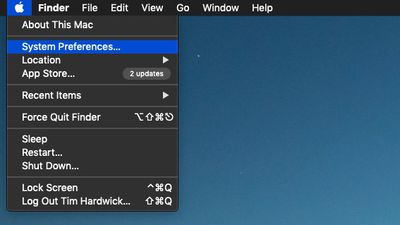
- On your Mac, click the logo in the top-left corner of the menu bar at the top of the screen and select System Preferences....

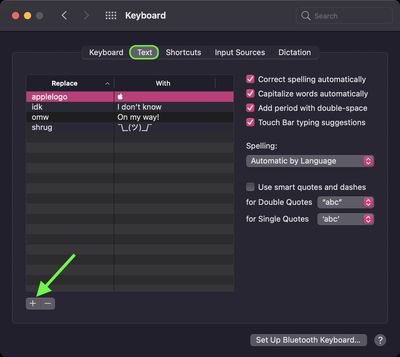
- Click the Keyboard preference pane.
- Click the Text tab.
- Click the + button to add a text replacement.
- In the "Replace" column, input the text of your choice that you want replaced with the symbol every time you type it.
- Copy and paste the Apple logo () character into the "With" column.

How to Type the Apple Logo on iPhone and iPad
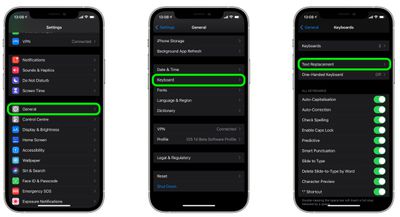
- Launch the Settings app on your iPhone or iPad.
- Tap General -> Keyboard.
- Tap Text Replacement.
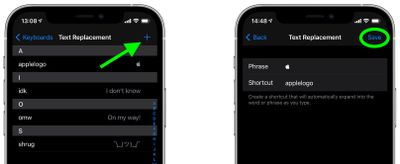
- Tap the plus (+) button in the top-right corner of the screen.
- On the next screen, copy and paste the Apple logo () character into the "Phrase" field.
- In the "Shortcut" field, input the text of your choice that you want replaced with the symbol every time you type it.
- Tap Save to finish.
If you're using the same iCloud account across all of your Apple devices, any Text Replacements that you add on your Mac will be automatically synced to your iPhone and/or iPad, and vice versa.