How to Unsend Emails in Gmail With the Undo Send Feature - MacRumors
Skip to Content

How to Unsend Emails in Gmail With the Undo Send Feature

by

If you use Google's Gmail smartphone app for your mobile email correspondence, keep in mind the Undo Send feature. It's really useful for times when you forget to link a file or notice you misspelled someone's name after hitting "Send."
gmail icon
In other words, if you regret sending a message immediately after you have pressed Send, you still have five seconds to "unsend" the email so that it doesn't arrive at its destination, although you can opt to extend this time.

The following steps show you how to undo send an email in the Gmail app, while the second set of steps explain how you can extend your undo send window beyond the default five seconds.

How to Undo Send in the Gmail App

  1. Tap Send on an email in the Gmail app.
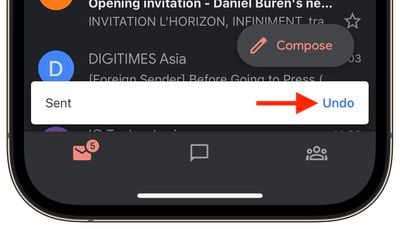
  2. Immediately after tapping Send, look for a notification at the bottom of your screen that says Undo.
  3. Tap Undo.
  4. Your original message will reappear, allowing you to make any changes.
gmail

The Undo Send feature works similarly if you're using Gmail on desktop, which is also where you can easily extend your undo send window.

How to Extend Your Undo Send Period in Gmail

  1. Navigate to Gmail in your desktop browser.
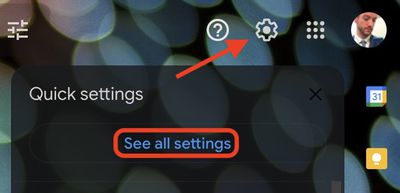
  2. Click the Settings icon (the cog) in the top right.
  3. Click the See all settings button.
    gmail

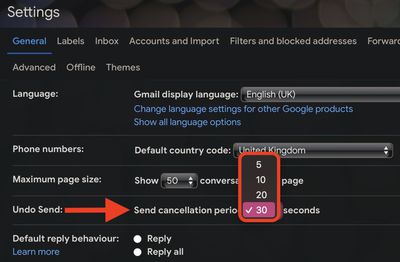
  4. Look for the line with "Undo Send" and click the dropdown menu next to Send cancellation period.
  5. Choose from 5, 10, 20, or 30 seconds.
  6. Scroll down to the bottom of the page and click Save changes.
    gmail

That's everything you need to know about Gmail's Undo Send feature. Did you know that Apple Mail recently gained an identical feature in macOS and iOS? Click the link for your operating system to learn more.


Tag: Gmail

Popular Stories

iOS 26

iOS 26.4 Adds Two New Features to CarPlay

Tuesday March 24, 2026 1:55 pm PDT by
iOS 26.4 was released today, and it includes a couple of new features for CarPlay: an Ambient Music widget and support for voice-based chatbot apps. To update your iPhone 11 or newer to iOS 26.4, open the Settings app and tap on General → Software Update. CarPlay will automatically offer the new features so long as the iPhone connected to your vehicle is running iOS 26.4 or later....
Apple Business hero

Apple Unveils 'Apple Business' All-in-One Platform

Tuesday March 24, 2026 8:53 am PDT by
Apple today announced Apple Business, a new all-in-one platform that unifies device management, productivity tools, and customer outreach features. The service is designed to be a consolidated replacement for several of Apple's existing business-focused offerings, including Apple Business Essentials, Apple Business Manager, and Apple Business Connect. It provides organizations with a single...
AirPods Pro Firmware Feature

Apple Releases New Firmware for AirPods Pro 3, AirPods Pro 2 and AirPods 4

Tuesday March 24, 2026 12:31 pm PDT by
Apple today released new firmware for the AirPods Pro 2, AirPods Pro 3, and the AirPods 4. The firmware has a version number of 8B39, up from 8B34 on the AirPods Pro 3, 8B28 on the AirPods Pro 2, and 8B21 on the AirPods 4. There is no word on what's included in the firmware, but Apple has a support document with limited notes. Most updates are limited to bug fixes and performance...