 With the launch of its 2019 iPhones, Apple introduced some impressive new camera capabilities that are exclusive to the flagship smartphone lineup, such as Night mode, QuickTake Video, and a new ultra-wide lens.
As a result, Apple has updated the design of the Camera app on the iPhone 11 series, which means that some of the existing photo and video functions have been moved around to accommodate the new features.
Photo filters are a case in point. On iPhone XR, XS, XS Max, and earlier iPhone models, the filter options are accessed by tapping the Filters button at the top of the viewfinder. Here's how to access them on iPhone 11, iPhone 11 Pro, and iPhone 11 Pro Max.
- Launch the Camera app on your iPhone.
- Tap the chevron at the top of the viewfinder to reveal the additional settings strip above the shutter button. Alternatively, swipe up on the viewfinder using your finger.
- Tap the Filters button (it looks like three overlapping circles) at the far right of the settings strip.

- Swipe along the nine available filters to choose one. You'll get an instant preview of the selected filter effect in the viewfinder.
- Tap the shutter button to take your picture with the selected filter applied.
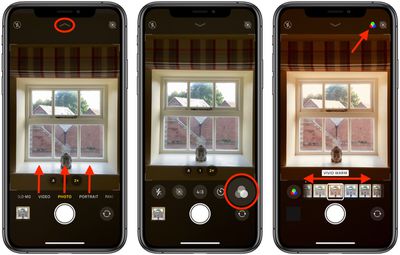
Note that in the final image you can see the filter icon in the top-right corner of the screen. This appears just to remind you that the selected filter is still active and ready to be applied to the next photo. You can turn off filters by selecting the first Original option in the filter menu.
In addition to filters, the camera settings strip includes options to access Night Mode, Live Photos, aspect ratios, and timer.