In macOS Mojave, Apple has extended its Continuity features so that now you can use your iPhone or iPad's camera to take a photo or scan a document, and it will be immediately available on your Mac.
continuity camera 2
Continuity Camera works in several native Mac apps, including Pages, Keynote, and TextEdit. The following steps explain how to use it. Bear in mind that both your iOS device and your Mac need to be logged into the same Apple ID for this feature to work.

How to Add a Photo Using Continuity Camera

  1. Launch the app that you want to import a photo into.
  2. Open an existing project or document, or create a new one.
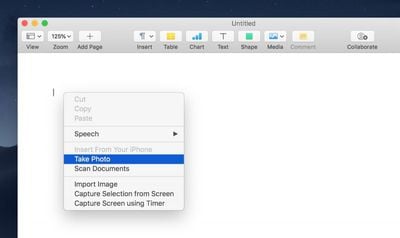
  3. Right-click (or Ctrl-click) the location where you want to insert the photo.
    continuity camera 1
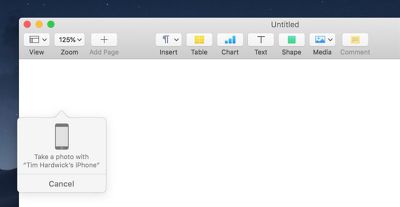
  4. In the contextual menu, click Take Photo under the name of the iOS device that you want to use.
  5. Take the photo on your iPhone or iPad.
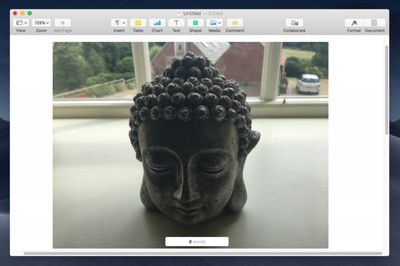
  6. Tap Use Photo on your iOS device, and the image will appear in the open project or document on your Mac.
    continuity camera 3

How to Scan a Document Using Continuity Camera

  1. Launch the app you want to use and open a project or document, or create a new one.
  2. Right-click (or Ctrl-click) the space where you want to insert the captured document.
  3. In the contextual menu, click Scan Document under the name of the iOS device that you want to use.
  4. Using your iPhone or iPad's camera, frame the document in the onscreen viewfinder. The document should turn yellow and scan automatically. You can repeat this step to scan several documents if desired.
  5. Tap Save on your iOS device, and your scanned documents will be inserted into the open project or document on your Mac.
Related Forum: macOS Mojave

Top Rated Comments

Benjamid Avatar
99 months ago
Hmm, I don’t get why it can’t just create a document as pdf. It’s already annoying that I have to create a note to scan documents in iOS than move the scan to files and then delete the note...
Score: 5 Votes (Like | Disagree)
Darth-Kylie Avatar
96 months ago
Hmm, I don’t get why it can’t just create a document as pdf. It’s already annoying that I have to create a note to scan documents in iOS than move the scan to files and then delete the note...
You can scan docs directly from your iPhone to a file on your Mac. In Finder, Ctrl-click in an empty area in the folder where you want scanned docs to be saved, then choose Import from iPhone or iPad > Scan Documents. This saves as a PDF.

Attachment Image
Score: 4 Votes (Like | Disagree)
BWhaler Avatar
99 months ago
I’m really looking forward to Mohave. Reminds me of old school Apple, where there were new touches which ended up being remarkable useful in your workflow. And quality, the old, “ it just works”

Fingers crossed App,e has learned some good lessons this year. I’m hopeful.
Score: 3 Votes (Like | Disagree)
Druid54 Avatar
99 months ago
('https://www.geekwebguides.com/how-to/use-continuity-camera-in-macos-mojave/')


In macOS Mojave, Apple has extended its Continuity features so that now you can use your iPhone or iPad's camera to take a photo or scan a document, and it will be immediately available on your Mac.


Continuity Camera works in several native Mac apps, including Pages, Keynote, and TextEdit. The following steps explain how to use it. Bear in mind that both your iOS device and your Mac need to be logged into the same Apple ID for this feature to work.

How to Add a Photo Using Continuity Camera
[LIST=1]
* Launch the app that you want to import a photo into.
* Open an existing project or document, or create a new one.
* Right-click (or Ctrl-click) the location where you want to insert the photo.

* In the contextual menu, click Take Photo under the name of the iOS device that you want to use.
* Take the photo on your iPhone or iPad.
* Tap Use Photo on your iOS device, and the image will appear in the open project or document on your Mac.

How to Scan a Document Using Continuity Camera
[LIST=1]
* Launch the app you want to use and open a project or document, or create a new one.
* Right-click (or Ctrl-click) the space where you want to insert the captured document.
* In the contextual menu, click Scan Document under the name of the iOS device that you want to use.
* Using your iPhone or iPad's camera, frame the document in the onscreen viewfinder. The document should turn yellow and scan automatically. You can repeat this step to scan several documents if desired.
* Tap Save on your iOS device, and your scanned documents will be inserted into the open project or document on your Mac.


Article Link: How to Use the New Continuity Camera Feature in macOS Mojave ('https://www.geekwebguides.com/how-to/use-continuity-camera-in-macos-mojave/')
[doublepost=1530967502][/doublepost]Note that the camera app must be open/active on your iOS device for it to show the 'Take a photo' and 'Scan document' contextual menu items. If Camera app is NOT open, you get the regular contextual menu without those items.
Score: 2 Votes (Like | Disagree)
amaze1499 Avatar
99 months ago
This. I came here to type exactly this.
Because some like to scan directly into a document. This feature makes totally sense to me.
Score: 2 Votes (Like | Disagree)
shuntva06 Avatar
99 months ago
Hmm, I don’t get why it can’t just create a document as pdf. It’s already annoying that I have to create a note to scan documents in iOS than move the scan to files and then delete the note...
This gets a photo directly from iOS directly into most Mac apps WITHOUT having to use AirDrop and Copy / Paste. If you need a PDF of ONLY the image ... just Open Photo on iOS device and Save it as a PDF.

Also ... if you already have an image on the Mac -- copy it to the Clipboard -- Open Preview and Save as a PDF.

Having several ways to skin a cat is a big help.
Score: 2 Votes (Like | Disagree)

Popular Stories

Apple Logo Zoomed

Tim Cook Teases Plans for Apple's Upcoming 50th Anniversary

Thursday February 5, 2026 12:54 pm PST by
Apple turns 50 this year, and its CEO Tim Cook has promised to celebrate the milestone. The big day falls on April 1, 2026. "I've been unusually reflective lately about Apple because we have been working on what do we do to mark this moment," Cook told employees today, according to Bloomberg's Mark Gurman. "When you really stop and pause and think about the last 50 years, it makes your heart ...
wwdc sans text feature

Apple Rumored to Announce New Product on February 19

Thursday February 5, 2026 12:22 pm PST by
Apple plans to announce the iPhone 17e on Thursday, February 19, according to Macwelt, the German equivalent of Macworld. The report, citing industry sources, is available in English on Macworld. Apple announced the iPhone 16e on Wednesday, February 19 last year, so the iPhone 17e would be unveiled exactly one year later if this rumor is accurate. It is quite uncommon for Apple to unveil...
Finder Siri Feature

Why Apple's iOS 26.4 Siri Upgrade Will Be Bigger Than Originally Promised

Friday February 6, 2026 3:06 pm PST by
In the iOS 26.4 update that's coming this spring, Apple will introduce a new version of Siri that's going to overhaul how we interact with the personal assistant and what it's able to do. The iOS 26.4 version of Siri won't work like ChatGPT or Claude, but it will rely on large language models (LLMs) and has been updated from the ground up. Upgraded Architecture The next-generation...
maxresdefault

Apple Shows Off a Key Reason to Upgrade to the iPhone 17

Saturday February 7, 2026 9:26 am PST by
Apple today shared an ad that shows how the upgraded Center Stage front camera on the latest iPhones improves the process of taking a group selfie. "Watch how the new front facing camera on iPhone 17 Pro takes group selfies that automatically expand and rotate as more people come into frame," says Apple. While the ad is focused on the iPhone 17 Pro and iPhone 17 Pro Max, the regular iPhone...
iOS 26

iOS 26.3 and iOS 26.4 Will Add These New Features to Your iPhone

Tuesday February 3, 2026 7:47 am PST by
While the iOS 26.3 Release Candidate is now available ahead of a public release, the first iOS 26.4 beta is likely still at least a week away. Following beta testing, iOS 26.4 will likely be released to the general public in March or April. Below, we have recapped known or rumored iOS 26.3 and iOS 26.4 features so far. iOS 26.3 iPhone to Android Transfer Tool iOS 26.3 makes it easier...