With the debut of watchOS 9, Apple introduced new workout features that aim to take your personal fitness to the next level. One of these new features is heart rate zones. This article explains what they are for and how to use them.
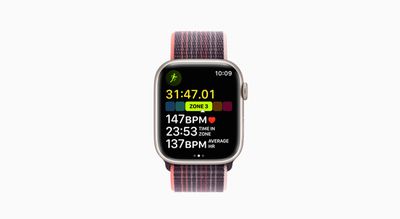
Apple has leaned further into fitness with the release of each new version of watchOS, and the latest version, watchOS 9, adds more metrics to your wrist than ever before on Apple Watch.
You can now view heart rate zones for any type of cardio-based workout in real time, so if you're running, for example, you can look at your wrist anytime and see what heart rate zone you're currently in.
What Are Heart Rate Zones?
Each heart rate zone is a percentage of your maximum heart rate, or the number of beats it performs per minute. These zones can be used as training levels that let you know your intensity level, how hard your heart is working, and whether you're using carbohydrates or fat as an energy source.
The higher the heart rate zone, the less your oxygen intake is, and so the more your body relies on carbohydrates to produce glycogen for fueling your muscles. By contrast, the lower the heart rate zone, the more fat you burn, although this is offset by the fact that you're burning fewer calories overall than if you were working out at a higher intensity.
By monitoring your Heart Rate Zone, you can make your workout more efficient and challenge yourself to improve your fitness. For instance, once you can comfortably remain in a given heart rate zone throughout your workout, you may want to push yourself into the next zone. Generally speaking, being able to increase and sustain workload at a higher heart rate zone indicates that your heart is getting stronger.
How to View Your Heart Rate Zone During a Workout
On Apple Watch, Heart Rate Zones are automatically calculated and personalized using your health data, but only if you've entered your date of birth in the Health app on your iPhone.
- Launch the Workout app on your Apple Watch.
- Begin a cardio-focused workout, such as an outdoor run.
- Turn the Digital Crown to the Heart Rate Zone workout view.
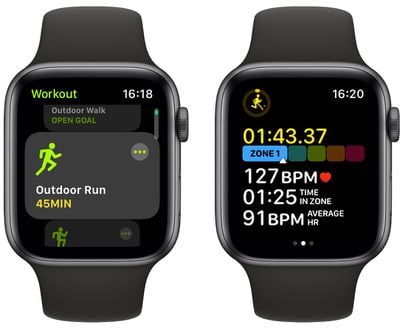
The Heart Rate Zones are presented in five segments, indicating effort levels from light to increasingly harder. You'll also see your current zone, heart rate, time in the current zone, and your average heart rate.
How to Review Your Heart Rate Zone Data
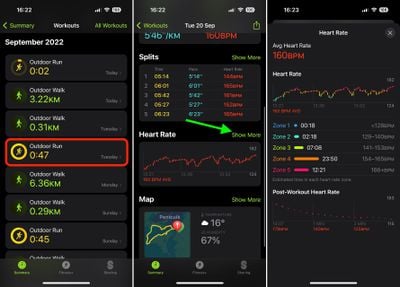
To see a graph detailing the estimated time you spend in each Heart Rate Zone, do the following:
- Launch the Fitness app on your iPhone.
- Tap a workout, then tap Show More next to Heart Rate.
How to Edit Your Heart Rate Zones
If you'd rather not rely on your Apple Watch to calculate your zones based on your health data, you can manually edit them.
- Launch the Settings app on your Apple Watch.
- Tap through to Workout -> Heart Rate Zones.

- Tap Manual.
- Tap Zone 2, Zone 3, or Zone 4, then enter lower and upper limits.
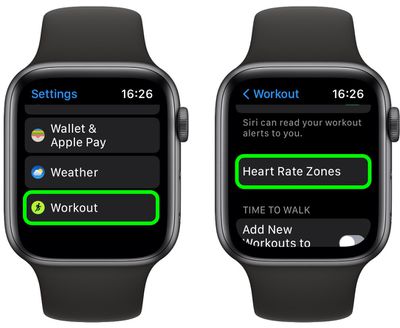
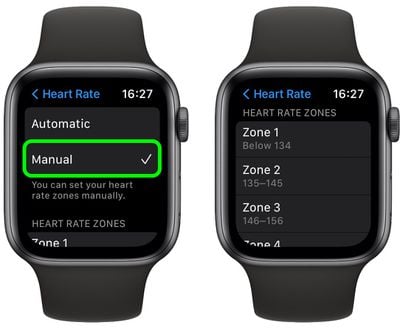
You can also edit zones in the Watch app for iPhone. Tap the My Watch tab, go to Workout -> Heart Rate Zones, then tap Manual, and you'll be able to access the same three zones to enter upper and lower limits.