
Apple includes an accessibility feature in iOS that's useful if you have a visual impairment, but can even come in handy if your eyes are simply tired or you're struggling to read something like small print, especially in poor light.


It's called the Magnifier, and has several advantages over just opening up the camera app and zooming in to get a better look at something.
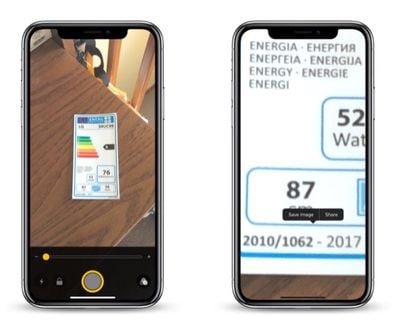
magnifier ios save image
Enabling it is easy: Launch the Settings app on your iPhone or iPad, navigate to General -> Accessibility -> Magnifier, and toggle on the Magnifier switch.
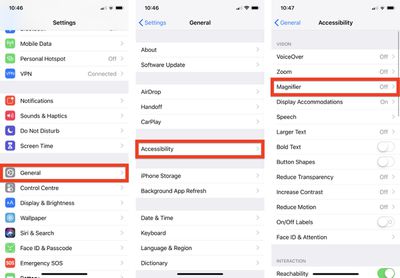
magnifier ios accessibility
After that, all you need to do to use it is triple-click the Side button (or Home button, depending on your device). You can also add it to the Control Center by going to Settings -> Control Center -> Customize Controls, and tapping the green plus button next to Magnifier.

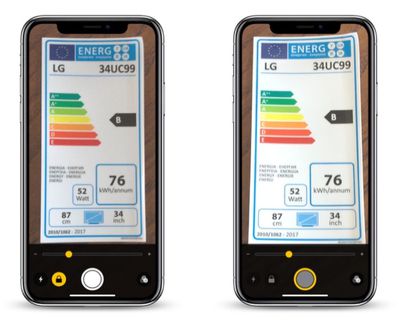
When you launch Magnifier, you'll see a camera-like interface at the bottom of the screen, but with some unique features. The slider controls the magnification of the scene in the lens frame, while the button at the bottom left turns on the flashlight so you can illuminate it. The padlock button next to that locks the focus.
magnifier ios
Tapping the big button in the center freezes the image (a frozen image is indicated by a yellow ring around the button), allowing you to move your phone around freely and still look at the image. You can also use the magnification slider to zoom in and out of the frozen image.

Note that when you freeze an image in the Magnifier, it isn't saved to your photo album. But if you want to save the entire image, you can.

Simply tap and hold on the frozen picture and select Save Image from the contextual popup menu. You'll find a Share option in there, too.
magnifier ios color schemes
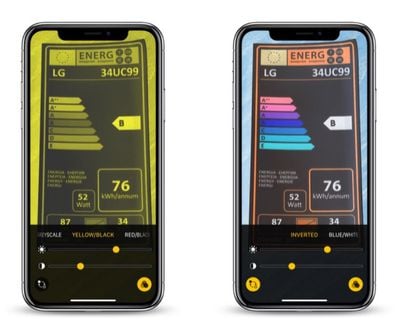
Over on the far right of the Magnifier interface is a button made up of three circles that provides access to additional sliders for adjusting brightness and contrast.

If you suffer from color blindness or another visual impairment, you can swipe through several color schemes in this extended menu and even invert the colors to find which combination works for you.


Top Rated Comments

ScooterComputer Avatar
94 months ago
This is one of the best, least-known-about features in iOS. I work with a LOT of older folks who are buying into the Apple ecosystem in DROVES… and this feature, ALONE, gets me more "happiness" from the folks that I show it to, configure it for, than any other. Just completely unable to put into words how much small accessibility features like this can really fundamentally change how users use their iPhones. You –KNOW– a feature is awesome when you see 70+ year olds you've enabled Magnifier for showing other 70+ year olds how to enable it months later; that's a success. I wish Apple wouldn't bury it so deeply, and I wish Apple would create an app for older users to walk them through some of the accessibility features that may be helpful to them; what I find, especially, is that older users tend not to like to think they need help, don't like the word "accessibility"—call it excessive pride, I dunno—but if you reframe the features as just "configuring your environment for you, for what you need and do", they're fine with it, acccept it. Perhaps the Tips app might be the place for Apple to showcase these kinds of features, but I find most users are not discovering them on their own. Which is a shame. Thanks, MacRumors, for putting it front and center!

EDIT: Oh, and perhaps I should also mention, I'm nowhere near 70 and I use Magnifier ALL THE TIME! It is great for reading serial numbers and MAC addresses off hard to reach devices, as I find the auto-focus system to be an improvement for such things over the standard Camera auto-focus. Reading fine print in ads. Etc. Just a handy handy feature.
Score: 8 Votes (Like | Disagree)
name99 Avatar
94 months ago
This is one of the best, least-known-about features in iOS. I work with a LOT of older folks who are buying into the Apple ecosystem in DROVES… and this feature, ALONE, gets me more "happiness" from the folks that I show it to, configure it for, than any other. Just completely unable to put into words how much small accessibility features like this can really fundamentally change how users use their iPhones. You –KNOW– a feature is awesome when you see 70+ year olds you've enabled Magnifier for showing other 70+ year olds how to enable it months later; that's a success. I wish Apple wouldn't bury it so deeply, and I wish Apple would create an app for older users to walk them through some of the accessibility features that may be helpful to them; what I find, especially, is that older users tend not to like to think they need help, don't like the word "accessibility"—call it excessive pride, I dunno—but if you reframe the features as just "configuring your environment for you, for what you need and do", they're fine with it, acccept it. Perhaps the Tips app might be the place for Apple to showcase these kinds of features, but I find most users are not discovering them on their own. Which is a shame. Thanks, MacRumors, for putting it front and center!

EDIT: Oh, and perhaps I should also mention, I'm nowhere near 70 and I use Magnifier ALL THE TIME! It is great for reading serial numbers and MAC addresses off hard to reach devices, as I find the auto-focus system to be an improvement for such things over the standard Camera auto-focus. Reading fine print in ads. Etc. Just a handy handy feature.
Absolutely! Let me add two comments.
(a) There are alternative magnification apps available. However the Apple solution seems to do a better job of locking onto focus fast, and then stabilizing the text against jitters. And this seems to have improved in more recent hardware. My iPhone XS seems to be quite a bit more visually stable than my iPhone 7 (OIS? or better processing?). So if this is something you care about and use a lot, it might be worth seeing how well it performs in a newer iPhone compared to what you have, and might make it worth the upgrade.

(b) My experience has been that the triple-click launch method is EXTREMELY dodgy, very likely (30% or so) to lock the phone in some sort of strange state where it's not at all obvious how to get out of magnification mode. Maybe Apple has FINALLY fixed this with iOS 12.1?
For this reason, my preferred launch method is to put a launcher on the Control Center page.
Score: 1 Votes (Like | Disagree)
Analog Kid Avatar
94 months ago

(b) My experience has been that the triple-click launch method is EXTREMELY dodgy, very likely (30% or so) to lock the phone in some sort of strange state where it's not at all obvious how to get out of magnification mode. Maybe Apple has FINALLY fixed this with iOS 12.1?
For this reason, my preferred launch method is to put a launcher on the Control Center page.
As an accessibility function that could be very useful to the elderly, it would be nice to have this available from the lock screen alongside, or instead of, the flashlight or camera buttons...
Score: 1 Votes (Like | Disagree)
coumerelli Avatar
94 months ago
This is well done. Bravo Apple!
Score: 1 Votes (Like | Disagree)

Popular Stories

Apple Logo Zoomed

Tim Cook Teases Plans for Apple's Upcoming 50th Anniversary

Thursday February 5, 2026 12:54 pm PST by
Apple turns 50 this year, and its CEO Tim Cook has promised to celebrate the milestone. The big day falls on April 1, 2026. "I've been unusually reflective lately about Apple because we have been working on what do we do to mark this moment," Cook told employees today, according to Bloomberg's Mark Gurman. "When you really stop and pause and think about the last 50 years, it makes your heart ...
wwdc sans text feature

Apple Rumored to Announce New Product on February 19

Thursday February 5, 2026 12:22 pm PST by
Apple plans to announce the iPhone 17e on Thursday, February 19, according to Macwelt, the German equivalent of Macworld. The report, citing industry sources, is available in English on Macworld. Apple announced the iPhone 16e on Wednesday, February 19 last year, so the iPhone 17e would be unveiled exactly one year later if this rumor is accurate. It is quite uncommon for Apple to unveil...
Finder Siri Feature

Why Apple's iOS 26.4 Siri Upgrade Will Be Bigger Than Originally Promised

Friday February 6, 2026 3:06 pm PST by
In the iOS 26.4 update that's coming this spring, Apple will introduce a new version of Siri that's going to overhaul how we interact with the personal assistant and what it's able to do. The iOS 26.4 version of Siri won't work like ChatGPT or Claude, but it will rely on large language models (LLMs) and has been updated from the ground up. Upgraded Architecture The next-generation...
iOS 26

iOS 26.3 and iOS 26.4 Will Add These New Features to Your iPhone

Tuesday February 3, 2026 7:47 am PST by
While the iOS 26.3 Release Candidate is now available ahead of a public release, the first iOS 26.4 beta is likely still at least a week away. Following beta testing, iOS 26.4 will likely be released to the general public in March or April. Below, we have recapped known or rumored iOS 26.3 and iOS 26.4 features so far. iOS 26.3 iPhone to Android Transfer Tool iOS 26.3 makes it easier...
maxresdefault

Apple Shows Off a Key Reason to Upgrade to the iPhone 17

Saturday February 7, 2026 9:26 am PST by
Apple today shared an ad that shows how the upgraded Center Stage front camera on the latest iPhones improves the process of taking a group selfie. "Watch how the new front facing camera on iPhone 17 Pro takes group selfies that automatically expand and rotate as more people come into frame," says Apple. While the ad is focused on the iPhone 17 Pro and iPhone 17 Pro Max, the regular iPhone...














