In macOS Mojave, Apple has introduced a range of new Finder Quick Actions that make it easier for you to perform quick edits to files without having to open the apps associated with them.
how to use mojave quick actions 2 1
To view available Quick Actions, you need to enable the Preview panel in Finder. To do this, open a Finder window and select the menu bar option View -> Show Preview, or press the keys Shift-Command-P.

Quick Actions for Images, Video, and Audio

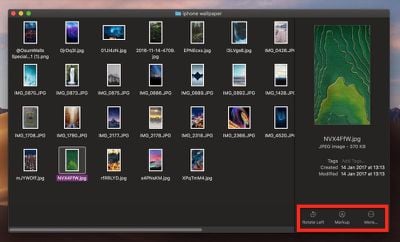
Quick Actions are located in the bottom right of the Finder window, just under the preview of the selected file. These actions will change depending on the file: For images, clicking Rotate Left turns the image counterclockwise, while clicking Markup invokes an enhanced Quick Look window containing a set of markup tools.
how to use mojave quick actions 1
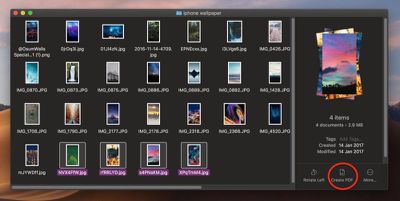
If two or more images are selected in Finder, the Markup button will change to Create PDF, allowing you to turn the images into a single portable document. If a QuickTime compatible video or audio file is selected, Markup will be replaced by Trim. Clicking this brings up a Quick Look window with an editing ribbon to trim the file.

How to Customize Quick Actions

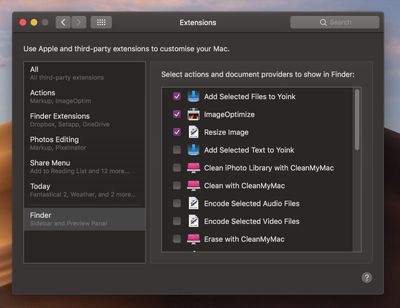
You've probably noticed the More... button beside the default Quick Actions. Click this and then select Customize..., and you'll be taken to the Extensions pane in System Preferences, where you'll be able to select other actions to add to Finder's Preview pane.
how to use mojave quick actions 3
The actions available to you will depend on which applications you have installed and any pre-existing Apple scripts on your Mac. Apple is encouraging third-party developers to add support for more Quick Actions in their apps, but you can also create your own custom ones using the Automator app. For a useful example, check out our tutorial on how to quickly resize images using your very own Automator service.

Related Forum: macOS Mojave

Top Rated Comments

0947347 Avatar
99 months ago
Note for author: hold space after pressing cmd + shift + 4. Makes a cleaner window screenshot. Maybe you already know that. But i find it at a better way of doing screenshots of windows
Next Mac rumours tutorial:
How to take better screenshots :)
Score: 1 Votes (Like | Disagree)
martyjmclean Avatar
99 months ago
I played around with Mojave for a fortnight and this was one of my favourite features.
Score: 1 Votes (Like | Disagree)
Internet Enzyme Avatar
99 months ago
('https://www.geekwebguides.com/how-to/use-quick-actions-in-macos-mojave/')


In macOS Mojave, Apple has introduced a range of new Finder Quick Actions that make it easier for you to perform quick edits to files without having to open the apps associated with them.


To view available Quick Actions, you need to enable the Preview panel in Finder. To do this, open a Finder window and select the menu bar option View -> Show Preview, or press the keys Shift-Command-P.

Quick Actions for Images, Video, and Audio

Quick Actions are located in the bottom right of the Finder window, just under the preview of the selected file. These actions will change depending on the file: For images, clicking Rotate Left turns the image counterclockwise, while clicking Markup invokes an enhanced Quick Look window ('https://www.geekwebguides.com/how-to/use-quick-look-in-macos-mojave-quick-file-edits/') containing a set of markup tools.


If two or more images are selected in Finder, the Markup button will change to Create PDF, allowing you to turn the images into a single portable document. If a QuickTime compatible video or audio file is selected, Markup will be replaced by Trim. Clicking this brings up a Quick Look window with an editing ribbon to trim the file.

How to Customize Quick Actions

You've probably noticed the More... button beside the default Quick Actions. Click this and then select Customize..., and you'll be taken to the Extensions pane in System Preferences, where you'll be able to select other actions to add to Finder's Preview pane.


The actions available to you will depend on which applications you have installed and any pre-existing Apple scripts on your Mac. Apple is encouraging third-party developers to add support for more Quick Actions in their apps, but you can also create your own custom ones using the Automator app. For a useful example, check out our tutorial on how to quickly resize images using your very own Automator service ('https://www.geekwebguides.com/how-to/quickly-resize-images-mac-automator/').

Article Link: How to Use Finder Quick Actions in macOS Mojave ('https://www.geekwebguides.com/how-to/use-quick-actions-in-macos-mojave/')
Note for author: hold space after pressing cmd + shift + 4. Makes a cleaner window screenshot. Maybe you already know that. But i find it at a better way of doing screenshots of windows
Score: 1 Votes (Like | Disagree)

Popular Stories

Apple Logo Zoomed

Tim Cook Teases Plans for Apple's Upcoming 50th Anniversary

Thursday February 5, 2026 12:54 pm PST by
Apple turns 50 this year, and its CEO Tim Cook has promised to celebrate the milestone. The big day falls on April 1, 2026. "I've been unusually reflective lately about Apple because we have been working on what do we do to mark this moment," Cook told employees today, according to Bloomberg's Mark Gurman. "When you really stop and pause and think about the last 50 years, it makes your heart ...
wwdc sans text feature

Apple Rumored to Announce New Product on February 19

Thursday February 5, 2026 12:22 pm PST by
Apple plans to announce the iPhone 17e on Thursday, February 19, according to Macwelt, the German equivalent of Macworld. The report, citing industry sources, is available in English on Macworld. Apple announced the iPhone 16e on Wednesday, February 19 last year, so the iPhone 17e would be unveiled exactly one year later if this rumor is accurate. It is quite uncommon for Apple to unveil...
Finder Siri Feature

Why Apple's iOS 26.4 Siri Upgrade Will Be Bigger Than Originally Promised

Friday February 6, 2026 3:06 pm PST by
In the iOS 26.4 update that's coming this spring, Apple will introduce a new version of Siri that's going to overhaul how we interact with the personal assistant and what it's able to do. The iOS 26.4 version of Siri won't work like ChatGPT or Claude, but it will rely on large language models (LLMs) and has been updated from the ground up. Upgraded Architecture The next-generation...
iOS 26

iOS 26.3 and iOS 26.4 Will Add These New Features to Your iPhone

Tuesday February 3, 2026 7:47 am PST by
While the iOS 26.3 Release Candidate is now available ahead of a public release, the first iOS 26.4 beta is likely still at least a week away. Following beta testing, iOS 26.4 will likely be released to the general public in March or April. Below, we have recapped known or rumored iOS 26.3 and iOS 26.4 features so far. iOS 26.3 iPhone to Android Transfer Tool iOS 26.3 makes it easier...
iphone 17 pro dark blue 1

iPhone 18 Pro Max Rumored to Deliver Next-Level Battery Life

Friday February 6, 2026 5:14 am PST by
The iPhone 18 Pro Max will feature a bigger battery for continued best-in-class battery life, according to a known Weibo leaker. Citing supply chain information, the Weibo user known as "Digital Chat Station" said that the iPhone 18 Pro Max will have a battery capacity of 5,100 to 5,200 mAh. Combined with the efficiency improvements of the A20 Pro chip, made with TSMC's 2nm process, the...