15 Mac Tips and Tricks You Need to Know - MacRumors
Skip to Content

15 Mac Tips and Tricks You Need to Know

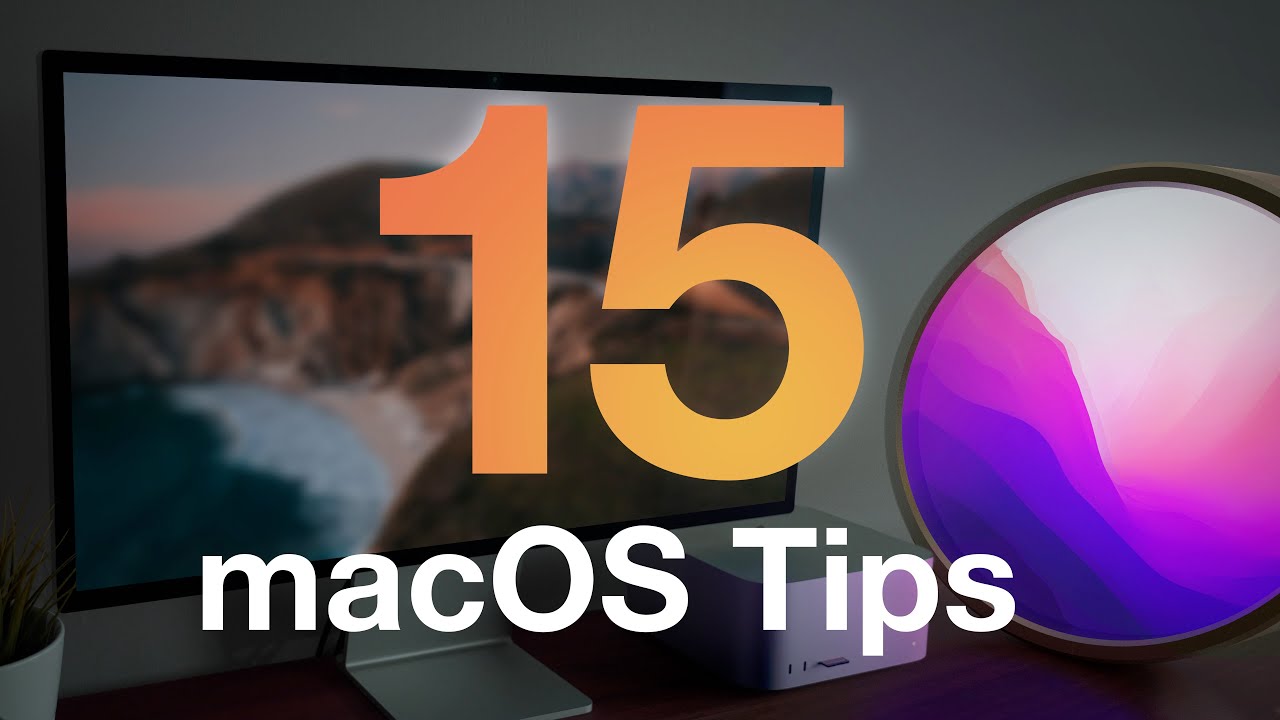
There are plenty of hidden features and shortcuts that Apple has built into macOS over the years, ranging from keyboard commands to less than obvious settings. These small hacks can improve your workflow and make your Mac experience more customized, so we've highlighted several tips and tricks that you might not know in our latest YouTube video.

  1. Open With Default App - Want a certain file type to only open with a specific app? Right click on a file, click on Get Info, click on Open With, and select the app you want to use from the dropdown menu.
  2. Automatically Open Safe Files After Downloading - To automatically open safe files downloaded from Safari, open up the app, go to preferences, open up the General tab and select Open "safe" files after downloading. Don't want files to open automatically? Uncheck it.
  3. Convert to PDF - In Finder, or the desktop, you can right click on a file and use the "Quick Actions" feature to turn an image, document, or downloaded webpage to a PDF. Just right click on the file you want to turn into a PDF, select Quick Actions, and choose "Create PDF." You can select multiple files and combine them all into one PDF using this method. Convert to PDF is a default option, but if it's not enabled for some reason, choose "Customize" and select it to add it to your Quick Action options.
  4. Search Current Folder - Want to set your Mac to default to search in your open current folder instead of the entire device? Open up Finder, to Preferences, select "Advanced," and then under the "When performing a search" heading select "Search the Current Folder."
  5. Close All App Windows - To close all open windows of an app all at once, hold down Option and click the red x of one of the windows.
  6. Always Show Scroll Bars - To keep your scroll bars visible at all times, open up System Preferences, select General, and then under the "Show scroll bars" option, choose "Always."
  7. Access Sound Input and Output from Menu Bar - You can access sound input and output by holding down option when clicking the sound icon in the menu bar or in Control Center on your Mac. Go to System Preferences > Sound > Show Sound in menu bar and set it to always if you want to have a permanent menu bar sound option.
  8. Quickly Find a File from Spotlight - If you have Spotlight search open, you can find a file in Finder by holding Command + R and clicking on it.
  9. Minimize Windows With a Click - Want to change what a double click on a window's title bar does? Go to System Preferences, Dock & Menu Bar, and under "Double-click a window's title bar," select minimize instead of zoom, which is the default.
  10. Automatically Hide and Show Menu Bar - To automatically hide and show your menu bar, go to System Preferences, select Dock & Menu Bar, and then choose "Automatically hide and show menu bar on desktop."
  11. Hide Menu Bar Date - Don't want to see the date? go to System Preferences, select Dock & Menu Bar, and then under the Clock heading on the left menu, deselect "Show day of the week" and "Show date."
  12. Delete by Word - When you're writing, you can edit more efficiently with keyboard commands. To delete an entire word at once instead of character by character, hold down the option key and then press the delete button.
  13. Delete by Line - To delete an entire line, hold down the command key and then press the delete button.
  14. Move Cursor by Word - To move your cursor through text faster, hold down the option key and use the arrows to move word by word instead of character by character. Hold down command to move it by line.
  15. Customize Screenshots - Macs have a lot of built-in customization options for screenshots. When you use shift + command + 4 to take a sized screenshot, hold option when dragging to resize all four corners, and space bar to move the selection box.

Have other great Mac tips that we didn't include here? Let us know in the comments.

Popular Stories

M5 MacBook Pro

RIP, MacBook Ultra

Monday October 19, 2026 9:37 am PDT by
Apple today sent out invites for an experience in Los Angeles on Wednesday, October 28, and the "Pro and tell" tagline on the invitation likely means that the rumored MacBook models with touch-enabled OLED displays will stick with MacBook Pro branding instead of the once-rumored "MacBook Ultra" name. The long-rumored "iPhone Ultra" ended up being named iPhone Duo, so speculation that Apple...
iPhone Duo Trio

Here's What Apple's Apps Look Like on the iPhone Duo

Tuesday October 20, 2026 11:12 am PDT by
With just three days to go until the iPhone Duo is released, Apple is getting ready for the launch. Behind the scenes, the App Store now has screenshots of Apple's built-in apps running on the Duo. We've seen some apps in marketing materials, but images of the ones we haven't seen give us an idea of what it will be like using the iPhone Duo day to day. Many apps are shown in landscape...
apple pro tell logo

Apple Announcing New Products Next Week: 'Pro and Tell'

Monday October 19, 2026 9:05 am PDT by
Apple's Greg Joswiak today hinted at new product announcements coming next week, sharing a social media post that says "Can't wait to pro and tell next week." Rumors suggest Apple is planning to debut the new MacBook Pro with an OLED touchscreen display, an M6 entry-level MacBook Pro, an M6 iMac, an iPad mini with an OLED display. Can't wait to pro and tell next week....

Top Rated Comments

Octavius8 Avatar
59 months ago
Another good one:
You can convert HEIC images to JPEG (maybe you airdropped a photo to your Mac and want to send it as JPEG by email). You can convert one or several directly in Finder. Just right click on the HEIC image and select the option “convert to JPEG” as in the same fashion as when convert a file to PDF.
Score: 18 Votes (Like | Disagree)
59 months ago
One VERY important shortcut for me at least:

Shift-Ctrl-CMD-4 - screenshot - but it will not save the file, it copies the screenshot into your clipboard for pasting instead of creating a file that you later might have to delete just because you wanted to make a quick screencap for a PowerPoint or whatever.
Score: 7 Votes (Like | Disagree)
59 months ago
You can also use Spotlight search as a calculator, currency converter, height and weight calculator, temperature converter, speed converter etc.

I find it super useful, also works on iOS and iPadOS.
Score: 6 Votes (Like | Disagree)
59 months ago

Jumping to the enclosing folder is the dumbest feature because you cannot determine where that folder resides.

That is a very valuable feature. When you find a file via search, jump to folder takes you to that location where you can see the folder, see the associated files and take action on the file you found or the other files. At the very least, it shows you where that folder is.

It may be that you have no need for this feature and / or you work differently but people do file management in different ways either because of different use cases or because of their preferences for how to work. Don’t call something dumb just because you have no idea how it is used.
Score: 5 Votes (Like | Disagree)
59 months ago

How do you maximise, or in Apple terms "zoom", a window without entering full screen if you change the top bar double click to minimise?
Hold "Option" while clicking on the green window button.
Score: 5 Votes (Like | Disagree)
59 months ago
You can automatically arrange windows on the left or right side of the screen.
You can turn off the start up sound.
You can make the menu bar larger.
You can always show the proxy icon in Finder windows.
Score: 3 Votes (Like | Disagree)
Latest Stories
iPhone Duo Reviewers Really Miss Face ID
4 hours ago
Does the iPhone Duo Run Hot? Here's What Reviews Found
5 hours ago
Apple Music's New Look is Now Live on Apple's Website
6 hours ago
Anthropic Launches Claude Duet, a Proactive AI Agent
6 hours ago
What 32,000 Folds Did to the iPhone Duo's Hinge
7 hours ago
iPhone Duo's Hidden FaceTime Camera Takes 'Trash' Photos
9 hours ago
iPhone Duo Has 'Edge Light' Feature That Debuted on Macs Last Year
9 hours ago
Apple Support App Updated for iPhone Duo's Larger Display
9 hours ago
Amazon Sweetens the Deal on Entry-Level 16-Inch MacBook Pro With $570 Off
10 hours ago
iPhone Duo Tips Over on MagSafe Stands When Unfolded
10 hours ago
Apple Music's New Look Officially Announced
11 hours ago
iPhone Duo Supports Apple Pencil Starting With iOS 27.2
12 hours ago
iPhone Duo Accessories Roundup: Cases and Screen Protectors From OtterBox, ZAGG, and More
13 hours ago
Apple Stores Will Have 'Limited' Availability of iPhone Duo for Walk-In Customers
13 hours ago
iPhone Duo Reviews Explain Why Device is Both 'Fun' and 'Frustrating'
13 hours ago
Apple Says 'Reachability' Feature Coming to iPhone Duo Later This Year
15 hours ago
Loop Capital Cuts Apple Rating Over iPhone Sales Outlook
19 hours ago
Apple Stores in Bordeaux and Lille Looted During French Protests
19 hours ago
Bluesound Adds Native Apple Music Support
19 hours ago
Apple CEO John Ternus Explains What Makes Good Product Design
20 hours ago
UK Proposes New Ways to Help Apple Pay Rivals
22 hours ago
WhatsApp Developing In-App Browser for All Chat Links on iPhone
23 hours ago
Apple's App Store Chief Explains Its Push for Premium Games
23 hours ago
Apple Could Owe Even More After $5.7 Billion Patent Verdict
1 day ago
Skyrim Comes to Apple Silicon Macs With New Unofficial Installer
1 day ago
Apple Highlights Mac and iPad Use in Paris Design Exhibition
1 day ago
Apple Seeks 6G Modem Engineers as It Plans for Post-5G iPhones
1 day ago
First iPhone Duo Unboxing Video Appears Ahead of Friday Launch
1 day ago
Perplexity Computer Can Now Run Fully Locally on Mac
1 day ago
Apple's Touchscreen OLED MacBook Pro: Everything We Know
1 day ago