With New Year's Eve and New Year's Day approaching, many iPhone users may need to get the most out of their iPhone's battery life for extended parties and other festivities. We've rounded up some helpful battery tips that you might want to put into action to ensure your iPhone keeps working long into the night.
1. Disable Haptic Keyboard Feedback
If you've turned on the keyboard option that provides haptic feedback when you tap the on-screen keys, you might want to turn it off temporarily because it can affect battery life.
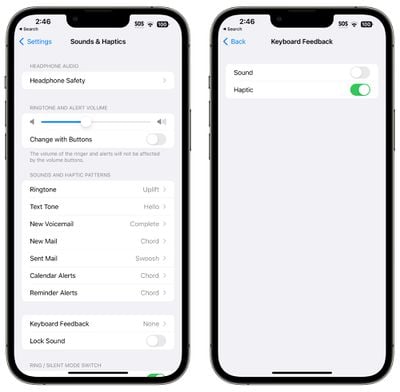
Here's how to turn it off:
- Open up the Settings app.
- Tap on Sounds & Haptics.
- Tap on Keyboard Feedback.
- Toggle off Haptic.
2. Turn Off Proximity AirDrop Sharing
When you hold two iPhones running iOS 17 together, or an iPhone running iOS 17 and an Apple Watch running watchOS 10.1 or later, the iPhone initiates a proximity-based AirDrop or contact transfer protocol. If you're continually triggering this, it can drain battery, so if your iPhone is near many other iPhones and you're getting the AirDrop interface over and over again, you should turn it off.
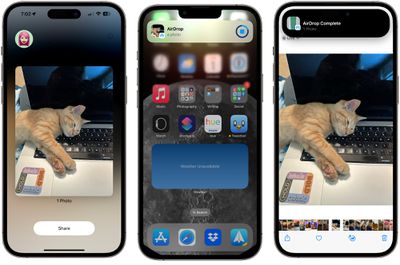
To do so, go to Settings > General > AirDrop and toggle off "Bringing Devices Together."
3. Use Offline Maps
If you're traveling somewhere, you can save some battery life if you download Apple Maps for offline usage, a feature available on iPhones running iOS 17 or later. Offline maps are especially useful if you're going somewhere with poor cellular connectivity because you can get turn-by-turn directions without the battery drain. Just make sure to turn cellular off in spotty areas.
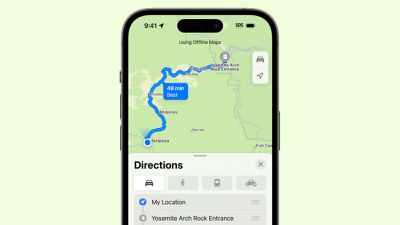
Downloading a map is as simple as searching for a location, tapping on the download button, and selecting the area of the map to download. We have a dedicated how-to that walks you through all of the steps.
4. Turn Off Live Activities
Live Activities let apps keep an ongoing notification on the Lock Screen or in the Dynamic Island, which can cause noticeable battery drain.
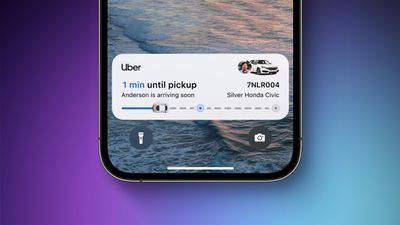
Live Activities can be disabled by following these steps:
- Open up the Settings app.
- Go to Face ID & Passcode.
- Enter your passcode to unlock the iPhone.
- Scroll down and toggle off Live Activities.
This will prevent Live Activities from showing up on the Lock Screen, but you'll want to take this one step further. In the individual app sections in the Settings app, you can disable Live Activities on an app-by-app basis, or avoid using Live Activities features within apps.
5. Turn Off Always-On Display
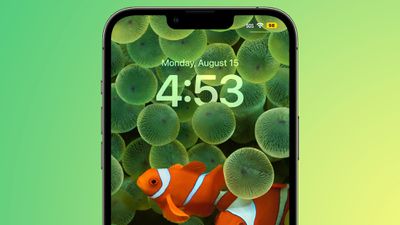
If you have an iPhone 14 Pro or an iPhone 15 Pro, the always-on display leaves the time, your wallpaper, widgets, and Live Activities visible on the Lock Screen even when your iPhone is locked.
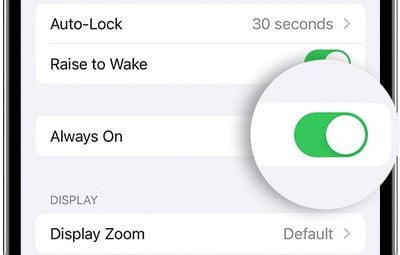
The display uses a 1Hz refresh rate to preserve battery, and the display turns off when the iPhone is in a pocket, but always-on display still drains battery faster than no always-on display.
You can turn off the Always-On display by following these steps:
- Open up the Settings app.
- Tap on Display & Brightness.
- Tap on Always On Display.
- Toggle off Always On Display.
It's not entirely clear just how much battery life the always-on display drains because it's going to vary from use case to use case, but even if it's only a few percent, it can be worth turning off.
6. Use Focus Modes
Apple's built-in Focus option can cut down on the number of notifications that you're receiving, and fewer notifications means less opportunity for apps to wake up your display and cause battery drain.
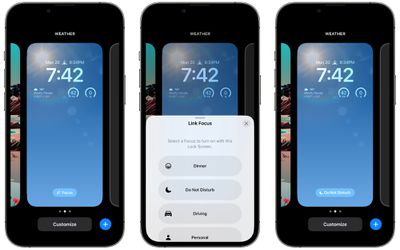
Focus modes let you choose which apps and people can send you notifications and when, so during work hours you can make sure you're only getting work notifications, and during personal time, you can limit your work notifications. You can limit notifications when driving, when you're asleep, when you're working out, and in any other scenario you can think of.
You'll still get all of your notifications when the Focus mode ends, but all in one alert rather than multiple. Turning off unwanted notifications from apps is still the best method for saving battery life, but Focus modes let you keep your notifications while still cutting down on the number that you receive.
Apple made Focus modes relatively easy to set up, but it still takes some work to get everything running, so we have a dedicated Focus guide. You can find all of the Focus features in the Focus section of the Settings app.
7. Limit When and How Often Apps Can Access Location
It's always good to check in on privacy and access settings to make sure apps and services aren't doing things you don't want them to be doing.
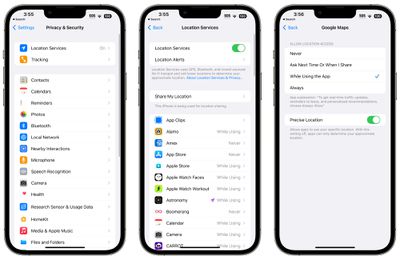
Limiting the apps that have access to your location and how often apps can access that data can save battery life.
- Open up the Settings app.
- Choose Privacy & Security.
- Tap Location Services.
- Review the list and edit settings by tapping on the name of each app in the list.
You have four possible choices for location settings for each app, though not all four choices will always be available for every app depending on what it does. You can select the following: Never, Ask Next Time Or When I Share, While Using the App, and Always.
Never will prevent an app from ever accessing your location, and unless there's a specific need for an app to know where you are, such as a mapping app, setting location access to Never is the best choice. While Using the App allows the app to detect your location only when the app is open and being actively used. If you close the app or switch over to another app, location access ends. This is the second best setting to use.
Ask Next Time Or When I Share will prompt an app to ask you with a pop-up the next time that it wants your location, so you can temporarily approve it. With this setting, location access is off until expressly allowed via the pop-up. Always lets an app to have access to your location at all times, regardless of whether it's open or closed. This will result in the most battery drain and should be limited to only the apps that you need the most.
Many apps ask for location information that don't really need it to function (for example, a banking app might want location access to show nearby ATMs, which is also available through entering a zip code), so clearing the cruft will ensure no apps are accessing your location without express permission.
8. Use Low Power Mode
Turning on Low Power Mode is an obvious choice for maintaining battery without having to hassle with a lot of settings, and you can toggle it on from Control Center, the Battery section of the Settings app, or using Siri. Low Power Mode cuts down on background activity, turns off your display after inactivity more quickly, limits display refresh rate, limits email fetch, cuts down on visual effects, and more.
Low Power Mode can be set to turn on at a certain battery percentage using Shortcuts, which is a handy way to have it automatically turn on when you need it, and it's the best option if you're someone who doesn't often remember to toggle on Low Power Mode.
More Tips
Have favorite tips for prolonging your iPhone's battery life? Let us know in the comments below.




/https://forums.macrumors.com/attachments/2330109/)
/https://forums.macrumors.com/attachments/2330110/)
/https://forums.macrumors.com/attachments/2330111/)
/https://forums.macrumors.com/attachments/2330115/)
/https://forums.macrumors.com/attachments/2330116/)