Apple today released iOS 13, the newest version of the software that's designed to run on the iPhone. Apple's yearly software updates always bring long lists of new features and changes that can make your iPhone feel like a foreign device.
New updates can be intimidating, but installing them is often worthwhile because Apple's updates make sure your devices are safe, up to date, and have the latest feature improvements.
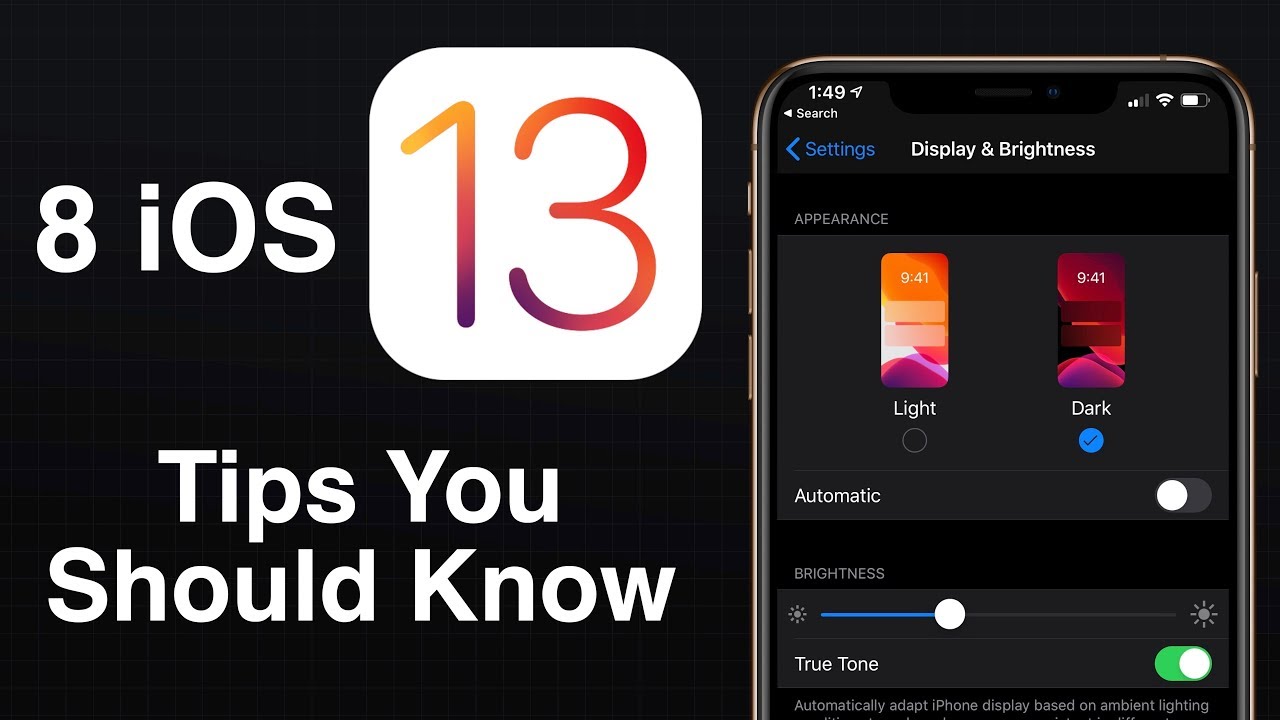

If you're worried about performance taking a hit on older devices, rest assured that Apple has made an effort in both iOS 12 and iOS 13 to make older devices more efficient. In iOS 13, Face ID is faster, apps launch up to twice as fast, and are, in general smaller in size for quicker downloads and updates.
We're going to jump start you with the what you need to know to get up and running with iOS 13 right away with these iOS 13 tips:
1. Try Out Dark Mode
Your iPhone isn't going to look too much different when you install iOS 13, with one exception - a new dark theme that's available if you enable it. Apple will ask you if you want to turn on Dark Mode when you first update your iPhone to iOS 13, and if you do opt to turn it on, prepare for everything from apps to the Home screen to shift to a darker shade.
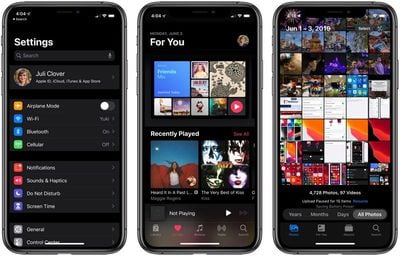
Dark Mode is one of those features that iOS users have wanted for ages, and it's great if you have eyes sensitive to light or want a darker theme for your apps at night. Most Apple apps, like Mail, Messages, Health, Reminders, the App Store, Apple Music, and more have dark themes that activate whenever you turn on Dark Mode, and third-party developers are also able to develop darker themes to swap to when Dark Mode is activated.
You can turn Dark Mode on permanently, toggle it on when you need it, or set it to come on at a set schedule, such as sunset to sunrise, all of which can be controlled via Settings or the Control Center. The opposite of Dark Mode is Light Mode, which is the same old mode that's been available on your iPhone for years, so that's an option too if you don't like the darker display.
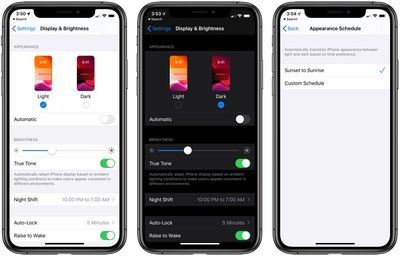
For more on Dark Mode, including how to access it and how it looks, make sure to check out our Dark Mode guide.
2. Learn These New Gestures
Some of the gestures on your iPhone (and iPad) are a little bit different in iOS 13, but they're easy to adjust to. Here's a quick list of what's been tweaked:
- Scrolling - Just grab the scroll bar and drag it upwards or downwards to get where you want to go instead of swiping.
- Selecting Text - Drag a finger right over text to select it. Double tap to select a word, triple tap to select an entire sentence, and quadruple tap to select a paragraph.
- Cursor Movement - To move the cursor when writing a note or an email, just stick your finger on it and drag it wherever you want it to go.
- Cut, Copy, and Paste - Pinch up with three fingers to copy, pinch up with fingers two times to cut, and pinch down with three fingers to paste.
- Undo/Redo - To undo and redo, swipe with three fingers to the left or the right.
- Selecting Multiples - To select multiple items, like messages, files, or folders, tap with two fingers and then drag.
Can't remember all these? If you tap and hold with three fingers, an edit bar appears with undo, redo, cut, copy, and paste.
Bonus for iPhone XR and iPad owners: 3D Touch functionality is available in the form of Haptic Touch or a long press (on the iPad). Just long press where supported. It's available almost everywhere 3D Touch was available. New iPhone 11 and iPhone 11 Pro users will also need to get used to Haptic Touch instead of 3D Touch.
3. Go Configure These Settings
- Silence Unknown Callers
- Automatic Safari Tab Closing
- Optimize Battery Charging
- Location controls for Shared Images
4. Set Up a Messages Profile
When you open up Messages for the first time after installing iOS 13, it's going to prompt you to set up your profile. Your profile is basically just a name and a photo that's shared with people when you converse with them.
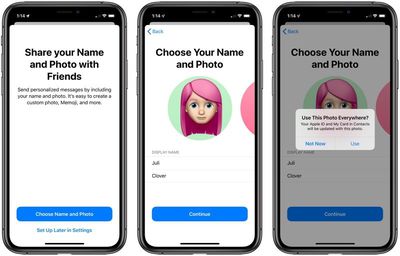
Your profile can be customized with an image you took, an Animoji, or just a letter, and you can choose to share it with your contacts, everyone, or no one at all.
For more on Messages, make sure to check out our Messages guide.
5. Try Swiping Instead of Typing
iOS 13 has a new "QuickPath" keyboard, which is Apple's fancy way of saying that it's added swipe gestures for typing. You can now slide to type, dragging your fingers over letters instead of picking them up to type as you normally do.
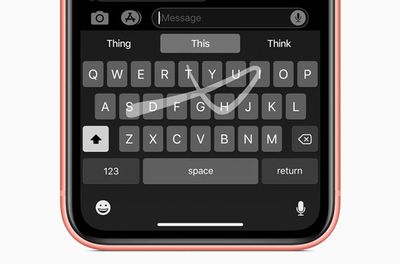
If you've ever used a swipe-based keyboard, this is the same thing. Just swipe from letter to letter to form words. If you hate it, don't worry, you can still tap, or use swipes and taps interchangeably.
6. Memoji/Animoji Stickers for Everyone
Memoji and Animoji have been available on all devices with a Face ID camera, but in iOS 13, Animoji and Memoji are expanding to stickers that everyone can use.

There's a new Animoji Stickers app in the app drawer in Messages, where you can choose from already-available Animoji characters in a variety of poses or create new Memoji stickers that look just like you.
Animoji and Memoji stickers are available on all iOS devices that run iOS 13 and work like all other stickers so you can send them to people in Messages. You can also access your Animoji/Memoji stickers in other apps through the "Recently Used" menu.
Learn how to create and use Animoji/Memoji stickers in our how to.
7. Edit Videos in the New Photos App
When you open up the Photos app for the first time, it's going to look a bit different. There are new Years, Months, and Days organizational options you can tap in the main Photos tab.
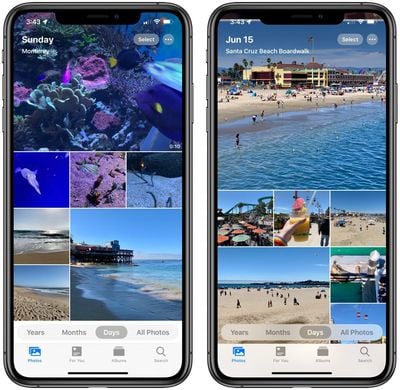
Apple's aim with these new sections is to help you find your best photos so you can relive your memories whenever you want.
Editing photos looks different too, but all of the options you're used to are there, with some new editing tools to make your photos look better than ever. You can also edit videos for the first time ever, which is a fun new addition to iOS 13. It works just like editing photos, so it's a simple and quick way to trim down video footage or add cool effects.
For more on what's new in the Photos app and how to use all of the new features, make sure to check out our Photos guide.
8. Look Around in Maps
Maps in iOS 13 more or less looks the same, but Apple has continued to expand its redesigned Maps interface with more detail, so you may notice some changes right when you open the app.
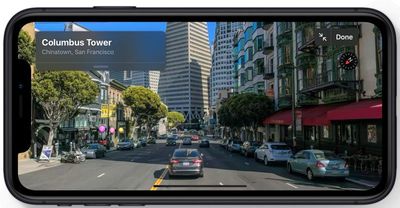
One neat new feature you might want to check out is the "Look Around" option, which is Apple's equivalent to Google Street View. Look Around lets you get a street level look at what's around you or what you search for, which is great for scoping out restaurants, shopping, and more.
Maps has other neat features like lists of Collections and Favorites, and when Siri gives directions, you'll notice that they're much more natural. Siri will say things like "turn left at the next stoplight" instead of "turn left in 500 feet."
If you want to know about everything new in Maps, make sure to check out our Maps guide.
Compatible Devices
You can install iOS 13 if you have an iPhone SE, iPhone 6s, iPhone 6s Plus, iPhone 7, iPhone 7 Plus, iPhone 8, iPhone 8 Plus, iPhone X, iPhone XR, iPhone XS Max, or iPhone XS (and it'll come pre-installed on the new 2019 iPhones). It's not compatible with the iPhone 6 and earlier, so if you have an older iPhone, you'll need to stick with iOS 12 (or earlier).
If you have an iPad, you need to know that instead of iOS, it's going to run iPadOS going forward. Don't worry, though, iPadOS is pretty much identical to iOS 13 and offers all of the same features, with a few other changes designed specifically for the larger screen of the iPad.
For iPads, the new iOS works on iPad Air 2, iPad Air (3rd Gen), iPad mini 4, iPad mini 5, iPad (5th-7th Gen), and any iPad Pro.
If you do have an iPad and want to know more about iPadOS, you'll find details in our iPadOS roundup.
Learn More about iOS 13
We have a lot more information on every new feature in iOS 13, large and small. If you want to learn more about what's new and what you can expect when installing iOS 13, we recommend reading our full iOS 13 roundup.
Guide Feedback
Have questions about the new features in iOS 13 or want to offer feedback on this guide? Send us an email here.





/https://forums.macrumors.com/attachments/860195/)