Starting with macOS Sierra in 2016, Apple introduced support for Siri on the Mac, allowing you to access the personal assistant across all of your Apple devices for the first time.

Siri on Mac can actually do quite a few useful things that aren't available on iOS devices, and because the technology is still rather new on Apple's desktop and laptop machines, we thought we'd highlight some of the most useful Siri commands on the Mac.


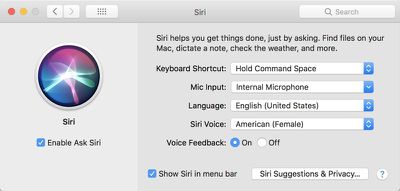
Siri on Mac can be accessed from the menu bar, the dedicated Siri app that can be added to the dock, or through a keyboard shortcut like Command + Space. You can manage your Siri preferences and options by opening up System Preferences and choosing "Siri" from the options at the bottom of the window.
asksirimac
One of the simplest and most useful ways to use Siri is to open apps without accessing the dock or finding the app in the applications folder. You can ask Siri to "open the Calendar app" or "open Evernote."

Open works with any app on your Mac, and it also works with websites and files. Some sample commands:

  • Open MacRumors.com
  • Open Google.com
  • Open the Applications Folder
  • Open the iCloud Drive folder

Siri's "Show Me" command on macOS works hand in hand with the series of open commands. You can ask Siri to show you all kinds of files stored on your Mac, which makes it easier to search for specific content. You can also ask for files within apps like Photos. Some sample commands:

  • Show me my most recent files
  • Show me files from June 2017
  • Show me photos from April 2017
  • Show me photos from last week
  • Show me files from today
  • Show me privacy settings
  • Show me network settings

Siri is also interactive and can be used to turn settings on your Mac on and off, just like on iOS devices. Siri can turn on Night Shift, activate Bluetooth, turn off Wi-Fi, and more. Some sample commands:

  • Turn off Wi-Fi
  • Turn on Bluetooth
  • Activate the screensaver
  • Turn up the volume
  • Turn down the brightness
  • Go to sleep
  • Change my wallpaper

Another useful way to use Siri on the Mac is to get information about the Mac itself. You can ask Siri questions about the hardware installed on your Mac. Some sample commands:

  • How fast is my Mac?
  • What processor does my Mac have?
  • Tell me about my Mac
  • What is my Mac's serial number?
  • How much RAM does my Mac have?
  • How much storage do I have?

Siri can, of course, answer simple queries and provide information, just like you can do on iOS. Commands like "What time is it?" and "What's the weather?" are available, as are more complicated requests like "Find me a good restaurant nearby" or "Get me directions to the mall."

Do you use Siri for Mac? What are the most useful commands you've found? Let us know if we've missed any in the comments below.


Top Rated Comments

avanpelt Avatar
102 months ago
I genuinely feel bad for the MR writers who have to write these articles touting 'useful' things that Siri can do. I used Siri on my Mac for about two minutes when it was first introduced. Haven't activated it a single time since then. In my opinion, Siri is even less helpful on the Mac than it is on iOS devices. I have a full-size keyboard and a mouse connected to my Mac. Usually, I can do just about anything Siri could do on a Mac just as fast or faster if I do it myself.
Score: 27 Votes (Like | Disagree)
CLS727 Avatar
102 months ago
most useful command for macOS is:

settings > siri > disable

The ONLY device I actually use voice commands on is the new Apple TV (easier than typing in search terms with that little remote)
Score: 13 Votes (Like | Disagree)
Apple Knowledge Navigator Avatar
102 months ago
The best command is “Turn off Siri”
Score: 9 Votes (Like | Disagree)
CmdrLaForge Avatar
102 months ago
I have deactivated Siri on all my Apple devices. I cannot find it useful at all.
Score: 8 Votes (Like | Disagree)
SBlue1 Avatar
102 months ago
The one and only use it is capable of doing on my iPhone is missing entirely on the Mac: setting a timer. :(
Score: 6 Votes (Like | Disagree)
ignatius345 Avatar
102 months ago
Open works with any app on your Mac, and it also works with websites and files. Some sample commands:
* Open MacRumors.com
* Open Google.com
* Open the Applications Folder
* Open the iCloud Drive folder
Obviously this is all a boon for anyone with accessibility issues, but if you've got a full-sized keyboard under your fingers Siri gets a whole lot less useful than it is on iOS.

I can hit ⌘-space and open those URLs in Alfred or even Spotlight faster than you can say them and wait for them to be recognized (especially assuming Siri's less than stellar recognition rate). Hell, Alfred lets you just type a word and start a custom search immediately on any site you have it set up with.

Also, in the Finder ⌘⇧A opens the Applications folder and ⌘⇧I opens the iCloud Drive folder -- both way faster and less irritating than trying to say all that and hope it's recognized.

I guess they don't consider dictation part of Siri, but it can be pretty useful. It's gotten a lot better than it used to be. Again, on a full size keyboard it always seems a little more cumbersome than just typing but I suppose if you're a slow typist or just don't feel like it or have carpel tunnel or something then it's nice to have. (I just dictated this last paragraph and didn't make any manual correctons. Not bad!)
Score: 6 Votes (Like | Disagree)

Popular Stories

Apple Logo Zoomed

Tim Cook Teases Plans for Apple's Upcoming 50th Anniversary

Thursday February 5, 2026 12:54 pm PST by
Apple turns 50 this year, and its CEO Tim Cook has promised to celebrate the milestone. The big day falls on April 1, 2026. "I've been unusually reflective lately about Apple because we have been working on what do we do to mark this moment," Cook told employees today, according to Bloomberg's Mark Gurman. "When you really stop and pause and think about the last 50 years, it makes your heart ...
wwdc sans text feature

Apple Rumored to Announce New Product on February 19

Thursday February 5, 2026 12:22 pm PST by
Apple plans to announce the iPhone 17e on Thursday, February 19, according to Macwelt, the German equivalent of Macworld. The report, citing industry sources, is available in English on Macworld. Apple announced the iPhone 16e on Wednesday, February 19 last year, so the iPhone 17e would be unveiled exactly one year later if this rumor is accurate. It is quite uncommon for Apple to unveil...
Finder Siri Feature

Why Apple's iOS 26.4 Siri Upgrade Will Be Bigger Than Originally Promised

Friday February 6, 2026 3:06 pm PST by
In the iOS 26.4 update that's coming this spring, Apple will introduce a new version of Siri that's going to overhaul how we interact with the personal assistant and what it's able to do. The iOS 26.4 version of Siri won't work like ChatGPT or Claude, but it will rely on large language models (LLMs) and has been updated from the ground up. Upgraded Architecture The next-generation...
iOS 26

iOS 26.3 and iOS 26.4 Will Add These New Features to Your iPhone

Tuesday February 3, 2026 7:47 am PST by
While the iOS 26.3 Release Candidate is now available ahead of a public release, the first iOS 26.4 beta is likely still at least a week away. Following beta testing, iOS 26.4 will likely be released to the general public in March or April. Below, we have recapped known or rumored iOS 26.3 and iOS 26.4 features so far. iOS 26.3 iPhone to Android Transfer Tool iOS 26.3 makes it easier...
iphone 17 pro dark blue 1

iPhone 18 Pro Max Rumored to Deliver Next-Level Battery Life

Friday February 6, 2026 5:14 am PST by
The iPhone 18 Pro Max will feature a bigger battery for continued best-in-class battery life, according to a known Weibo leaker. Citing supply chain information, the Weibo user known as "Digital Chat Station" said that the iPhone 18 Pro Max will have a battery capacity of 5,100 to 5,200 mAh. Combined with the efficiency improvements of the A20 Pro chip, made with TSMC's 2nm process, the...