

Safari is one of the most important apps on the iPhone and iPad, allowing iOS users to access the web on their devices. Safari is one of the apps that routinely gets updated when new versions of iOS are released, and iOS 13 is no exception.
Safari in iOS 13 offers a whole range of useful updates, from an updated start page to a new download manager. Below, we walk through all of the new and important features in Safari in iOS 13.


Revamped Start Page
Safari in iOS 13 has a revamped start page (the page that's available when you open a new Safari window or tab) that now incorporates Siri Suggestions and other features.
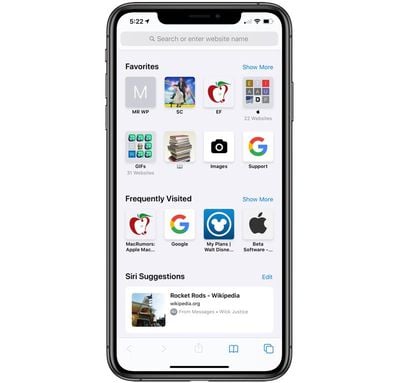
The start page includes access to your favorite websites as usual, but Siri Suggestions also surface relevant websites in your browsing history along with frequently visited sites, links sent to you in the Messages app, and more.
The new start page is designed to let you get to what most interests you quickly, and it makes sure you don't forget to check out websites recommended to you by friends and family.
- How to Customize Your Favorite Sites in Safari for iOS
- How to Delete Frequently Visited Sites From Safari's Start Page in iOS
Website View Menu
In the Smart Search field where you can search or type in URLs, there's a new icon on the left denoted by two As.
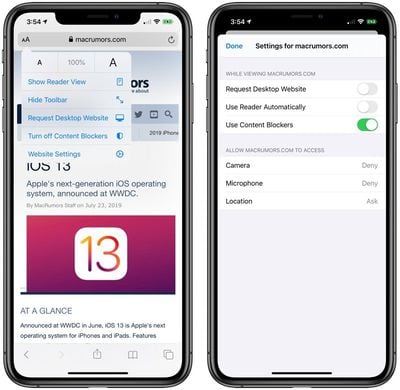
Tapping on this icon opens up the new Website View menu, where you can access the following controls:
- Text Size Options - Adjust the size of the text on the website you're on.
- Enable Reader View - Enable Reader View on the website you're on, which gets rid of ads and formatting for a clean book-style reading interface.
- Hide Toolbar - Eliminates the Toolbar so you can see the webpage you're on full screen.
- Request Desktop Website - Loads the desktop version of a website instead of the mobile version. This feature is for the iPhone, as the iPad now automatically loads desktop versions of websites instead of mobile versions. This turns into "Request Mobile Website" if the desktop site is already loaded.
- Website Settings - Provides access to individual settings for each website. You can set the site you're on to load in Reader view automatically or to always load as a desktop website. You can also enable or disable content blockers on a per-site basis, and toggle access to the camera, microphone, and your location. You can view sites where you've customized the settings in the Safari section of the Settings app under "Website Settings."
Website Settings
In the Safari section of the Settings app, there are new per-site controls that let you adjust everything from page zoom to privacy settings for all of the websites you visit (with settings for individual sites customizable using the View Menu mentioned above).
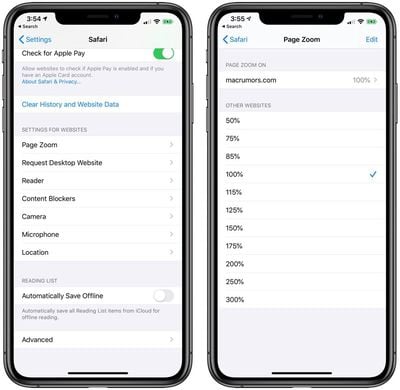
Custom settings you've set will also be listed here along with the toggles to control all websites by default. Available settings:
- Page Zoom - Sets the page zoom level for all websites from 50 percent to 300 percent. The default is 100 percent.
- Request Desktop Website - Lets you enable Request Desktop Site for all websites by default.
- Enable Reader View - Lets you enable Reader View for all websites by default. Sites with a Reader mode will always load in that view.
- Enable/Disable Content Blockers - Lets you toggle on or toggle off content blockers for all websites.
- Camera Access - Controls camera access. Available settings are Ask, Deny, and Allow.
- Location Access - Controls location access. Available settings are Ask, Deny, and Allow.
- Microphone Access - Controls microphone access. Available settings are Ask, Deny, and Allow.
If you've enabled some of these settings on a per-site basis using the View Menu, such as turning on Request Desktop Site for GeekWebGuides.com, you can disable the presets or delete them in the Website Settings section using the Edit menu for each category.
There's also an option to clear all settings when using this view.
- How to Request a Desktop Website in Safari for iOS
- How to Make Text Bigger in Safari for iOS
- How to Hide the Toolbar in Safari for iOS
- How to Access Website Settings in Safari for iOS
- How to Temporarily Disable Content Blockers in Safari for iOS
- How to Enable Content Blockers in Safari for iOS
- How to Disable Content Blockers for a Specific Website in Safari for iOS
- How to Search a Webpage for Specific Text in Safari on iPhone and iPad
Photo Upload Resizing
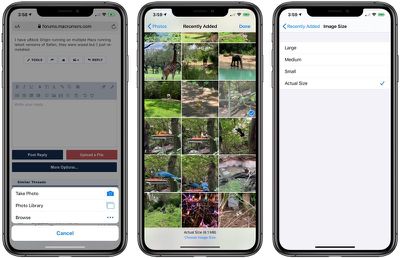
When uploading a photo to a website in Safari, you can now choose what size image to upload. Options include Actual Size, Large, Medium, and Small, with each option providing the file size at the bottom of the display once it's selected.
Saving Open Tabs as Bookmarks
Safari in iOS 13 includes a new feature that lets you bookmark all of your open tabs. To get to it, long press on the bookmark icon at the bottom of the Safari window, and then choose "Add Bookmarks for [x] Tabs."
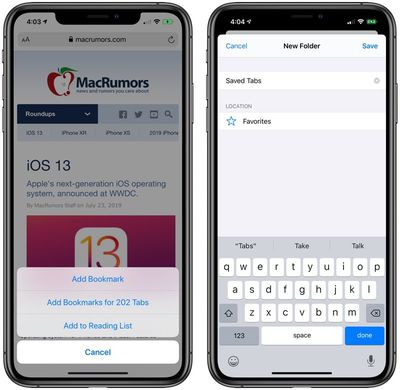
Selecting this will provide you with an interface where you can choose a new folder name and location for the bookmarks to be saved.
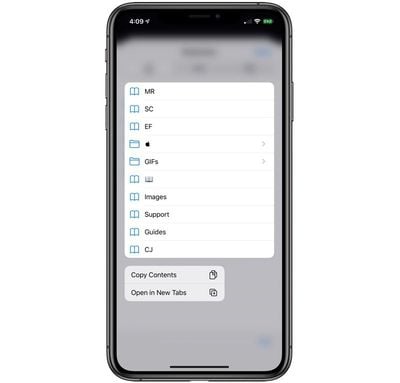
You can open up all the bookmarks that you've saved into new tabs (or bookmarks from any other folder) by opening up the Bookmarks interface, long pressing on the folder, and selecting the new "Open in New Tabs" option. There's also an option to copy the contents, which has also been added in iOS 13.
- How to Bookmark Multiple Open Tabs in Safari for iOS
- How to Save an Open Tab as a Bookmark in Safari on iOS
Accessing Open Tabs From Search
When you start typing the address of a website that's already open in another tab, Safari will direct you to the open tab in iOS 13 rather than opening up a new tab. This makes sure you don't open unnecessary tabs.
Automatically Close Safari Tabs
If you want to set your Safari tabs to automatically close after a set period of time, there's a new option to do so in the Safari section of the Settings app.
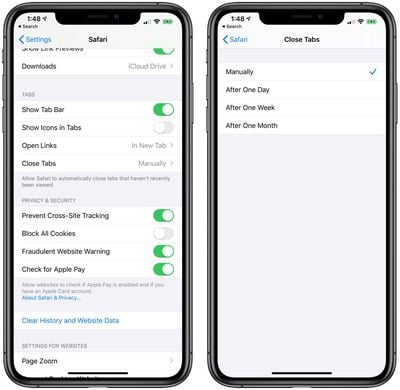
Open up Settings, choose Safari, scroll down to where it says "Close Tabs" and select the option that you want. The default setting is manual, which means tabs won't close unless you close them yourself, but you can also set tabs to clear automatically after one day, one week, and one month.
Redesigned Share Sheet
The Share Sheet in iOS 13 has been redesigned, making options like Copy, Add to Reading List, Add Bookmark, and more easier to get to with a new list-style view.
Multiple contact suggestions are also included in the Share Sheet now, including people you've recently spoken to in Messages and AirDrop devices that are nearby.
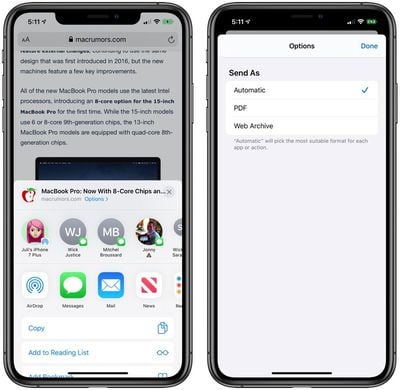
There's a new feature for sharing an entire web page as a link, a PDF, or in Reader view from the Share Sheet, and through the "Options" interface, you can choose whether to send content as a PDF or a Web Archive. By default, though, iOS 13 will pick "the most suitable format" for each app or action.
Sign In With Apple
Apple in iOS 13 introduced a new Sign In with Apple feature that's a privacy-focused alternative to existing sign-in options from companies like Twitter, Google, and Facebook.
Sign In with Apple is designed to let you sign in with various apps and websites using your existing Apple ID as an authentication method. Unlike sign in options from Google, Twitter, and Facebook, Apple's new option doesn't track or profile you when using Sign In with Apple.
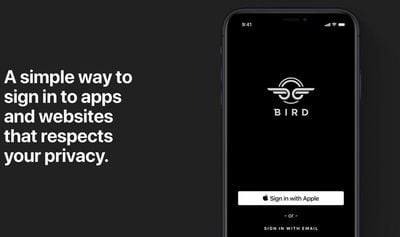
With Sign In with Apple, there's no need to create a login name or email address when signing up for a new website account. Sign In with Apple is authenticated via Face ID or Touch ID, and your information is further protected with two-factor authentication.
If you don't want to share your email address with an app or service that uses Sign In with Apple, Apple has created a "Hide My Email" feature to let you create unique single-use email addresses that forward to your real email address while keeping it inaccessible to third-party apps and services.

Sign In with Apple is designed to work in Safari on iOS, Safari on Mac, in apps, and on other platforms.
Weak Password Warnings
When signing up for a new website account, if you attempt to use a weak password, Safari gives you a warning and suggest a stronger password.
Stronger Encryption
In iOS 13, Safari history and open tabs that have been synced to iCloud are protected with end-to-end encryption, which means that no one but you can access your browsing history.
Enhanced Anti-Fingerprinting Protections
Apple has bolstered anti-fingerprinting protections in Safari in iOS 13, adding new protections related to browser fonts. Anti-fingerprinting techniques prevent companies from tracking your web browsing activities from website to website.
Download Manager
Safari features a new Download Manager that matches the Download Manager in Safari for desktop. When you choose to download a file, such as an image, a little download icon is displayed in the top right corner of the display.
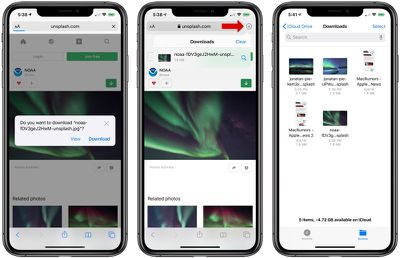
Tapping on the icon will let you see a list of files that you've downloaded, and tapping on the magnifying glass next to any file opens its enclosing folder.
By default, your downloaded Safari files are saved in a "Downloads" section of the Files app, but you can customize the file storage location by opening up the Settings app, selecting the Safari section, and tapping on the "Downloads" section.
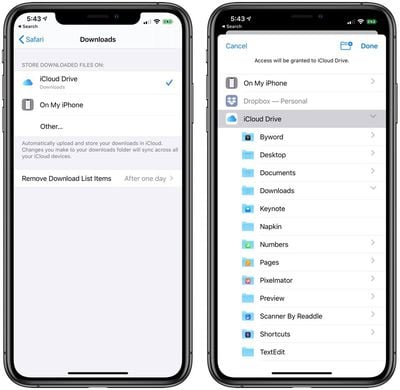
You can choose to save files in iCloud Drive, on your iPhone, or in another location such as a different iCloud folder, Dropbox, or another cloud service.
Items in your Safari Download Manager can be set to be deleted after one day, upon successful download, or manually. One day is the default.
- How to Access the Download Manager in Safari for iOS
- How to Change When Safari's Downloaded File List is Cleared in iOS
- How to Change Where Safari Files Download in iOS
Safari on iPadOS
While all of the above features are available on both the iPhone and the iPad, there are some additional changes and updates that were added into iPadOS, the version of iOS 13 that's designed to run on the iPad.
Desktop Websites
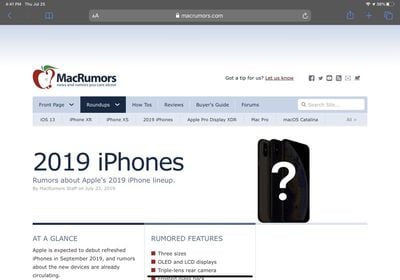
All websites on the iPad now display in desktop mode rather than mobile view, better mimicking the viewing experience that you get on a Mac.
Keyboard Shortcuts
Safari on iPadOS introduces 30 additional shortcuts that can be used when browsing, similar to the shortcuts that can be used for Safari on a Mac.
The new keyboard shortcuts work with the Smart Keyboard from Apple or any third-party Bluetooth keyboard.
- Use default font size in Reader (Command + 0)
- Open link in background (Command + tap)
- Toggle downloads (Command + Alt/Option)
- Open link in new window (Command + Alt + tap)
- Use selection for Find (Command + E)
- Email this page (Command + I)
- Open link in new tab (Command + Shift + tap)
- Decrease Reader text size (Command + -)
- Zoom in (Command + +)
- Zoom out (Command + -)
- Save webpage (Command + S)
- Change focused element (Alt/Option + tab)
- Focus Smart Search field (Command + Alt/Option + F)
- Dismiss web view in app (Command + W)
- Increase Reader text size (Command + +)
- Download linked file (Alt + tap)
- Add link to Reading List (Shift + tap)
- Close other tabs (Command + Alt/Option + W)
- Scroll around screen (arrow keys)
- Paste without formatting (Command + Shift + Alt/Option + V)
- New Private tab (Command + Shift + N)
- Actual size (Command + 0)
- Open search result (Command + Return)
- Toggle bookmarks (Command + Alt/Option + 1)
Full Toolbar in Split View
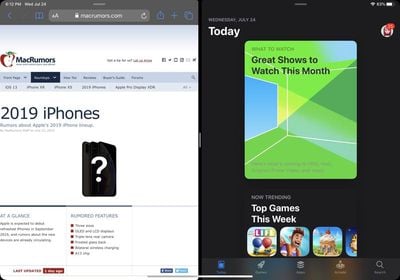
When using Safari in Split View, the full toolbar is now displayed. In iOS 12, the search bar was visible, but none of the additional tools for doing things like accessing bookmarks, getting to the Share Sheet, and more.
Creating New Windows
iOS 13 supports multiple windows from the same app in Split View, and to create two Safari windows, you can drag a link from one Safari window into to another to open Split View or Slide Over.
Dragging a link into a multitasking window with another app already open will open Safari as the secondary window. So, for example, you can open up Messages, receive a link, and drag it to create a Split View interface that has Safari (with the webpage in the link) and Messages open.
Guide Feedback
Have questions about Safari, know of an iOS 13 Safari feature we left out, or want to offer feedback on this guide? Send us an email here.

























![Apple Pulls Keynote, Pages and Numbers From App Store [Update: Back]](https://images.macrumors.com/t/Okb7kitB_gNr6qe5Pex9nQIysD8=/112x112/article-new/2026/01/Apple-Creator-Studio-iWork-suite.jpg)





















