AirDrop is a handy feature on Apple devices since it lets users discover nearby Macs, iPhones, and iPads, and securely transfer items between them over Wi-Fi and Bluetooth, and even continue larger transfers over cellular. The only problem is that it doesn't always work. If that sounds like your current experience with AirDrop, this article offers some troubleshooting steps that may help.
AirDrop is designed to let you send and receive photos, videos, documents, contacts, passwords and anything else that can be transferred via the in-app Share button on your Apple device. Since AirDrop can be used between Macs, iPhones, and iPads, the first thing to check if you’re having a problem with AirDrop is to make sure your devices support it.
1. Check Your Device Supports AirDrop
iPhone and iPad: To use AirDrop on iOS, you'll need an iPhone 5 or later, iPad 4 or later, iPad mini, or fifth-generation iPod touch. iPhones need to be running iOS 7 or later, and iPads must be running iPadOS 13 or later. Note that continuing AirDrop transfers over the internet/cellular requires iOS 17.1 or iPadOS 17.1 or later.
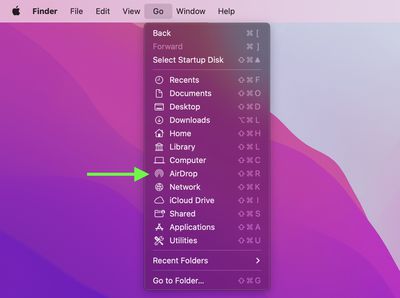
Mac: All Mac models released in 2012 and later and running OS X Yosemite or later support AirDrop. You can confirm that your Mac is compatible with AirDrop by clicking the Finder icon in the Dock and selecting Go in the menu bar. If AirDrop is not listed as an option, then your Mac is not compatible with the feature.
2. Check AirDrop Settings
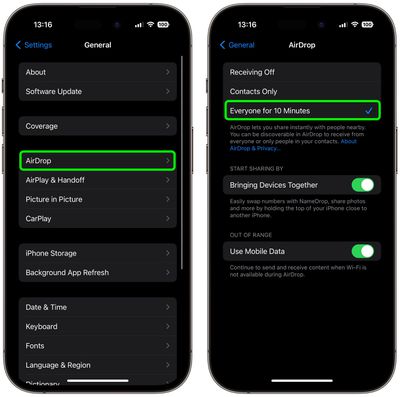
There is one inactive setting and two active settings for AirDrop: Receiving Off prevents anyone from sharing anything with you over AirDrop, Contacts Only limits shares to people whose email address or mobile number appears in your contacts, and Everyone for 10 Minutes temporarily accepts shares from any sender (Note: On earlier versions of iOS and iPadOS, the latter option is called Everyone. The 10-minute limit was introduced to help prevent users from becoming the victim of an unsolicited AirDrop share.)
If you're having trouble getting AirDrop to work, try switching to Everyone for 10 Minutes (or Everyone) if it's not already selected.
Adjust AirDrop Settings on iPhone and iPad
- Launch the Settings app on your iPhone or iPad.
- Scroll down and tap General.
- Tap AirDrop.
- Tap Everyone for 10 Minutes (or Everyone).
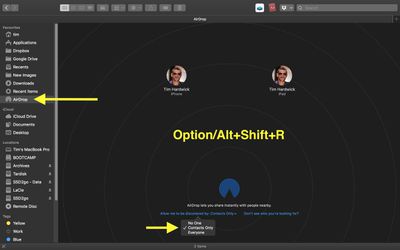
Adjust AirDrop Settings on Mac
- Open a Finder window on your Mac.
- Select AirDrop from the Finder sidebar (if AirDrop isn't listed, use the keyboard combination Command-Shift-R to open it.

- Click the setting prefaced with Allow me to be discovered by: and select Everyone from the drop-down menu.
On Mac, AirDrop settings can also be found in the Control Center, accessed in the far right of the menu bar.
3. Toggle Wi-Fi and Bluetooth
AirDrop relies on Wi-Fi and Bluetooth to transfer files over the air. If you're still having trouble getting AirDrop to work correctly, try switching off both radios completely on your device, then turn them back on again.
Toggle Wi-Fi on iPhone and iPad
- Launch Settings on your iOS device.
- Tap Wi-Fi.
- Tap the switch next to Wi-Fi to toggle it off, then tap it again to turn it back on.
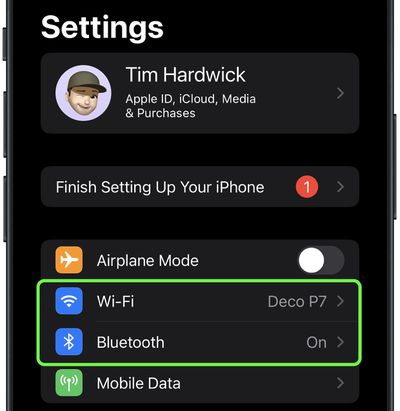
Toggle Bluetooth on iPhone and iPad
- Launch Settings on your iOS device.
- Tap Bluetooth.
- Tap the switch next to Bluetooth to toggle it off, then tap it again to turn it back on.
Toggle Wi-Fi and Bluetooth on Mac
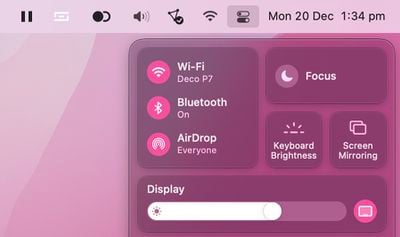
To toggle Wi-Fi and Bluetooth in macOS, simply click the Control Center icon in far right of the menu bar, and then click through to the Bluetooth and Wi-Fi panes to toggle the switches next to them.
4. Disable Personal Hotspot
If you're hosting a Personal Hotspot on your iPhone to provide internet access to another device, AirDrop won't work. The only solution is to turn off the Personal Hotspot. This will make the internet connection unavailable to the device that was using the hotspot, but you can always turn it back on again once you've transferred files over AirDrop.
In iOS 13.1 and later, Apple doesn't include an on/off switch in Settings -> Personal Hotspot. The thinking behind this change is that your hotspot is always ready to provide internet access to your other devices whenever they need it. On that basis, verified devices may automatically connect to your nearby instant hotspot if there's no Wi-Fi internet connection available.
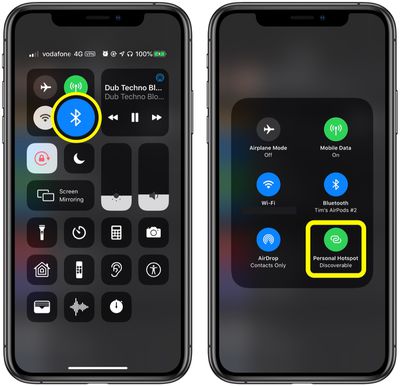
To prevent devices from connecting to your iPhone or iPad hotspot, launch the Control Center: Long press the Bluetooth button, and if the Personal Hotspot button is green on the next screen, tap it to make your hotspot Not Discoverable.
5. Make Sure Your iPhone or iPad is Unlocked
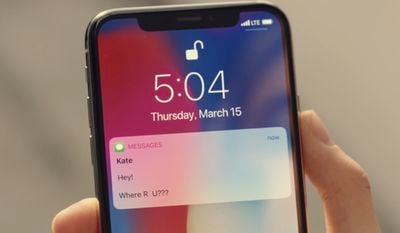
If your device is locked or powered off, it won't appear to someone else as an available device for sending something over AirDrop. If you want to receive files over AirDrop, make sure your iPhone or iPad is powered on and you have unlocked it using FaceTime, Touch ID, or a passcode.
6. Bring the Devices Closer to Each Other
When a shared Wi-Fi network isn't available, AirDrop relies exclusively on Bluetooth to find devices and transfer files.
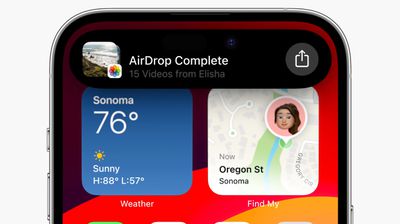
Bluetooth has a range of about 33 feet (10 meters) on modern iPhones, so make sure the two devices you want to use AirDrop between are within this range, otherwise it might not work.
7. Limit the Firewall on Your Mac
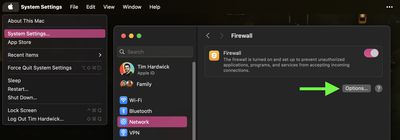
If you're trying to AirDrop files to a Mac but it doesn't show as an option on the sending device, try limiting the strictness of your Mac's firewall.
- On your Mac, click the Apple symbol in the menu bar and select System Settings... (or System Preferences... on older Macs).
- Select the Network menu (Privacy & Security on older Macs.)
- Click Options.... (On older Macs, click the padlock and enter your admin password or use Touch ID, then click Firewall Options....)
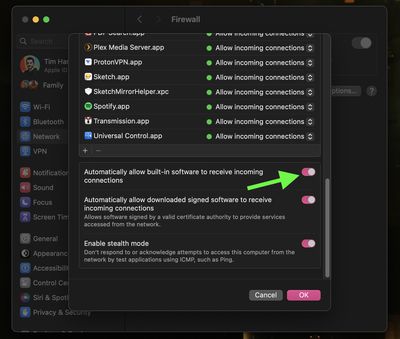
- Switch off (or uncheck the box next to) Block all incoming connections.
- Switch on (or check the box next to) Automatically allow built-in software to receive incoming connections.
8. Hard Reset Your Device
If none of the above have solved AirDrop issues on an iOS device, try doing a hard reset. The process is different depending on your device model.
- iPhone 6S and Earlier
- iPhone 7 series
- iPhone 8 series
- iPhone X, XR, XS, and XS Max
- iPhone 11 series
- iPhone 12 series
- iPhone 13 series
- iPhone 14 series
- iPhone 15 series
- iPhone SE
- iPad with Face ID/Touch ID
Contact Apple Support
If none of the above steps have solved your AirDrop issue, it could be down to a Bluetooth or Wi-Fi hardware issue. If in doubt, the best course of action is to contact Apple Support or check in to a Genius Bar at your nearest Apple store and they can run a diagnostic check on your device.