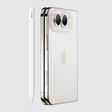
Apple's iPhone 13 mini, iPhone 13, iPhone 13 Pro, and iPhone 13 Pro Max come in the same sizes as the previous iPhone 12 series, and they share the same design elements with Apple's 2020 models, such as an all-screen design and no Home button on the front.
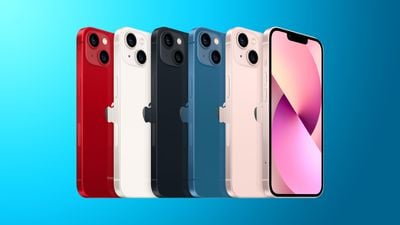
If you're upgrading from a device with a Home button, keep reading to learn how to power on and off, force a restart, enter DFU mode, enter recovery mode, activate Emergency SOS, and temporarily disable Face ID. Below you'll find step-by-step guides for performing the button combinations of all of the above functions, along with explanations of what the more obscure ones do and why they might one day come in useful.
How to Hard Reset the iPhone 13 (All models)
- Quickly press and release the Volume Up button.

- Quickly press and release the Volume Down button.
- Press and hold the Side button until the Apple logo appears, then release the Side button.
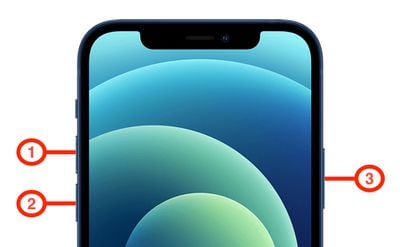
During this process, you will see a slider to power off the iPhone. You're going to want to ignore it and continue holding down the Side button until the screen goes black. At that point, the Apple logo will pop up, and after the restart is complete, the screen will activate once again.
Using the force restart process prevents you from having to shut the iPhone down entirely, which takes several more steps.
If you do want to shut the iPhone down, you can do so by going to the General section of the Settings app, scrolling down to the bottom, and choosing the Shut Down option.
iPhone 12 Button Basics
Apple changed many of the physical button functions on its smartphones with the launch of the iPhone 8 and iPhone X, so if you're upgrading from a device that pre-dates these 2017 models, you'll want to familiarize yourself with them.
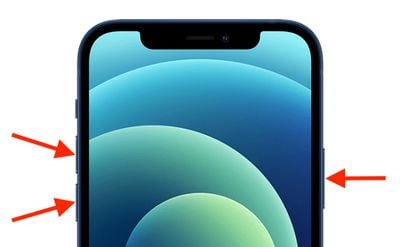
Face the screen of your new iPhone and you'll see that there are two volume buttons on the left-hand side, and a single Side button on the right-hand side. With no Home button to speak of, these three side buttons work in combination to undertake all of the necessary functions.
Other Useful Things to Know
- How to Turn On iPhone 12 and Later Models
- How to Turn Off iPhone 12 and Later Models
- How to Activate Emergency SOS on iPhone 12 and Later Models
- How to Disable Face ID on iPhone 12 and Later Models
- How to Enter Recovery Mode on iPhone 12 and Later Models
- How to Exit Recovery Mode on iPhone 12 and Later Models
- How to Enter DFU Mode on iPhone 12 and Later Models
- How to Exit DFU Mode on iPhone 12 and Later Models
How to Power on iPhone 13 mini, iPhone 13, iPhone 13 Pro, and iPhone 13 Pro Max
To turn on your new iPhone, press the Side button once. If the Apple logo doesn't appear on the screen, the device may need charging – plug it into a power outlet using the supplied Lightning cable, and let it charge for at least a few minutes before trying again.
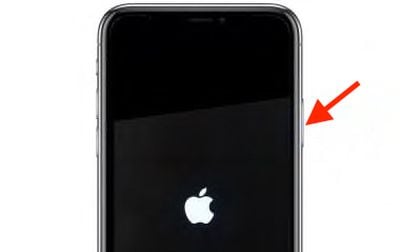
Press and hold the Side button along with the Volume Up or Volume Down button until two sliding buttons appear on the screen.
How to Power off iPhone 13 mini, iPhone 13, iPhone 13 Pro, and iPhone 13 Pro Max

- Press and hold the Side button along with the Volume Up or Volume Down button until two sliding buttons appear on the screen.
- Release the physical buttons and swipe right on the slide to power off button at the top of the screen.
How to Activate Emergency SOS on iPhone 13 mini, iPhone 13, iPhone 13 Pro, and iPhone 13 Pro Max
Activating Emergency SOS on your iPhone automatically calls emergency services and sends a text message with your location information to the people in your emergency contacts. For this reason, you should only use it when you're in danger or facing a genuine emergency. Note that you'll need to enter your iPhone's passcode to reenable Face ID and unlock your iPhone after performing Emergency SOS.
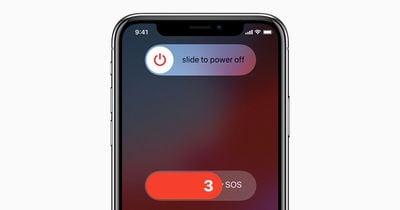
- Press and hold the Side button as well as either one of the Volume buttons, so that you're essentially squeezing either side of the device.
- Keep squeezing until the Emergency SOS countdown initiates on the screen. You can either wait for the countdown to finish or slide it across to call the emergency services immediately and alert your emergency contacts.
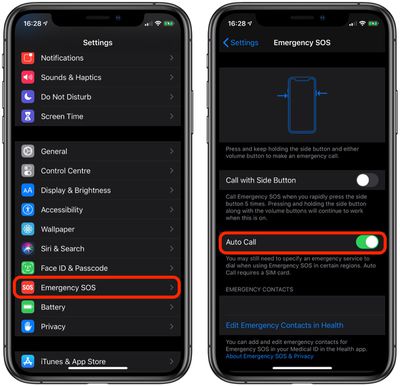
If you don't want Emergency SOS to automatically call emergency services when the Side button is pressed, make sure to disable Auto Call via Settings -> Emergency SOS -> Disable Auto Call.
How to Disable Face ID on iPhone 13 mini, iPhone 13, iPhone 13 Pro, and iPhone 13 Pro Max
Disabling Face ID on your iPhone makes it so your passcode has to be entered to unlock it. By disabling facial authentication, a police officer or malicious person can't unlock your iPhone simply by holding it in front of your face.
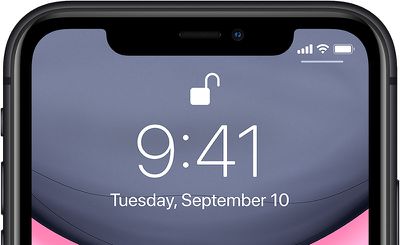
- Press and hold the Side button.
- Press and hold either Volume button.
- Tap the Cancel button that appears at the bottom of the screen.
Troubleshooting Functions
Apple changed the process of activating the following troubleshooting functions with the launch of the iPhone 8 and iPhone X, so if you upgraded from a device that pre-dates these 2017 models, it's a good idea to familiarize yourself with them in case you run into problems.
How to Enter Recovery Mode on iPhone 13 mini, iPhone 13, iPhone 13 Pro, and iPhone 13 Pro Max
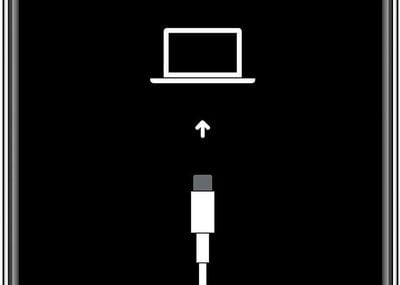
Entering recovery mode can help if you're having trouble updating or restoring your iPhone over the air. For example, if the screen shows the Apple logo for several minutes but no progress bar appears, you can try putting the device in recovery mode and restoring it with iTunes. Here's how it works.
- Using the Lightning cable that came with your iPhone, connect the device to your computer. If you're using a Mac running macOS Mojave or earlier, or you're connecting to a PC, make sure you have the latest version of iTunes installed.
- On a Mac running macOS Catalina or later, open Finder. On a Mac with macOS Mojave or earlier, or on a PC, open iTunes. If iTunes is already open, close it, then open it again.
- With the iPhone connected, force restart it with the following steps, but don't release the buttons when you see the Apple logo. Instead, wait until the recovery mode screen appears.
- Press and quickly release the Volume Up button.
- Press and quickly release the Volume Down button.
- Press and hold the Side button until you see the recovery mode screen, then release it.
- If you're using iTunes, select your device in the iTunes sidebar. Otherwise, select your device in the Finder sidebar.
- When you see the option to Restore or Update, choose Update. Your computer will try to reinstall the software without erasing your data. Wait while your computer downloads the software for your device.
How to Exit Recovery Mode on iPhone 13 mini, iPhone 13, iPhone 13 Pro, and iPhone 13 Pro Max
Simply press and hold the Side button until the "Connect to iTunes" screen disappears, and your iPhone should reboot back into iOS.
How to Enter DFU Mode on iPhone 13 mini, iPhone 13, iPhone 13 Pro, and iPhone 13 Pro Max
The forced restart procedure described above can help if an iPhone is freezing, throwing up errors, or has stopped responding completely. DFU mode (standing for Device Firmware Update) on the other hand restores an iPhone if a restart or entering standard Recovery Mode doesn't solve the problem you're experiencing.
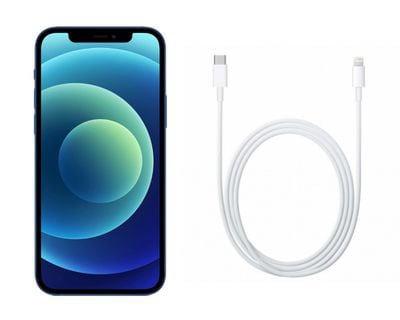
DFU mode lets the device interface with Finder or iTunes, update the firmware, and restore the OS without automatically installing the last downloaded version. It's useful for installing older versions of iOS if a beta persistently hangs your phone, or if a jailbreak goes bad.
Before following the steps below, make sure you have the latest version of iTunes installed on your computer.
- Turn on your iPhone if it isn't already.
- Connect it to your computer using a Lightning to USB cable.
- On Macs running macOS Mojave or earlier and PCs, make sure that iTunes is running. On Macs running macOS Catalina or later, make sure Finder is running.
- On your iPhone, press the Volume Up button immediately followed by the Volume Down button.
- Next, press and hold the Side button (or power button) until your iPhone's screen turns black.
- Release the Side button and then hold down both the Side button and Volume Down button together for approximately five seconds.
- Now release the Side button, but continue to press the Volume Down button.
- Wait for at least five seconds for Finder or iTunes to recognize DFU recovery mode has been enabled.
If you're using iTunes, you should see a message dialog saying "iTunes has detected an iPhone in recovery mode. You must restore this iPhone before it can be used with iTunes". If you're using Finder, you should see a similar message. If you don't see the message, repeat the steps above.
Once you've closed the recovery prompt you can go ahead and restore your iPhone back to factory settings by selecting Restore iPhone on the iPhone Recovery Mode screen. Once restored, your iPhone will automatically exit out of DFU mode and boot up to its activation screen.
How to Exit DFU Mode
If you enabled DFU mode and want to manually exit out of it, here's how it's done.
- Press the Volume Up button on your iPhone and quickly release it.
- Press the Volume Down button and release it.
- Press and hold the Side button until the Apple logo appears on your iPhone's screen.
Your iPhone should now have exited DFU recovery mode.