

In iOS 12 and earlier versions of iOS, Siri analyzes your app use, browsing history, emails, messages, contacts, and information from third-party apps to provide customized suggestions for searches, Look Up, News, Photos, and more.
Siri syncs this information across all of your devices to provide a more personalized experience, and this information is also anonymously sent back to Apple to "make your searches more relevant."
All of this information is encrypted, but you may not want to use the feature because of privacy issues or you may not want certain apps showing up on your device. For that reason, Apple has expanded privacy controls so you can customize Search and Siri Suggestions to your liking.
How to Disable Siri Suggestions for Individual Apps
If you want to use Siri Suggestions but don't want certain apps to show up as suggested content, you can disable them on an app by app basis. This feature was introduced in iOS 11 and it keeps sensitive apps from showing up in suggestions, searches, and more across your operating system.
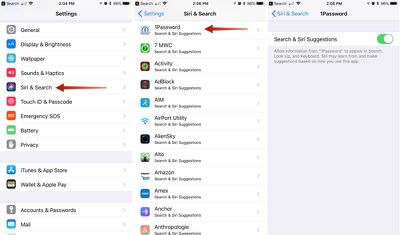
- Open the Settings app.
- Scroll down to Siri & Search and tap it.
- Scroll down to see a list of all of the apps that work with the feature.
- Select each app you don't want to show up in search and Siri suggestions.
- Tap the Siri & Suggestions button to toggle it off.
When you disable apps, information from those apps will not show up in Search, Look Up, and Keyboard as you use your iOS device. So, for example, if I disable the Files app, content stored in my Files app will no longer come up in a search or anywhere else.
In the screenshot below, I have Files enabled for Siri and Search Suggestions on the left, and on the right, I've disabled the feature. As you can see, content from the Files app no longer shows up.
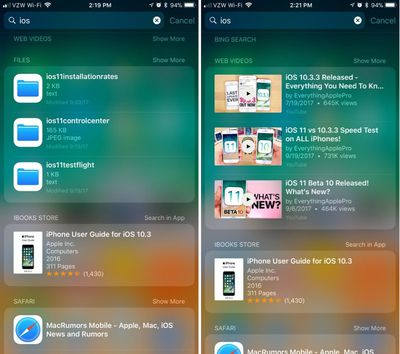
You can toggle off any of your installed apps to prevent their data from being displayed when you search, use the keyboard, and ask Siri questions.
Siri will ignore disabled files but will continue to learn your preferences from enabled apps and show content from those apps, which is probably how most people will prefer to use this feature. For a full lockdown, though, disable your apps and turn off Siri Suggestions entirely.
How to Turn Off Siri Suggestions Entirely
If you don't want to use Siri suggestions at all, there are three simple toggles for turning it off.
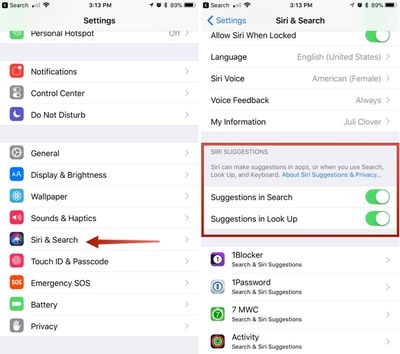
- Open the Settings app.
- Scroll down to Siri & Search and tap it.
- Scroll down to Siri Suggestions.
- Toggle off Suggestions in Search.
- Toggle off Suggestions in Look Up.
- Toggle off Suggestions on Lock Screen.
With these two settings toggled off Siri will not provide personalized suggestions when you search for things, and your data will not be anonymously sent to Apple to power the Siri features. Note that Siri will still bring up apps installed on your devices in search and other areas -- this just disables the feature that lets Siri learn your preferences and send data to Apple.
To keep apps from showing up entirely, you'll need to use the individual app settings, as outlined above.
Preventing Siri Suggestions From Sending Your Location to Apple
In some cases, Siri Suggestions sends the location of your device to Apple alongside your search queries so Apple can provide more relevant recommendations. You can keep your location from being sent to Apple by disabling a specific Location setting.
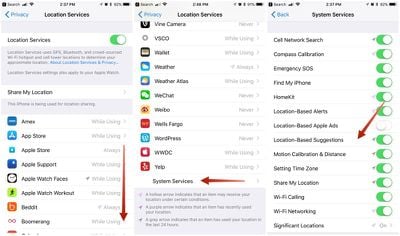
- Open the Settings app.
- Choose Privacy.
- Tap Location Services.
- Scroll down to System Services and tap it.
- Scroll down to Location-Based Suggestions and toggle it off.
Siri Suggestions is a useful feature so most people won't want to toggle it off completely (and it is completely private -- Apple encrypts and anonymizes all data) but being able to prevent individual apps like Safari, Mail, and others from showing up lets you customize your results for a more streamlined experience and it prevents anything you don't want to see from popping up unexpectedly.




















Top Rated Comments
I always had it disabled for most because I found the in-app search result suggestions to be cluttering.
I want a quick and easy way to spotlight search an app by typing 2-4 characters.
The only way to do this now is to enable ‘Search & Siri Suggestions’ for this app. It will then show up almost at the top. Right below the text search suggestions.
Unfortunately this also enables all the other in-app search clutter again.
I’ve submitted feedback to the Apple iPhone feedback system. I suggest everybody who finds this annoying to do the same.