This article shows you how to back up your iPhone, iPad, or iPod touch to your Mac using the new route in Catalina.
With the release of macOS Catalina, Apple said goodbye to iTunes and broke it up into separate Mac apps for Music, Podcasts, and Apple TV, meaning the functions for managing a connected iPhone, iPad or iPod touch needed a new home.
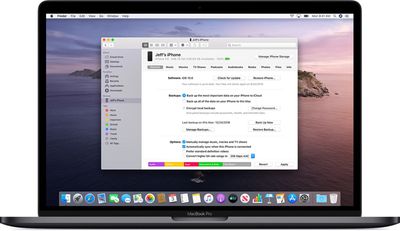
It's not immediately obvious, but Apple chose to integrate these device functions into the Finder, so now you can choose media sync settings, manage iCloud and local backups, and restore or update your iOS device without even opening another application on your Mac.
Keeping a local backup of your iOS device ensures that, should you ever lose it, you'll be able to restore all your information on a replacement device. You can also encrypt your local backup to keep private information like your passwords and personal health or activity data safe and secure. Keep reading to learn how.
How to Back Up Your iOS Device in macOS Catalina
- Plug your iPhone, iPad, or iPod touch into your Mac using the supplied cable.
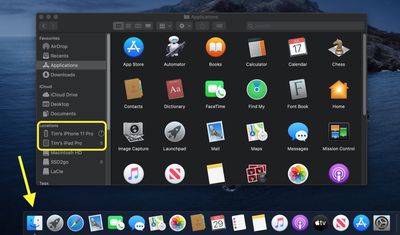
- Open a Finder window by clicking the Finder icon in the Dock.
- Click your iOS device's name in the sidebar.

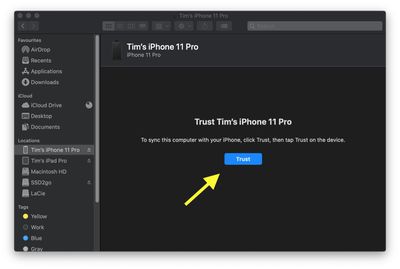
- If this is the first time connecting your device to your Mac, click Trust in the Finder window.
- Tap Trust on your device when prompted, then enter your passcode to confirm.
- In the General tab, click the circle next to where it says Back up all of the data on your [iPhone/iPad/iPod touch] to this Mac.
- If you don't want to create an encrypted backup, or you've already set up encrypted backups, click Back Up Now at the bottom of the General tab.
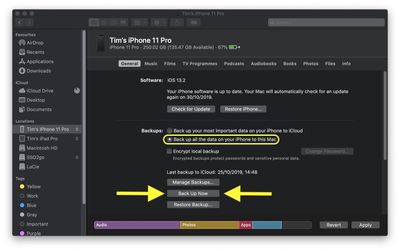
When the backup is finished, you can find the date and time of the last backup in the General tab, just above the Manage Backups button.
How to Encrypt an iOS Device Backup in macOS Catalina
- Plug your iPhone, iPad, or iPod touch into your Mac using the supplied cable.
- Open a Finder window by clicking the Finder icon in the Dock.
- Click your iOS device's name in the sidebar.
- If this is the first time connecting your device to your Mac, click Trust in the Finder window.
- Tap Trust on your device when prompted, then enter your passcode to confirm.
- Click the checkbox next to Encrypt local backup in the General tab.
- Choose a password to protect your device backup, then verify it and tick the box if you want to remember the password in your keychain.
- Click Set Password.
- Enter your passcode on your iOS device to begin the backup.
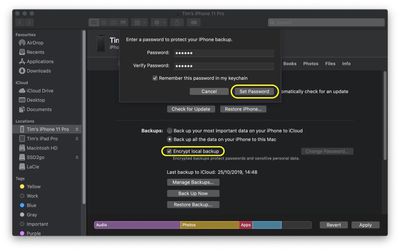
When the backup is finished, you can find the date and time of the last backup in the General tab, just above the Manage Backups button.