On iPhone and iPad, Apple provides users with granular control over the downloading and installing of system software updates. This article takes you through the options.
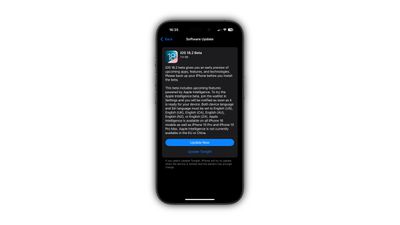
In earlier versions of iOS, new software updates were downloaded automatically in the background and then installed through an Automatic Updates feature. But in modern versions of iOS you can customize Automatic Updates more selectively.
- Open Settings ➝ General.
- Tap Software Update.
- Tap Automatic Updates.
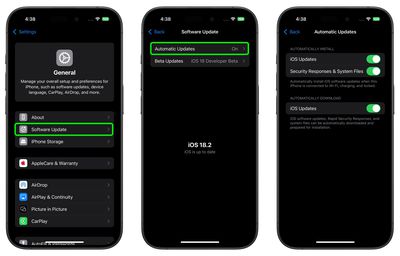
Automatic Updates Settings
The last screen presents you with three settings that you can toggle on and off. The first two settings under "Automatically Install" relate to the automatic installation of iOS updates and rapid security response updates.
iOS Updates refer to regular software updates, which can come in the form of major software updates (e.g. iOS 18) and iterative point releases (e.g. iOS 18.1). Major updates are typically several gigabytes large, while iterative releases are usually smaller in size.
Security Responses & System Files refers to Rapid Security Response updates from Apple. Added in iOS 16, Rapid Security Response updates are meant to make it quicker and easier for the company to deploy security improvements to iPhone users without a full iOS update.
With these settings enabled, said software updates are automatically installed when an iPhone is connected to Wi-Fi, charging, and locked.
If you enable the third setting, iOS Updates (under "Automatically Download"), this will automatically download iOS software updates, Rapid Security Responses and system files ready for installation, but crucially, they will not be automatically installed even if the three above criteria are satisfied.
This means you retain control over when a downloaded update is installed, which can be done at any time by going to Settings ➝ General ➝ Software Update and choosing Install Now.
Manually Remove Downloaded Updates
If for any reason you are unable to install the latest version of iOS, you can delete the downloaded update and download it again by following these steps.
- Go to Settings -> General -> iPhone Storage.
- Find the update in the list of apps.
- Tap the update, then tap Delete Update.
- Go to Settings -> General -> Software Update and download the latest update.
If you can't see the update in the list of apps or if the issue happens again, you'll need to update your device by connecting it to your computer with the supplied cable.
Remove Rapid Security Response Updates
You can remove a Rapid Security Response from your device by going to Settings ➝ General ➝ About, tapping the iOS version, and then tapping Remove Security Update (if available). You can then reinstall the Rapid Security Response at a later date, or wait for it to be installed permanently as part of a standard software update.