How to Disable Gesture-Based FaceTime Reactions - MacRumors
Skip to Content

How to Disable Gesture-Based FaceTime Reactions

by

In iOS 17 and iPadOS 17, Apple introduced Messages-like reactions to FaceTime that lighten up your video with visual effects. Rather than triggering them with words, they are triggered using physical hand gestures. For that reason, it's easy to trigger them unintentionally. Keep reading to learn how to turn them off.

ios 17 facetime effects
When you're on a ‌FaceTime‌ video call on an iPhone or iPad, it's possible to trigger on-screen effects like hearts, balloons, confetti, fireworks, and more, with the effects flooding the display over the ‌‌FaceTime‌‌ window.

‌FaceTime‌ reaction effects are great fun when chatting with friends and family, but there may be certain occasions when you don't want to be accidentally triggering reactions, such as when you're on a work call, or during a virtual appointment with your therapist. Fortunately, you can disable them manually by following these steps.

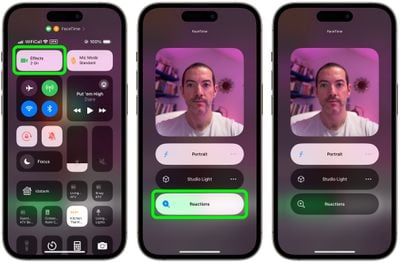
  1. Open ‌FaceTime‌ on your ‌iPhone‌ or ‌iPad‌.
  2. Swipe down from the top-right corner of the screen to invoke Control Center (swipe up from the bottom if you're on a device with Touch ID).
  3. Tap the Effects button in the top-left corner.
  4. Tap the Reactions button so that it is no longer illuminated.
  5. Swipe up twice to return to ‌FaceTime‌.

FaceTime

Disabling FaceTime Reactions on Mac

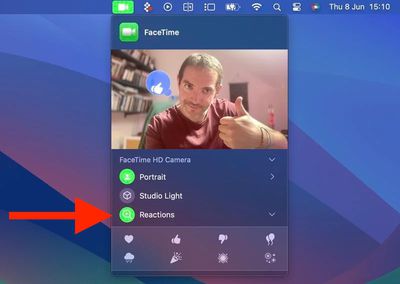
FaceTime‌ reactions work just the same in macOS Sonoma, but the video effects options have moved from the Control Center. Instead, they have a new home in a dedicated green ‌‌FaceTime‌‌ menu bar dropdown, which also includes a mini webcam view and clickable buttons to manually trigger Reactions.
FaceTime
To disable reactions on your Mac, simply click the Reactions button in the ‌FaceTime‌ menu bar dropdown so that it is no longer illuminated.

Popular Stories

iOS 26

iOS 26.4 Adds Two New Features to CarPlay

Tuesday March 24, 2026 1:55 pm PDT by
iOS 26.4 was released today, and it includes a couple of new features for CarPlay: an Ambient Music widget and support for voice-based chatbot apps. To update your iPhone 11 or newer to iOS 26.4, open the Settings app and tap on General → Software Update. CarPlay will automatically offer the new features so long as the iPhone connected to your vehicle is running iOS 26.4 or later....
Apple Business hero

Apple Unveils 'Apple Business' All-in-One Platform

Tuesday March 24, 2026 8:53 am PDT by
Apple today announced Apple Business, a new all-in-one platform that unifies device management, productivity tools, and customer outreach features. The service is designed to be a consolidated replacement for several of Apple's existing business-focused offerings, including Apple Business Essentials, Apple Business Manager, and Apple Business Connect. It provides organizations with a single...
AirPods Pro Firmware Feature

Apple Releases New Firmware for AirPods Pro 3, AirPods Pro 2 and AirPods 4

Tuesday March 24, 2026 12:31 pm PDT by
Apple today released new firmware for the AirPods Pro 2, AirPods Pro 3, and the AirPods 4. The firmware has a version number of 8B39, up from 8B34 on the AirPods Pro 3, 8B28 on the AirPods Pro 2, and 8B21 on the AirPods 4. There is no word on what's included in the firmware, but Apple has a support document with limited notes. Most updates are limited to bug fixes and performance...