

In iOS 14, Apple overhauled widgets and introduced an option for adding widgets to the Home Screen, but in the process, a well-loved Favorites widget that existed in iOS 13 was removed.
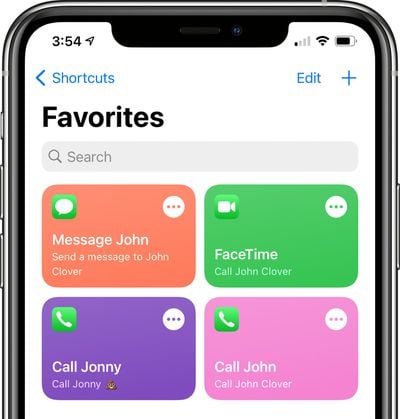
The Favorites widget allowed users to set certain contacts and contact methods as favorites that were easily accessible, so you could, for example, add a favorite option for messaging Eric or calling Dan, with those actions executed with a tap on the widget.
Why the Favorites widget was removed is a mystery and it could be a simple oversight with Apple planning to reintroduce it later, but for now, those who relied on the widget can recreate its functionality with Shortcuts. It takes some effort, but it may be worth the time investment if you often relied on your Favorites.
Creating a Favorites Shortcut
Making a shortcut that replicates the behavior of the Favorites widget isn't too tough, but if you want multiple favorite options, you'll need to create a separate shortcut for each one in the Shortcuts app.
- Open the Shortcuts app.
- Tap on the "← Shortcuts" label in the upper left hand corner.
- Tap on the folder icon in the top right to create a new folder. Your favorites shortcuts need to be in a folder if you want to use them with the Shortcuts widget.

- Name the folder ("Favorites" in our case) and choose an icon.
- Tap on the new folder ("Favorites") and then tap the "+" icon to start creating shortcuts.
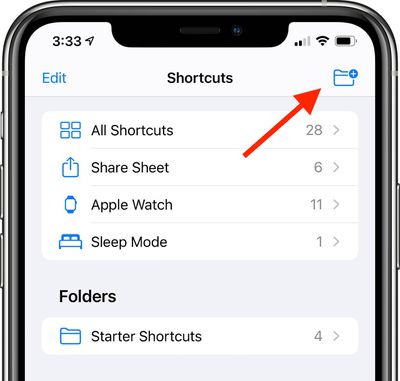
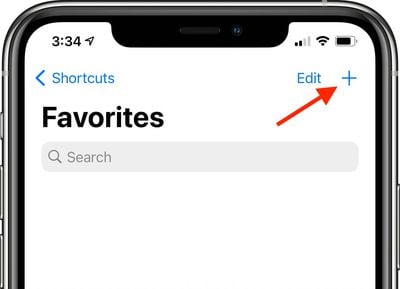
After this step, there are slightly different Shortcut creation methods that can be used to create quick contact options for calling, FaceTiming, and messaging someone.
Making a Shortcut to Call Someone
- Tap Add Action and then search for "Phone" or "Call."
- Tap the Phone app.
- Tap on one of the suggested contacts that Shortcuts offers or tap on the "+" button to select a different contact.
- Make sure the Shortcut you've created says Call [Contact Name].
- Tap Next.
- Give the Shortcut a name. ("Call John" in our case)
- Tap the icon to the left to the name to select both a color and an icon for your Shortcut.
- Tap "Done."
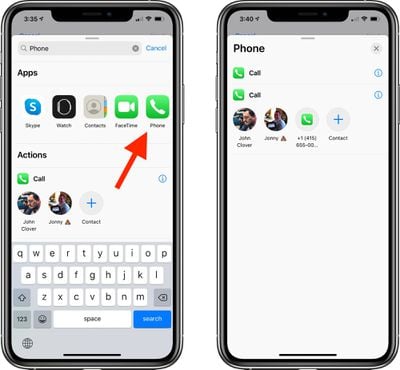
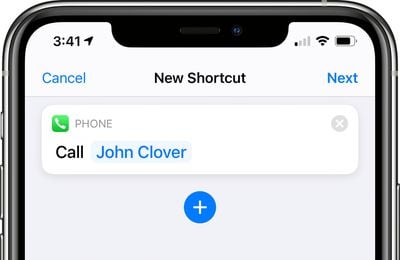
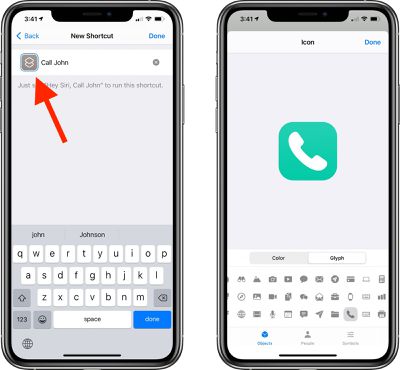
After you tap Done, your shortcut to make a phone call to one of your contacts will be listed in the appropriate folder in the Shortcuts app. To activate it, just tap it and it will automatically call the intended person. Repeat these steps for anyone you want to create a call shortcut for.
Making a Shortcut to FaceTime Someone
- Tap Add Action and then search for "FaceTime" or "Call."
- Tap the FaceTime app to get to the Shortcut editing options.
- Tap on "FaceTime" to select either standard FaceTime or FaceTime Audio.
- Tap on the [Contact] blank to select a contact from the list.
- Make sure the Shortcut you've created says FaceTime [Contact Name].
- Tap Next.
- Give the Shortcut a name.
- Tap the icon next to the name to select both a color and an icon for your Shortcut.
- Tap "Done."
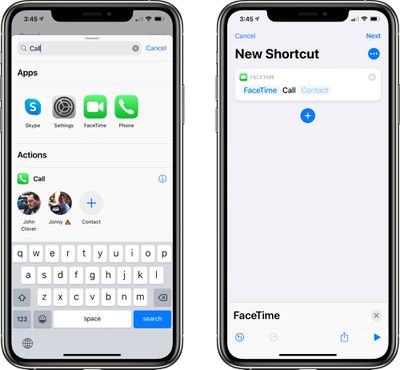
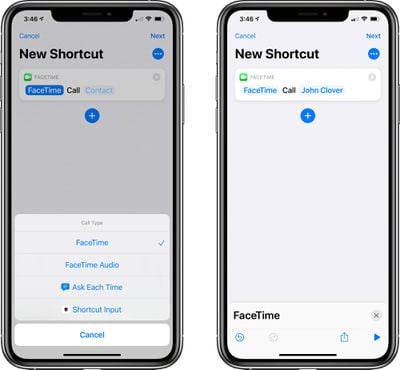
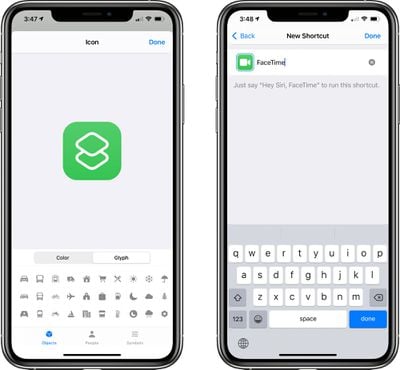
When you tap this Shortcut, it will initiate a FaceTime call to the person that was added as the contact.
Making a Shortcut to Message Someone
- Tap Add Action and then search for "Messages."
- Tap on "Send Message."
- Tap on the [Recipients] blank to select a contact.
- Type in the name of the person you want to be able to message.
- Make sure the Shortcut you've created says Send "Message" to [Contact].
- Tap Next.
- Give the Shortcut a name.
- Tap the icon next to the name to select both a color and an icon for your Shortcut.
- Tap "Done."
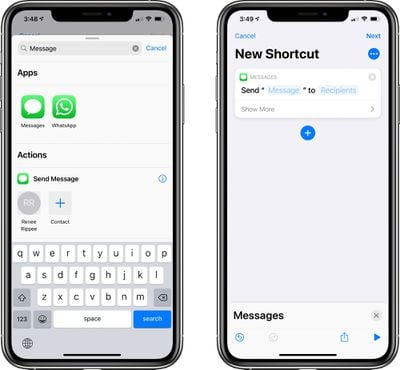
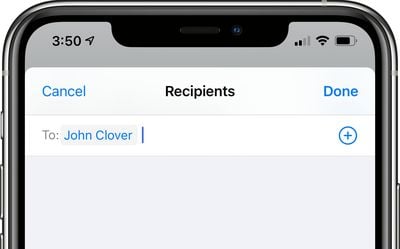
Tapping the finished Shortcut will open up the Messages app with a compose window for the person who you added as your target contact. Note that if you want to send a message to more than one person, just type in multiple names at the part where you're entering the name of your contact.
Adding the Shortcuts Favorites Widget to Your Home Screen
Once you've created all your shortcuts for quickly sending a message, calling, or FaceTiming your contacts, you're ready to add a widget that can be accessed from the widget interface or right from the Home Screen.
- Go to the iPhone's Home Screen.
- Swipe over to where you want to place your new Favorite Widget.
- Press and hold on the Home Screen to enter "Jiggle" Mode, and then tap the "+" button in the upper left hand corner.
- Search for Shortcuts and tap the icon.
- Choose the widget you want. If you made a single favorites Shortcut, tap the single option. If you have two to four, tap the size with four, and choose eight if you have more.
- Tap Add Widget.
- Tap on the widget to customize it.
- Tap on the folder where you put all your favorites shortcuts.
- Tap out of the interface and tap "Done."
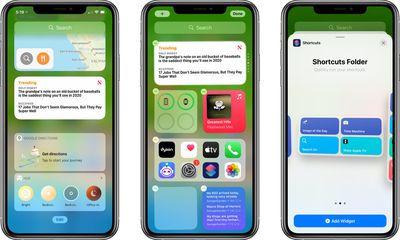
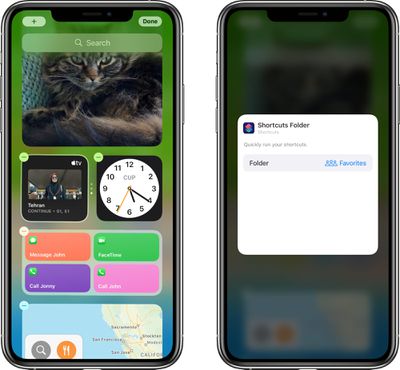
That's all there is to it. Once the Shortcuts widget is set up with the appropriate folder that contains all of your contact shortcuts, a tap on any one of the widget options will initiate the action right from the widget interface, just like the prior favorites widget.
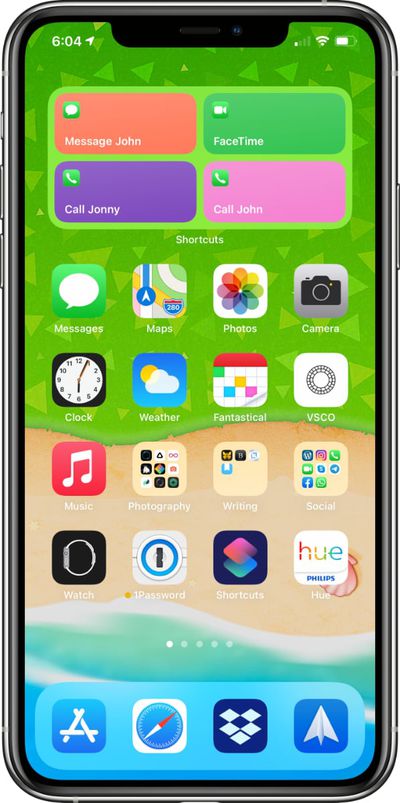
Note that the Shortcuts widget has limited space when it comes to names, so you may need to shorten some of the Shortcut names you've created to make it clear who's going to be contacted if you have multiples.
If you need more detailed instructions on adding widgets, see our dedicated Widgets how to.
Favorites Still in the Contacts App
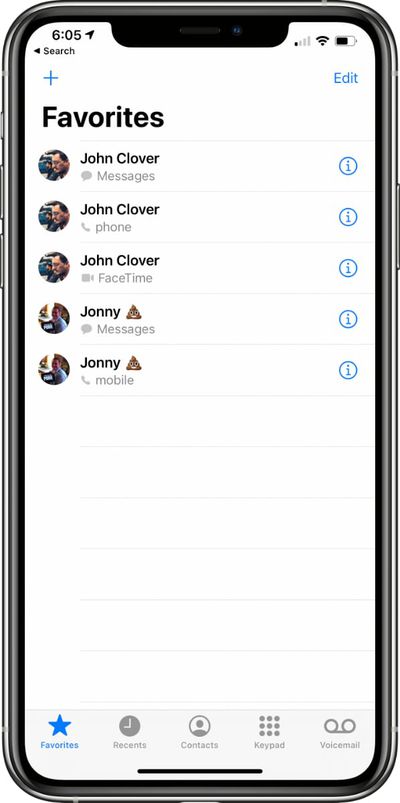
Just to be clear, it's the Favorites widget that's been removed, not the Favorites functionality in its entirety. You can still create and access your previously made favorite options in the Phone app under the "Favorites" tab if that's easier than making a whole bunch of Shortcuts.
For more on how to make use of widgets and the new Home Screen changes in iOS 14, make sure to check out our widget how to and our Home Screen guide.





















Top Rated Comments
This didn’t take any space on the home screen and was easily accessible. Now there’s no way to do many simple things and the new widget system seems much worst. I really see iOS 14 as a downgrade from iOS 13.
Here we go, actually. You can set up multiple people just by hitting the plus button in the "speed dial" shortcut (under Quick Shortcuts, under Gallery)
My weird workaround also works, just using the Calculator as input if you paste in the correct number.