

Apple Cash (formerly Apple Pay Cash) is Apple's peer-to-peer payments service. You can use Apple Cash to make and receive payments in Messages, or you can get Siri to send money to a friend or family member.
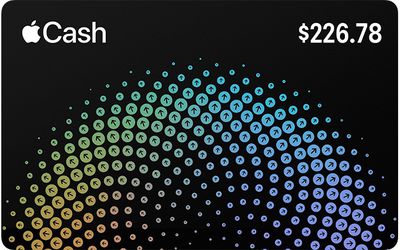
When someone sends you money, it goes on your virtual Apple Cash card, which is stored securely in the Wallet app on your iPhone or iPad. You can use the money on it to send to someone, make purchases using Apple Pay in stores, within apps, and on the web. Alternatively, you can transfer the money on your Apple Cash card directly to your bank account.
There's no fee to send, receive, or request money using Apple Cash, and setting up an Apple Cash card won't affect your credit score.
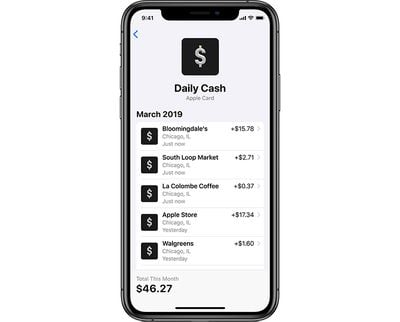
Furthermore, if you've applied for Apple's own-branded credit card – called simply Apple Card – you can use Apple Cash to help pay off your Apple Card balance. You can also take advantage of Apple Card's "Daily Cash" rewards system, where Apple pays out cash back bonuses on a daily basis.
There's no limit to how much Daily Cash you can get, and it's paid daily into your Apple Cash card – if you have one. Here's what you'll need to set one up.
What You Need to Get an Apple Cash Card
To set up an Apple Cash card and send and receive Apple Cash, you must be at least 18 years old and live in the United States. You'll also need these things:
- An iPhone or iPad that can use Apple Pay and runs iOS 11.2 and later, or an Apple Watch running watchOS 4.2 and later.
- Two-factor authentication set up for your Apple ID.
- An eligible debit card loaded into the Wallet app.
How to Set up Your Apple Cash Card
- Launch the Settings app on an iOS device signed in to iCloud with your Apple ID.
- Tap Wallet & Apple Pay.

- Under Payment Cards, tap Apple Cash.
- Confirm your personal details and then wait for your Apple Cash card to activate.
- Once activated, an Apple Cash card will appear in the Wallet app and you'll be able to access your Apple Cash from there.
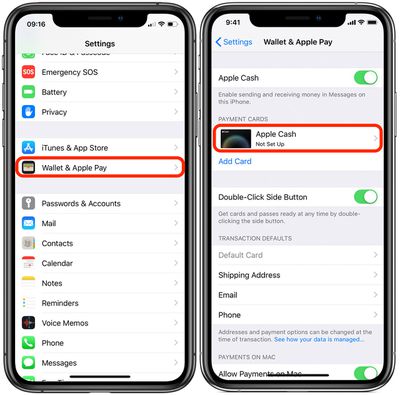
Alternatively, you can also use the Wallet app to enable Apple Cash. Launch the Wallet app and tap the Apple Cash card that appears there. Apple will walk you through the setup process, and ask if you want to enable Apple Pay. You'll then be directed to the Settings app to confirm your information.
















