How to Hide External Drives on Your Mac's Desktop - MacRumors
Skip to Content

How to Hide External Drives on Your Mac's Desktop

by

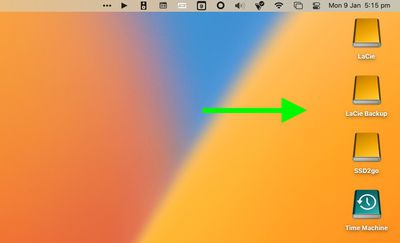
Whenever you have external drives connected or volumes mounted on your Mac, by default macOS displays them as icons on your desktop. If you'd rather not see these drives on the desktop, there's a setting you can change in macOS that will hide them.
macOS
With the setting enabled, the drives will not appear on your desktop, providing you with a more minimalist visual experience, and you'll still be able to access the drive contents via Finder. The following steps show you how it's done.

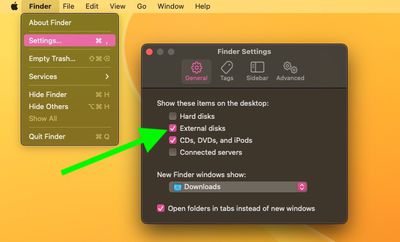
  1. Click the Finder icon in the Dock to make sure it's active, then click the Finder menu bar and select Settings... (or Preferences... in older versions of macOS) from the dropdown menu.
  2. Click the General tab if it's not already selected.
  3. Uncheck the box next to External disks. (You can also uncheck the box next to CDs, DVDs, and iPods if you don't want them to appear on the desktop when connected.)
  4. Close Finder Settings by clicking the red traffic light.
finder

The change should take effect immediately – any external drives connected to your Mac will no longer show up on the desktop. To access any connected drives or media, open a Finder window and you will be able to select them in the sidebar.

On a separate note, there's a simple Terminal command that turns the Dock into more of a straightforward app switcher by making it display only apps that are currently running on your Mac. If you like having a minimalist desktop, why not try it out.


Popular Stories

iOS 26

iOS 26.4 Adds Two New Features to CarPlay

Tuesday March 24, 2026 1:55 pm PDT by
iOS 26.4 was released today, and it includes a couple of new features for CarPlay: an Ambient Music widget and support for voice-based chatbot apps. To update your iPhone 11 or newer to iOS 26.4, open the Settings app and tap on General → Software Update. CarPlay will automatically offer the new features so long as the iPhone connected to your vehicle is running iOS 26.4 or later....
Apple Business hero

Apple Unveils 'Apple Business' All-in-One Platform

Tuesday March 24, 2026 8:53 am PDT by
Apple today announced Apple Business, a new all-in-one platform that unifies device management, productivity tools, and customer outreach features. The service is designed to be a consolidated replacement for several of Apple's existing business-focused offerings, including Apple Business Essentials, Apple Business Manager, and Apple Business Connect. It provides organizations with a single...
AirPods Pro Firmware Feature

Apple Releases New Firmware for AirPods Pro 3, AirPods Pro 2 and AirPods 4

Tuesday March 24, 2026 12:31 pm PDT by
Apple today released new firmware for the AirPods Pro 2, AirPods Pro 3, and the AirPods 4. The firmware has a version number of 8B39, up from 8B34 on the AirPods Pro 3, 8B28 on the AirPods Pro 2, and 8B21 on the AirPods 4. There is no word on what's included in the firmware, but Apple has a support document with limited notes. Most updates are limited to bug fixes and performance...