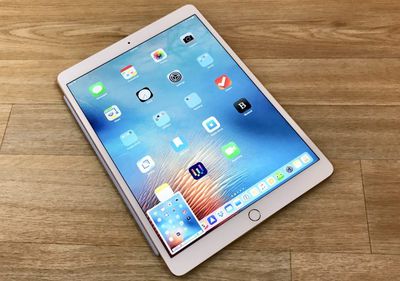
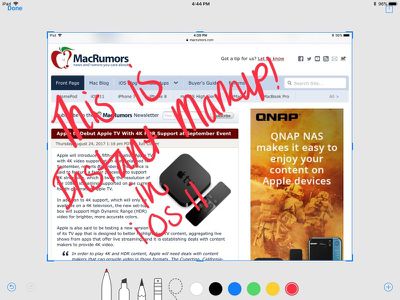
When you take a screenshot in iOS 11 or later, there's a new feature that's designed to let you open it right up and edit it with Apple's Markup tools.

Using the screenshot editing feature, you can capture what's on the screen of your iPad or iPhone and then add text, crop, highlight specific areas, and more.

Using Instant Markup

  1. Press the Home button and the sleep/wake button simultaneously to capture a screenshot.
  2. A preview of the screenshot will pop up in the lower left of the display. Tap it to open up the Instant Markup interface. You'll have about five seconds before it disappears.ipadscreenshoteditingios11
  3. Use a finger to adjust the blue outline if you want to crop your image.
  4. Choose a pen/marker/pencil and a color and then draw with a finger or the Apple Pencil (on iPad Pro) to edit your screenshot. instantmarkupinterface

If you take multiple screenshots at once, they'll all be displayed in Instant Markup and you can swipe between them.

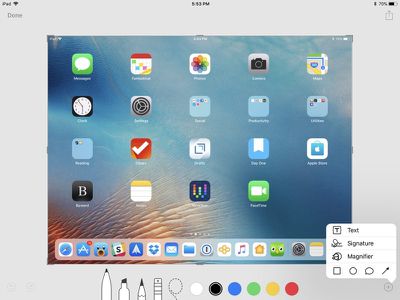
There are all kinds of tools in Instant Markup, including a pen, pencil, highlighter, eraser, drop shadow tool, crop, multiple pen colors, and undo/redo.
instantmarkupinterfaceios11
To access even more tools, tap on the "+" button. This gives you access to a text entry field, a signature tool to add a signature to a screenshot, a magnifier tool, and various shapes.

Saving, Sharing, or Deleting an Edited Screenshot

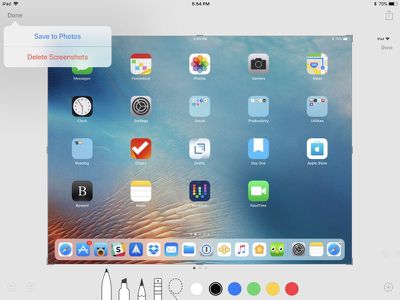
When you're done editing your screenshot, you can save it to photos, delete it, or share it.

  1. To save a photo or delete it, tap the "Done" button in the upper left of the iPad's display and then choose the appropriate option.instantmarkupios11savetophotos
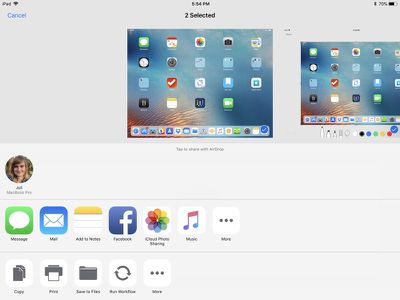
  2. To share, tap on the Share Sheet icon at the upper right of the display, which will pop up icons to share the screenshot in an iMessage, email, or social network. instantmarkupscreenshotshareios11
  3. The Share Sheet also includes options to save the screenshot to the Files app, add it to the Photos app, and more.
Instant Markup is a feature that's present on the iPhone and the iPad in iOS 11. There is no way to turn it off at the current time, so if you dislike those little screenshot popups, the only option is to wait the few seconds for them to disappear or swipe them away to the left of the display.


Related Forums: iOS 11, iPad Accessories

Top Rated Comments

Xavier Avatar
110 months ago
Such a useful feature!
Score: 4 Votes (Like | Disagree)
cecil444 Avatar
109 months ago
The markup feature existed before, you just had to dig a little to use it. Now it's super easy.

One odd note: the screenshot preview feature turned off for me somehow and I can't get it to reappear. I've been testing iOS 11 on a 6S (it's been a crazy battery hog... like horrendous, for the last couple days... hoping it gets better or a fix is issued soon). The first screenshot I took showed the preview and I was able to view and markup the image as described. But every screenshot since has (1) failed to show me the preview of the screenshot -- it just drops it in my photos as with iOS 10; and (2) failed to "blink" the screen indicating that a screenshot was successfully taken. With the sound on I do hear the camera shutter sound, but the screen no longer "blinks" as it always used to. Anyone else experiencing this same issue?
Score: 3 Votes (Like | Disagree)
wolfshades Avatar
109 months ago
Does this only work with screenshots? Or can you use those tools on your saved photos?
Yes they are. Go into Photos, Edit, click on the ellipses (the "more" button) and then hit Markup, and you should be good to go.
Score: 2 Votes (Like | Disagree)
psac Avatar
109 months ago
Very useful. Also now have a markup option under the ... “more” button in photo edit. Easier than having to go to a third party app.
Score: 1 Votes (Like | Disagree)
Joniz Avatar
109 months ago
I was hoping this would be great stuff but I’m finding a number of irritating issues with Apple’s markup…

1) It never remembers what color I picked, or the tool. I always have to re-select even though I always use a red pen. Very basic coding stuff.

2) There’s a huge lag with each letter because of, I’m pretty sure, Undo. I write something like “Test” and if I don’t go “T-beat-e-beat-s-beat-t” then it misses letters. If I write script-like, all one flowing line, it has no problems, which is why I believes this has to do with a poor implementation of Undo.

3) What a terrible waste of space around the screenshot. Why can’t I make it bigger on the screen so I can get between lines?

Now I’m using an iPad Mini 4 with a mesh-tipped stylus, which works beautifully in Notes Plus — catches everything — but maybe Apple’s markup better on iPad Pros with Apple Pencils? Still, I wish they could have hired a better coder. I can almost image there’s bubblesort in there somewhere.

Anyone else seeing these issues?
Score: 1 Votes (Like | Disagree)
I7guy Avatar
109 months ago
I like these “how to’s”. Keep em coming.
Score: 1 Votes (Like | Disagree)

Popular Stories

Apple Logo Zoomed

Tim Cook Teases Plans for Apple's Upcoming 50th Anniversary

Thursday February 5, 2026 12:54 pm PST by
Apple turns 50 this year, and its CEO Tim Cook has promised to celebrate the milestone. The big day falls on April 1, 2026. "I've been unusually reflective lately about Apple because we have been working on what do we do to mark this moment," Cook told employees today, according to Bloomberg's Mark Gurman. "When you really stop and pause and think about the last 50 years, it makes your heart ...
wwdc sans text feature

Apple Rumored to Announce New Product on February 19

Thursday February 5, 2026 12:22 pm PST by
Apple plans to announce the iPhone 17e on Thursday, February 19, according to Macwelt, the German equivalent of Macworld. The report, citing industry sources, is available in English on Macworld. Apple announced the iPhone 16e on Wednesday, February 19 last year, so the iPhone 17e would be unveiled exactly one year later if this rumor is accurate. It is quite uncommon for Apple to unveil...
Finder Siri Feature

Why Apple's iOS 26.4 Siri Upgrade Will Be Bigger Than Originally Promised

Friday February 6, 2026 3:06 pm PST by
In the iOS 26.4 update that's coming this spring, Apple will introduce a new version of Siri that's going to overhaul how we interact with the personal assistant and what it's able to do. The iOS 26.4 version of Siri won't work like ChatGPT or Claude, but it will rely on large language models (LLMs) and has been updated from the ground up. Upgraded Architecture The next-generation...
iOS 26

iOS 26.3 and iOS 26.4 Will Add These New Features to Your iPhone

Tuesday February 3, 2026 7:47 am PST by
While the iOS 26.3 Release Candidate is now available ahead of a public release, the first iOS 26.4 beta is likely still at least a week away. Following beta testing, iOS 26.4 will likely be released to the general public in March or April. Below, we have recapped known or rumored iOS 26.3 and iOS 26.4 features so far. iOS 26.3 iPhone to Android Transfer Tool iOS 26.3 makes it easier...
iphone 17 pro dark blue 1

iPhone 18 Pro Max Rumored to Deliver Next-Level Battery Life

Friday February 6, 2026 5:14 am PST by
The iPhone 18 Pro Max will feature a bigger battery for continued best-in-class battery life, according to a known Weibo leaker. Citing supply chain information, the Weibo user known as "Digital Chat Station" said that the iPhone 18 Pro Max will have a battery capacity of 5,100 to 5,200 mAh. Combined with the efficiency improvements of the A20 Pro chip, made with TSMC's 2nm process, the...