

In iOS 18, iPhone apps have both Light and Dark color options, making it possible to match the color of your icons when you have Dark mode enabled. Keep reading to learn how it works.
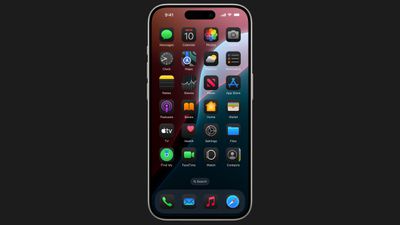
Apple's built-in apps have both Light and Dark color options in iOS 18, and now that the update is available to the public, third-party apps are in the process of providing their own Light and Dark icon alternatives to match your preferred aesthetic, but until then your iPhone will happily generate dark versions of them, too.
The Dark icons are all redesigned with a black background rather than a white or colored background, which makes them blend in better with the Dark Mode setting. In addition, it's possible to turn on Dark icons independently of having Dark Mode enabled, so you can leave Light mode on while using the Dark icon option if you prefer.
To go along with the Dark Mode icons, Apple also introduced a toggle that makes your wallpaper darker. The following steps explain how to switch your icon colors to match Light or Dark mode.
- Press and hold a space on the Home Screen or an app page to enter jiggle mode.
- Tap Edit in the top-left corner.
- Select Customize in the dropdown menu.
- Choose Dark, Light, or Automatic in the customization panel. (Automatic will lighten or darken the icons depending on whether Light or Dark mode is enabled.)
- Tap anywhere outside the customization panel to close it and exit jiggle mode.
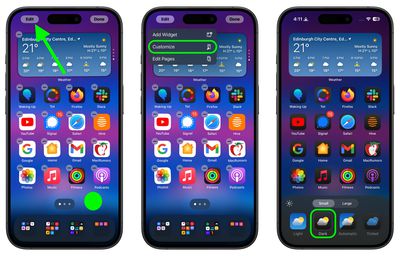
Note that the customization panel has other new settings including one to darken your wallpaper (the sun icon), an option to make icons bigger (without labels) or smaller, and a Tint option that will put a tint over all of your icons – you can even match the tint with a color from your wallpaper using the eyedropper icon.
















