Macs introduce a new system for accessing recovery and security options at startup. This article explains how to use the new boot and recovery interface to start up your computer in safe mode.

What is Safe Mode?
Starting up your Mac in safe mode can help you determine whether an issue you're experiencing is caused by the software that loads every time your Mac starts up. It does this by preventing your Mac from loading things like login items, non-system fonts, and system extensions, and performing a First Aid check on your startup disk. It also deletes certain caches, including the kernel cache, which are recreated on the fly when needed.
How to Boot into Safe Mode on Apple Silicon Macs
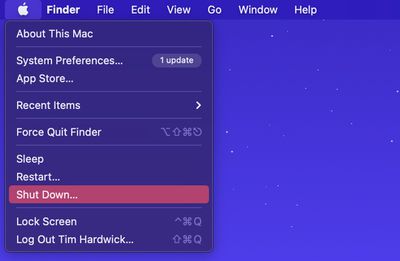
- If your Mac is powered on, shut it down ( menu -> Shut Down).

- Turn on your Mac and continue to press and hold the power button until you see the startup options window.
- Select your startup disk.
- Press and hold the Shift key, then click Continue in Safe Mode.
- Release the Shift key.
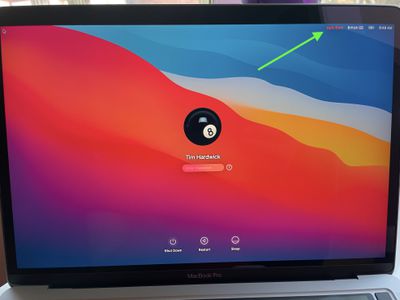
- Once your Mac has booted into safe mode (you'll see "Safe Boot" in red in the upper right), log in using your account credentials.


If the issue you're experiencing still occurs in safe mode, or your Mac restarts several times and then shuts down, reinstall macOS and double-check that the system software and any third-party apps are up to date.
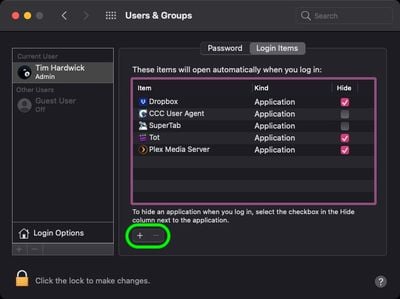
If the issue you're having doesn't occur in safe mode, that indicates a potential problem with a startup item. In such cases, make a note of the login items listed under your user account in System Preferences -> Users & Groups. Once you've done that, remove them all using the minus (–) button, then add them back and restart your Mac after adding each one. When the issue next occurs again, remove the last login item you added, and that should resolve the problem.