 AirDrop is Apple's ad-hoc service that lets users discover nearby Macs and iOS devices and securely transfer files between them over Wi-Fi and Bluetooth.
When using AirDrop between Macs and iOS devices, you can send and receive photos, videos, documents, contacts, passwords and anything else that can be transferred from a Share Sheet. Keep reading to learn how to use it.
- AirDrop Device Compatibility
- How to Adjust AirDrop Settings on iPhone and iPad
- How to Adjust AirDrop Settings via Control Center
- How to AirDrop Files on iPhone and iPad
- How to Share Passwords Over AirDrop in iOS
- Using AirDrop on iPhones With a U1 Chip
- How to Adjust AirDrop Settings on Mac
- How to AirDrop Files on Mac
AirDrop Device Compatibility
iPhone and iPad: To use AirDrop on iOS, you'll need an iPhone 5 or later, iPad 4 or later, iPad mini, or fifth-generation iPod touch.
Mac: All Mac models released in 2012 and later and running OS X Yosemite or later support AirDrop. You can confirm that your Mac is compatible with AirDrop by clicking the Finder icon in the Dock and selecting Go in the menu bar. If AirDrop is not listed as an option, then your Mac is not compatible with the feature.
How to Adjust AirDrop Settings on iPhone and iPad
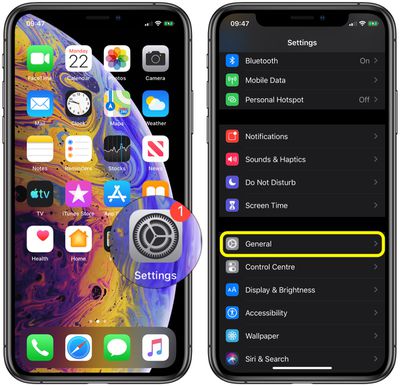
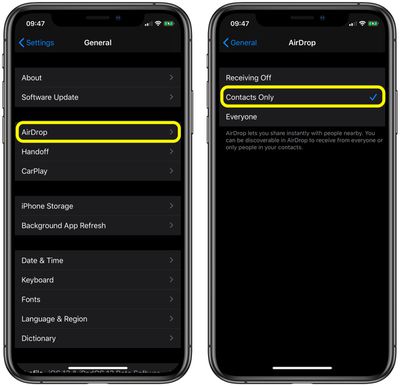
There are two active settings for AirDrop: You can set it to accept shares from anyone, or only from people whose email address or mobile number appears in your contacts. Alternatively, you can disable the feature completely. These settings can also be used to ensure that you don't become the victim of an unsolicited AirDrop share.
- Launch the Settings app on your iPhone or iPad.
- Scroll down and tap General.

- Tap AirDrop.
- Tap Contacts Only or Receiving Off.
How to Adjust AirDrop Settings via Control Center
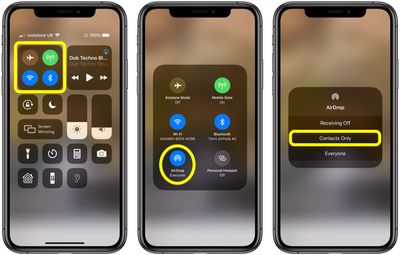
You can also set your AirDrop options in Control Center. Here's how:
- Open Control Center on your device in the following way: On an iPad with a Home button, double-tap the Home button; on iPhone 8 or earlier, swipe up from the bottom of the screen; and on a 2018 iPad Pro or iPhone X or later, swipe down from the upper right corner of the screen.
- Press firmly or touch and hold the network settings card in the upper-left corner.
- Tap AirDrop.
- Tap Contacts Only or Receiving Off.
How to AirDrop Files on iPhone and iPad
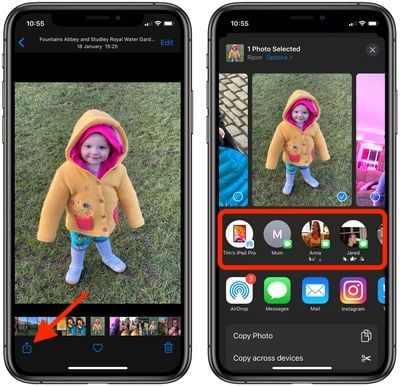
You can share files within iOS wherever you come across the Share Sheet icon (a little square with an arrow pointing out of it). Here's how it works.
- Choose a file that you'd like to send over AirDrop. In our example, we're sharing a photo from the Photos app.
- Tap the Share Sheet icon in the corner of the screen.
- From the top row of the Share Sheet, tap the person or device nearby that you want to share the file with. Note that if the person you're sharing content with is in your Contacts, you'll see an image with their name. If they aren’t in your Contacts, you'll see just their name without an image. You may need to tap the AirDrop icon itself to see all of the AirDrop options.
How to Share Passwords Over AirDrop
There are lots of reasons you might want to share a password, and Apple has made it much easier in iOS 12 or later. Now, you can share passwords with other people directly from the iOS Password Manager via AirDrop.
- Launch the Settings app on your iPhone or iPad.
- Tap Website & App Passwords.
- Select a login.
- Tap the Password field and select AirDrop... from the popup menu.
- From the AirDrop menu, tap the person nearby that you'd like to share the password with.
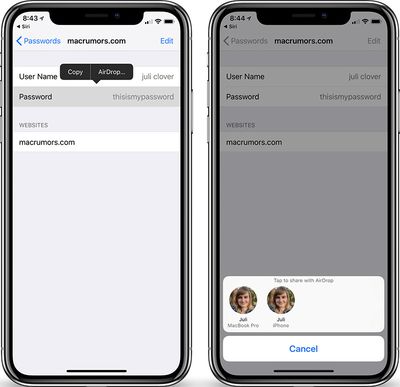
Users on both devices are required to authenticate via Touch ID or Face ID (or a regular old password, depending on which Mac you have) before the password can be sent or saved.
Using AirDrop on iPhones With a U1 Chip
If you own an iPhone 11, iPhone 11 Pro, or iPhone 11 Pro Max, your device includes Apple's new "U1" ultra wideband chip, which means it's spatially aware. In other words, you can point your iPhone 11 towards someone else's and AirDrop will prioritize that device in the list of possible AirDrop recipients.

The feature requires iOS 13.1 or later to work. You can check that you're iPhone software is up-to-date by launching Settings and going to General -> Software Update.
How to AirDrop Files on Mac
- Launch Finder on your Mac.
- Find the file(s) that you want to share and drag them over AirDrop in the Finder window sidebar. Let them hover there until the AirDrop window appears.
- Drop the file(s) onto the profile picture of the person you want to share them with.
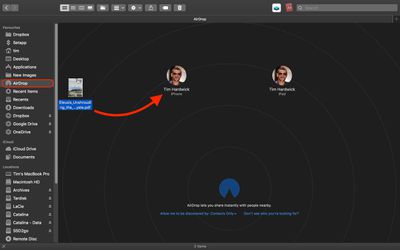
If it's easier, you can also AirDrop files by right-clicking (or Ctrl-clicking) them and selecting Share -> AirDrop from the contextual menu, or by clicking the Share icon in the Finder window's toolbar and selecting AirDrop from there.
How to Adjust AirDrop Settings on Mac
- Open a Finder window on your Mac.
- Select AirDrop from the Finder sidebar (if AirDrop isn't listed, use the keyboard combination Command-Shift-R to open it.
- Click the setting prefaced with Allow me to be discovered by: and select Contacts Only, Everyone or No one from the drop-down menu.
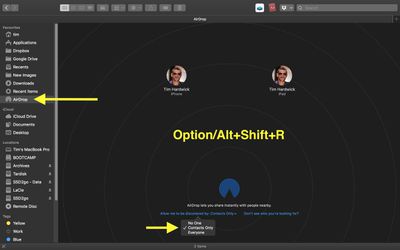
If you're a regular user of AirDrop in macOS and regularly open it in Finder, consider adding an AirDrop shortcut to your Dock for one-click access to it from any screen.