In iOS 13 and iPadOS, Apple has augmented and enhanced textual manipulation features available to iPhone and iPad users to make working with text a whole lot easier.
One of these new features is a native swipe-based keyboard called QuickPath, and anyone who has used a third-party keyboard extension like SwiftKey should be instantly familiar with it.
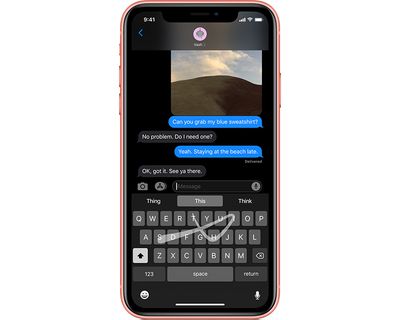
QuickPath allows you to type a word without removing your finger from the keyboard when entering individual letters. If you were typing "Apple," for example, you'd start with your finger on A and then swipe your finger across the onscreen keyboard from P, to P, to L, and so on.
Once you've spelled out the word (and finished with a full stop if it's the end of a sentence) simply lift your finger off the screen and iOS will automatically add a space, ready for you to type another word or start a new sentence.
Another advantage of QuickPath is that it's intelligent enough to deal with words that have double letters in them. If you swipe across the letters "cal," for example, the word "call" will appear when you remove your finger from the screen.
QuickPath can take a bit of getting used to, but once you've got the hang of it you'll be inputting words in no time. It's particularly handy for composing text with your thumb if you're holding your iPhone in one hand.
You can use QuickPath on iPad, too. However, note that it's only available on the floating keyboard that's revealed when you pinch inward on the full-width virtual keyboard in iPadOS.
How to Disable QuickPath
If you don't like using QuickPath, don't worry – you can easily disable it. On iPhone, launch the Settings app, select General -> Keyboard, then toggle the switch next to Slide to Type to the clear OFF position.
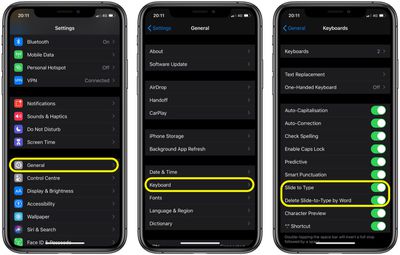
On iPad, the option is in the same settings screen, it's just worded differently: the switch to turn it off is beside Slide on Floating Keyboard to Type. You can also toggle the switch next to Delete Slide-to-Type by Word to enable or disable the action that deletes a QuickPath word when backspace is selected.