Apple's HomeKit is integrated with Siri, which means you can use the personal assistant to control HomeKit-compatible accessories like lights, thermostats, and power outlets, even when you're away from home. Here's everything you need to know to get things up and running.
Devices That Support "Hey Siri"
First, in order to use Siri to control your HomeKit accessories handsfree, you'll need an Apple device connected to a Wi-Fi or cellular network that supports the "Hey Siri" command without being plugged into a power source. Compatible devices include the following:
- iPhone 6s or later
- iPad Pro (11-inch)
- iPad Pro 12.9-inch (2nd generation)
- iPad Pro (10.5-inch)
- iPad Pro (9.7-inch)
- iPad (6th generation)
- All Apple Watch models
- HomePod
- MacBook Pro (15-inch, 2018)
- MacBook Pro (13-inch, 2018, Four Thunderbolt 3 ports)
- MacBook Air (Retina, 13-inch, 2018)
- iMac Pro
Note that earlier iPhone, iPad, and iPod touch models with iOS 8 or later should also support "Hey Siri," but only when plugged into a power source.
Set Up Your HomeKit Devices
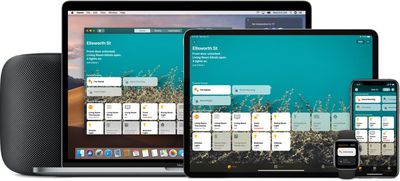
Before you can start using Siri to control your HomeKit-compatible smart devices, you'll need to add them as accessories in the Home app. That's because Siri identifies your accessories by their names, location, and other details that you've added to them in the Home app.
Set Up a Home Hub
In addition, if you want to control your accessories when you're away from home, you'll need to set up a home hub – click one of the links below set up the device as a home hub.
- Set up HomePod as a HomeKit Home Hub
- Set up Apple TV as a HomeKit Home Hub
- Set up iPad as a HomeKit Home Hub
HomeKit Siri Commands
Once you've set up your home accessories in the Home app, read on for some common examples of Siri commands you can use to control your HomeKit devices.
Switch Accessories on or off
- "Turn on the lights."
- "Turn off the fan."
- "Turn on the light switch."
- "Turn on the heater."
Adjust an Accessory
- "Set the temperature to 65 degrees."
- "Adjust the brightness upstairs to 60%."
- "Turn the bedroom lights all the way up."
- "Make the lights purple in the living room."
Control a Room or Zone
- "Turn off the lights upstairs."
- "Turn on the fan in the garage."
- "Start heating downstairs."
Set a Scene
- "Hey Siri, good night."
- "Hey Siri, I'm home."
- "Hey Siri, set my reading scene."
In addition to the above, you can also use Siri to check the status of devices. For example, you could say "Hey Siri, what temperature is the thermostat set to?" or "Hey Siri, did I leave the kitchen lights on?" or "Hey Siri, is any motion detected?"



















![Apple Pulls Keynote, Pages and Numbers From App Store [Update: Back]](https://images.macrumors.com/t/Okb7kitB_gNr6qe5Pex9nQIysD8=/112x112/article-new/2026/01/Apple-Creator-Studio-iWork-suite.jpg)