StandBy is a Lock Screen mode in iOS 17 and later that activates when an iPhone is charging and positioned on its side. Here's everything you need to know to get started using the feature.


How to Activate StandBy
StandBy can be thought of as a kind of smart display for your iPhone that offers fast access to different screens of glanceable information that can be viewed at a distance, when your device is charging on a kitchen, desk, or nightstand, for example. If you charge your iPhone at night, StandBy adapts to low light and takes on a red tone. StandBy mode is available on all iPhone models that support iOS 17 and later, but the ability to use StandBy mode's always-on feature is limited to iPhone 14 Pro, iPhone 15 Pro, and iPhone 16 Pro models.
To activate StandBy when enabled, your iPhone needs to be locked and charging on a MagSafe or Qi-based wireless charger, or a Lightning charger. The main things to remember are that the iPhone needs to be locked, fixed in a stationary horizontal (or landscape) orientation, and positioned at an angle (i.e. not on a flat surface), so a charging stand is necessary in most cases.
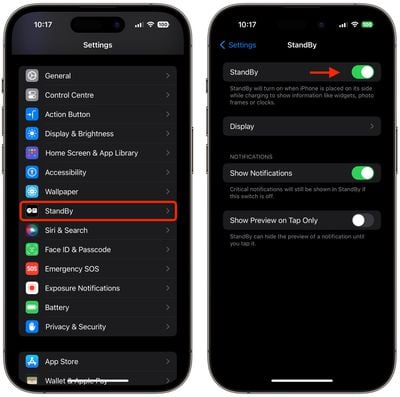
StandBy is on by default, but you can enable or disable it manually by going to Settings -> StandBy and toggling the StandBy switch.
Customizing Different StandBy Screens
StandBy is made up of three screens that can be accessed by swiping horizontally on your iPhone's display. The first screen displays interactive widgets, the second showcases individual photos from your Photos library, and the third is a large clock.

Widgets Screen
The widgets screen is comprised of two interactive widget stacks displayed side by side that you can swipe through up and down independently. The stacks are like blown-up versions of Home Screen widget stacks, and even include the same options like Smart Rotate and Widget Suggestions.
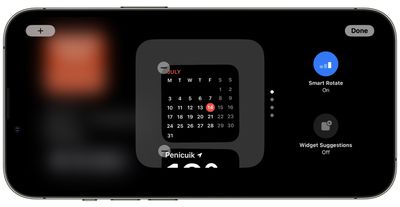
Since many widgets have interactive elements, you can, for example, tick off to-do items in a Reminders list. If you tap on a widget that isn't interactive, such as the Calendar, an arrow indicator appears on the screen. Tapping the arrow takes you to the associated app, which helps to avoid accidentally launching the app.
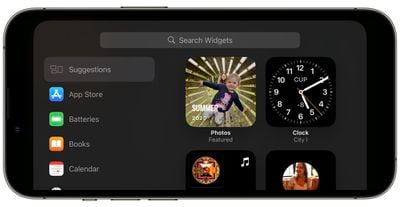
To customize a widget stack, long press on it. After Face ID has unlocked your iPhone, the stack will center on the screen in jiggle mode. You can add widgets to the stack using the + button in the top left, and turn Smart Rotate and Widget Suggestions on and off using the buttons on the right.
Photos Screen
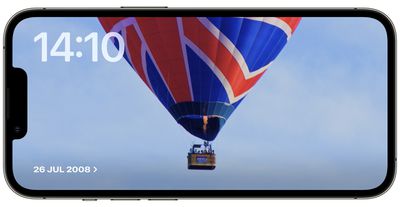
StandBy's photos screen is also interactive and customizable. Tapping the location/date of the photo activates Face ID or prompts you for a passcode, and then takes you to the image in your Photo Library.
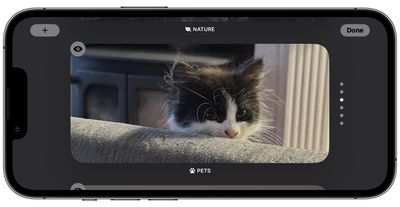
By default, StandBy will display featured photos and memories plucked from your library, but a long press on the photo and Face ID unlock lets you swipe between specific themes including Nature, Pets, Cities, and People. You can also add specific albums to be displayed using the + button, and hide themes that you don't like using the eye icon.
Clock Screen
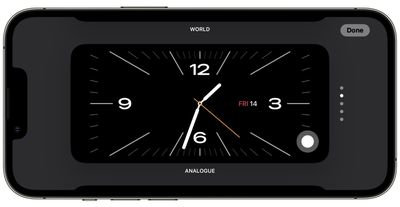
StandBy's third screen shows the time and date in various themes that you can swipe through vertically. These include Digital, Analogue, World, Solar, and Float. Some themes also show additional information like the temperature or your next alarm. If you press and hold on a clock, you can swipe up and down through the different themes and also change the colors of some themes by tapping the white circular button and selecting a different color swatch.
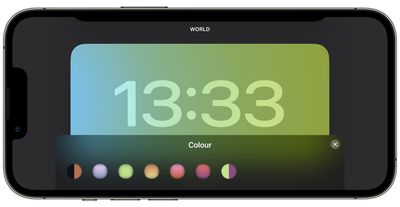
Float shows the time in big bubble numbers in customizable colors, while Solar has more of a standard font with a solar flare design in different colors. Similarly, the Analog theme has customizable accent colors, and Digital has bold numbers with different color options. The World theme shows the time with a map of the world and your current location highlighted, and is the only theme that can't be color-customized.
Night Mode
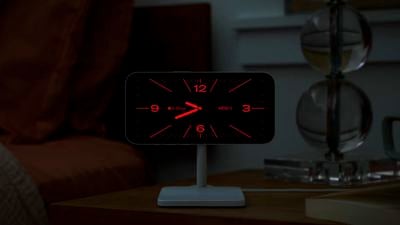
At night, StandBy mode will get darker if the room you're in is dark, and the display will adopt a red tint, so that it is not distracting at night while you're sleeping. It's called Night mode, and it's similar to Nightstand Mode on the Apple Watch, since it functions in much the same way.
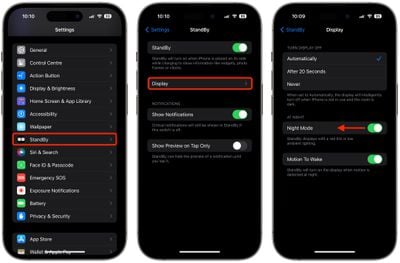
But what if you're not sleeping and you'd rather see StandBy mode at its standard brightness level without the red tint? Fortunately, there's a setting that will prevent Night mode from activating. The following steps show you how it's done.
- When your iPhone is not in StandBy mode, open the Settings app.
- Tap StandBy Mode.
- Tap Display.
- Toggle off the switch next to Night Mode so that it is in the gray OFF position.
Notifications, Live Activities, and Siri
By default, incoming notifications will be shown full screen when you have your iPhone in StandBy mode. So if you get an iMessage, for example, it will pop up with the name of the person and the Messages icon to let you know you have a message.
If you'd rather have StandBy hide the preview of a notification until you tap it, go to Settings ➝ StandBy, then toggle on the switch next to Show Preview on Tap Only.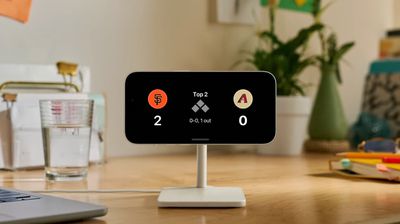
Live Activities are presented in a similar full-screen style, as are the results of Siri queries and commands. It's worth noting that content which would not normally be shown in a notification will not show up in StandBy mode unless you are nearby and have unlocked your device with Touch ID or Face ID.
MagSafe Location Awareness
According to Apple, StandBy includes a MagSafe-related feature that allows your iPhone to remember which screen and widget configuration you use depending on the location of your charger. For example, you might use the widgets screen when in the office, and the clock screen when charging on your nightstand.
StandBy Mode Won't Turn On: What to Do
If StandBy mode isn't automatically activated when you attach your iPhone to a power source, make sure it's positioned on its side (i.e. horizontally, also known as landscape orientation) and at an upright angle (i.e. not flat on a desk).
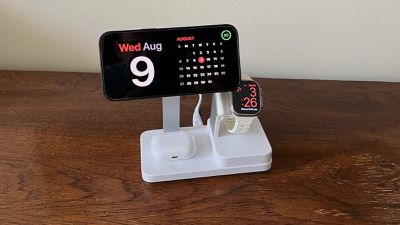
If it's still not coming on, make sure StandBy mode is enabled in the Settings app (Settings -> StandBy Mode). If the switch next to StandBy is in the gray OFF position, tap it to turn it to the green ON position, then try charging your iPhone again in the required orientation.
StandBy Mode Won't Remain On: What to Do
If StandBy mode turns itself off after a while and refuses to remain viewable on your iPhone's display, there are a couple of reasons why it could be happening.
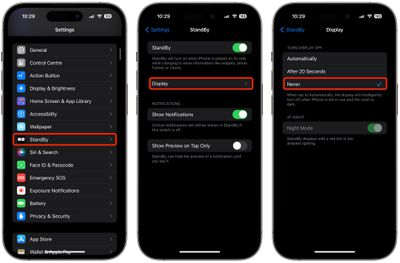
The first thing to check is that you have the right StandBy setting enabled. Go to Settings ➝ StandBy ➝ Display, and under "Turn Display Off," select Never if it isn't checked already.
If that's not the issue, check if your iPhone has Low Power Mode on. If Low Power Mode is enabled (Settings -> Battery -> Low Power Mode) your iPhone's screen will automatically turn off after a few moments of inactivity, so Low Power Mode needs to be off for StandBy mode to remain visible.
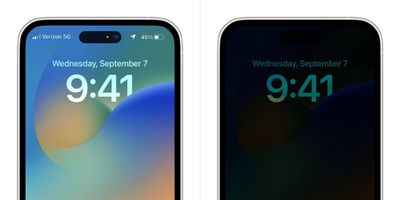
If Low Power Mode is disabled and StandBy mode still won't stay on, check your iPhone model. Continuous StandBy mode requires an iPhone with an Always-on display, and this feature is only available on iPhone 14 Pro and iPhone 15 Pro devices.
Wake on Motion
By default, StandBy mode will wake at night if motion is detected. The idea is that it lets you see the display when you aren't asleep. If StandBy mode on your iPhone is turning on at night due to motion and you find it distracting, here's how to prevent it from happening.
- Open Settings on your iPhone.
- Tap StandBy.
- Tap Display.
- Toggle off the switch next to Motion to Wake.
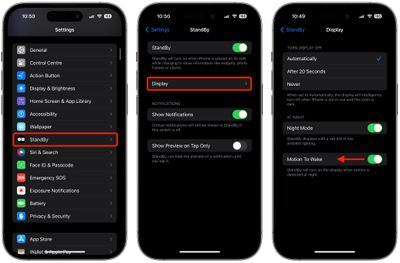
If you don't see the Motion to Wake option in the last screen, it's because you have the "Turn Display Off" option set to Never. Otherwise, that's all you need to do.