Text Shortcuts You Should Be Using on iPhone and Mac - MacRumors
Skip to Content

Text Shortcuts You Should Be Using on iPhone and Mac

by

Apple's autocorrect on iPhone and iPad always aims to help when you're typing a message, but it's by no means perfect, and some of the replacements it continually spews out can be frustrating. Fortunately, Apple's software includes a feature called Text Replacement that allows you to specify what word or phrase replaces the specific text you type in.
On my way
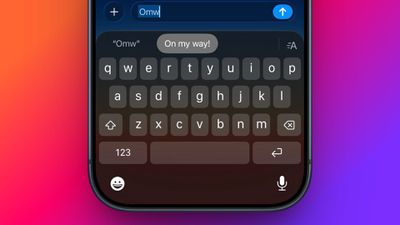
Even if you haven't set up Text Replacement, you can try it out with Apple's pre-set example: In any app that accepts text input, type "Omw" followed by a space, and it will change to "On my way!" automatically.

The following steps guide you through the process of setting up your own handy shortcut phrases with text replacements on both iOS devices and Mac.

How to Set Up Text Replacement on iPhone

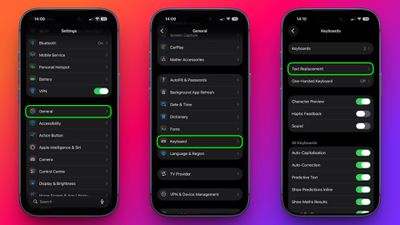
  1. Launch the Settings app on your iPhone or iPad.
  2. Tap General ➝ Keyboard.
  3. Tap Text Replacement.
    settings

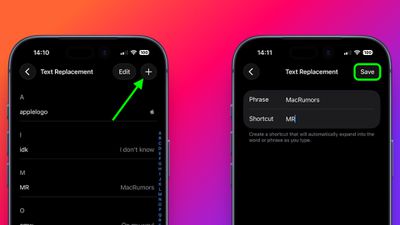
  4. Tap the plus (+) button in the top-right corner of the screen.
  5. On the next screen, fill in the "Phrase" field with the text you want to appear every time you type your shortcut.
  6. In the "Shortcut" field, input the text of your choice that you want to be replaced by the phrase above.
  7. Tap Save in the top-right corner to finish.
    settings

How to Set Up Text Replacement on Mac

The following steps work on Macs running macOS Ventura and later.

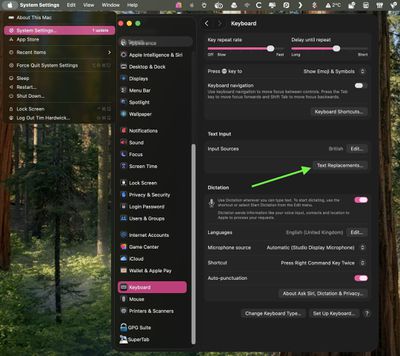
  1. On your Mac, click the  logo in the top-left corner of the menu bar at the top of the screen and select System Settings....
  2. Scroll down and select Keyboard in the sidebar.
  3. Under "Text Input," click Text Replacements....
    settings

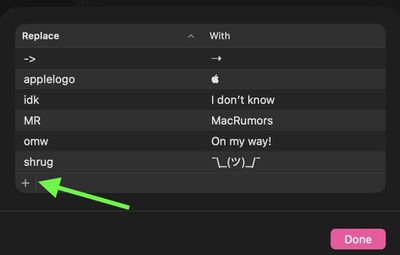
  4. Click the + button to add a text replacement.
    settings

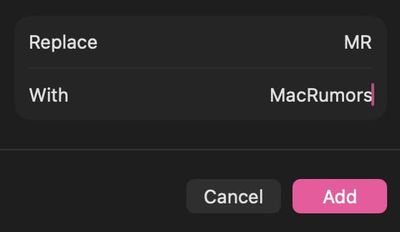
  5. In the "Replace" column, enter the text that you want replaced with something else.
  6. In the "With" column, type the replacement text that you want it to change to.
    settings

If you're using the same Apple account across all of your Apple devices, any Text Replacements that you add on your Mac will be automatically synced to your iPhone and/or iPad, and vice versa.

Top Rated Comments

JonneyGee Avatar
12 weeks ago
A few tips from mine:

1. Don’t use real words for shortcuts or you won’t be able to type that word easily anymore (you have to tap the x on the replacement suggestion, and it’s a pain to do regularly). Instead of “shrug,” I simply use “shr,” because I’ll rarely type that without the “ug” afterward.

2. Make them as short as possible. Most of mine are 3 letters. I use “apl” for the Apple logo. It’s a lot faster to type than “applelogo.”

3. Save things like your address, email address, and the name of your city. It saves so much time.

4. I also have lots of special characters saved. For example: ←, →, ↑, ↓, ≠.

5. I also have some links I send fairly frequently.
Score: 16 Votes (Like | Disagree)
adrianlondon Avatar
12 weeks ago

@@ is my email. Had it for years.
Me too; I just wish Apple didn't decide that it needed a space after it, so I always have to backspace each time I enter it.

(Same with every text shortcut of course, but usually it's useful 😁)
Score: 7 Votes (Like | Disagree)
WarmWinterHat Avatar
12 weeks ago
@@ is my email. Had it for years.
Score: 6 Votes (Like | Disagree)
sejoki Avatar
12 weeks ago

@@ is my email. Had it for years.
I've had that since text replacements were possible. I'm sometimes even surprised it's still active because I'm not used to setting something up once and it remaining the same for 10 years.
Score: 5 Votes (Like | Disagree)
12 weeks ago
I teach music, so I have `fhlat` substitute in for `♭` and `shsharp` for `♯` on all my devices. On my Mac, I have more involved ones through TextExpander, but having these as a baseline on my phone and iPad are both great.
Score: 5 Votes (Like | Disagree)
tonywalker23 Avatar
12 weeks ago
and after losing a bunch of mine for no reason thanks to iCloud… I learned you can import and export the shortcuts. while in the window, select the replacements you want and right click and you will see an import/export option that results in a plist file.


Attachment Image
Score: 4 Votes (Like | Disagree)

Popular Stories

Apple Event Logo

Apple's Next Era Begins September 1

Thursday May 7, 2026 10:36 am PDT by
Apple recently announced that Tim Cook will be stepping down as CEO later this year, after 15 years of leading the company. Effective September 1, Apple's hardware engineering chief John Ternus will become the company's next CEO, while Cook will become executive chairman of Apple's board of directors. In his new role, Apple said Cook will assist with "certain aspects" of the company,...
Instagram Feature 2

PSA: Instagram Encrypted Messaging Ends on Friday, May 8

Tuesday May 5, 2026 8:24 am PDT by
Instagram will remove end-to-end encryption for direct messages between users from May 8, 2026. When the date comes around, Meta will potentially be able to see the contents of all messages between users on the social media platform. Encrypting messages has been an optional feature in Instagram since 2023, but in March of this year the social media platform quietly updated a help page to say ...
macbook neo launch day

Apple May Drop Base $599 MacBook Neo as Chip, DRAM Costs Climb

Thursday May 7, 2026 4:55 am PDT by
Apple is considering dropping the cheapest MacBook Neo configuration as one possible response to the rising cost of building the popular laptop, according to Taiwan-based tech columnist and former Bloomberg reporter Tim Culpan. The Neo currently starts at $599 for a 256GB model, with a 512GB version at $699. Writing in his latest Culpium newsletter, Culpan says cutting the entry-level...