How to Transfer Your Spotify Playlists to Apple Music - MacRumors
Skip to Content

How to Transfer Your Spotify Playlists to Apple Music

by

If you switch from Spotify to Apple Music, you can transfer your playlists from one streaming service to the other using one of several third-party apps available on the App Store.
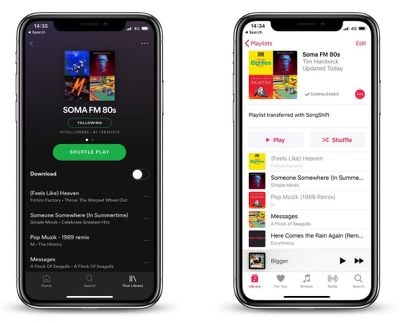
transfer spotify playlists to apple music
In this article, we're going to use one such app called SongShift to do exactly that, as it's easy to set up and you can test it for free before paying the $3.99 in-app purchase that lets you batch process more than five playlists.

  1. Launch the SongShift app on your iPhone.
  2. Tap Get Started.
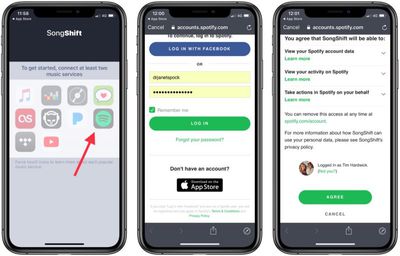
  3. Tap the Spotify icon (you can Force touch icons to identify them).
    transfer spotify playlist to apple music 1

  4. Enter your Spotify username and password and then tap Log in.
  5. Tap Agree at the bottom of the next screen to grant the app access to your Spotify library.

  6. Next, tap the ‌Apple Music‌ icon and then tap Authorize to grant the app access to your ‌Apple Music‌ library and set a token.
  7. Tap OK to confirm.
  8. Tap Continue.
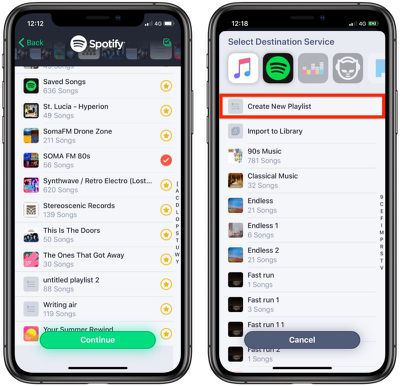
  9. Next, tap the Spotify icon and select a playlist to transfer, then tap Continue.
    transfer spotify playlist to apple music 3

  10. Tap Destination and then select the ‌Apple Music‌ icon.
  11. Tap Create New Playlist.
  12. In the Configuration screen, tap Destination and enter a custom name for the playlist as you'd like it to appear in your ‌Apple Music‌ library, then tap OK.

  13. Tap Process and wait while the transfer or "shift" completes.
The "shift" process may take some time and depends on how many songs are in your playlist, but you can start queuing multiple transfers and even close app and they will continue in the background. You can also allow SongShift to notify you when a transfer is complete.

Note: You can keep tabs on a playlist transfer by checking the colored dots next it. Green means processing is complete, blue means songs are pending processing, purple means currently processing, and orange means a song failed to match.


Popular Stories

iOS 26

iOS 26.4 Adds Two New Features to CarPlay

Tuesday March 24, 2026 1:55 pm PDT by
iOS 26.4 was released today, and it includes a couple of new features for CarPlay: an Ambient Music widget and support for voice-based chatbot apps. To update your iPhone 11 or newer to iOS 26.4, open the Settings app and tap on General → Software Update. CarPlay will automatically offer the new features so long as the iPhone connected to your vehicle is running iOS 26.4 or later....
Apple Business hero

Apple Unveils 'Apple Business' All-in-One Platform

Tuesday March 24, 2026 8:53 am PDT by
Apple today announced Apple Business, a new all-in-one platform that unifies device management, productivity tools, and customer outreach features. The service is designed to be a consolidated replacement for several of Apple's existing business-focused offerings, including Apple Business Essentials, Apple Business Manager, and Apple Business Connect. It provides organizations with a single...
AirPods Pro Firmware Feature

Apple Releases New Firmware for AirPods Pro 3, AirPods Pro 2 and AirPods 4

Tuesday March 24, 2026 12:31 pm PDT by
Apple today released new firmware for the AirPods Pro 2, AirPods Pro 3, and the AirPods 4. The firmware has a version number of 8B39, up from 8B34 on the AirPods Pro 3, 8B28 on the AirPods Pro 2, and 8B21 on the AirPods 4. There is no word on what's included in the firmware, but Apple has a support document with limited notes. Most updates are limited to bug fixes and performance...