In iOS 14, Apple has made it easier to keep track of conversation threads in Messages by allowing users to pin threads in the app.
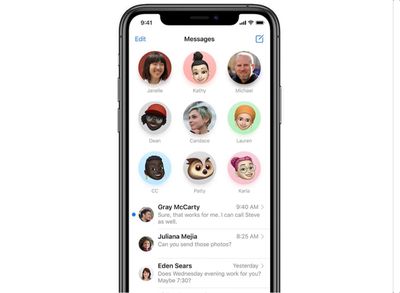
messages pinned conversations ios 14
Pinned conversations live at the top of the main messages list and appear as large contact circles. You can have a maximum of nine pinned threads.

You can pin both one-on-one conversations and group chats in Messages, and threads can include both SMS texts (green bubbles) and iMessages (blue bubbles).

One-on-one conversations appear as the other person's contact profile, while group threads have everyone's profile picture in a larger circle (unless a group photo has been chosen).

There are actually three ways that you can pin conversations in Messages. Let's take a look at them one by one.

How to Pin Conversations in Messages

Method 1

  1. Launch the Messages app on your iPhone or iPad.
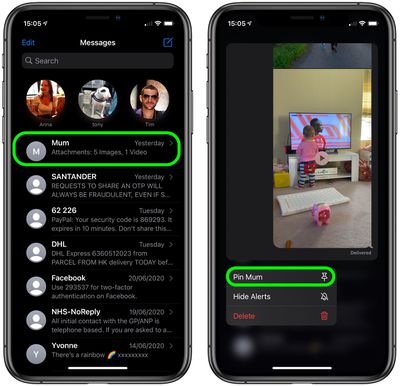
  2. In your message list, long press on the conversation that you want to pin to the top.
  3. Tap the Pin [name] option.
    messages

Method 2

  1. Launch the Messages app on your ‌iPhone‌ or ‌iPad‌.
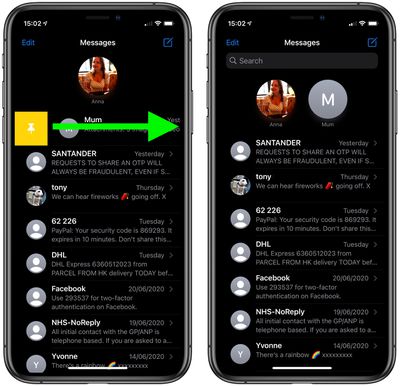
  2. In your message list, swipe right across the conversation that you want to pin to the top.
  3. Tap the yellow Pin icon to the left of the conversation.
    messages

Method 3

  1. Launch the Messages app on your ‌iPhone‌ or ‌iPad‌.
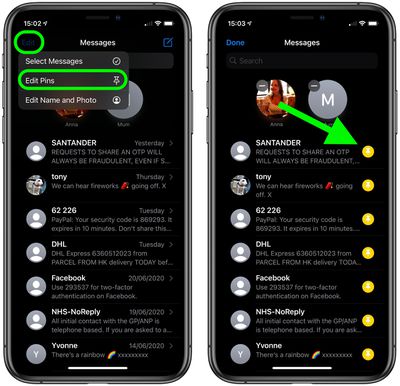
  2. In your message list, tap Edit in the top-left corner of the screen.
  3. Tap the Edit Pins option in the pop-up menu.
  4. Tap the yellow pin icon on the right side of the conversation that you want to pin to the top.
    messages

Note that when you pin a conversation to the top of the screen, it no longer appears in the messages list below. If a contact doesn't have an iMessage profile picutre, their contact circle will appear as the first letter of their name on a grey background.

If a message is being sent to you in a one-to-on conversation thread, the typing ellipsis (three dots) will appear on top of the contact circle, and a preview of the ensuing message will appear in the form of a chat bubble.

How to Unpin Conversations in Messages

To unpin a conversation from the top of your messages list, simply long press the large contact icon, then tap Unpin [name] in the pop-up menu. Alternately, tap the Edit option at the top-left of the screen, then tap the gray minus icon on the conversation that you want to unpin.

How to Hide Alerts From Pinned Conversation

To hide the alerts for a pinned conversation, simply long press on the contact circle, then select Hide Alerts in the pop-up menu.


Related Forum: iOS 14

Popular Stories

wwdc sans text feature

Apple Rumored to Announce New Product on February 19

Thursday February 5, 2026 12:22 pm PST by
Apple plans to announce the iPhone 17e on Thursday, February 19, according to Macwelt, the German equivalent of Macworld. The report, citing industry sources, is available in English on Macworld. Apple announced the iPhone 16e on Wednesday, February 19 last year, so the iPhone 17e would be unveiled exactly one year later if this rumor is accurate. It is quite uncommon for Apple to unveil...
Apple Logo Zoomed

Tim Cook Teases Plans for Apple's Upcoming 50th Anniversary

Thursday February 5, 2026 12:54 pm PST by
Apple turns 50 this year, and its CEO Tim Cook has promised to celebrate the milestone. The big day falls on April 1, 2026. "I've been unusually reflective lately about Apple because we have been working on what do we do to mark this moment," Cook told employees today, according to Bloomberg's Mark Gurman. "When you really stop and pause and think about the last 50 years, it makes your heart ...
Finder Siri Feature

Why Apple's iOS 26.4 Siri Upgrade Will Be Bigger Than Originally Promised

Friday February 6, 2026 3:06 pm PST by
In the iOS 26.4 update that's coming this spring, Apple will introduce a new version of Siri that's going to overhaul how we interact with the personal assistant and what it's able to do. The iOS 26.4 version of Siri won't work like ChatGPT or Claude, but it will rely on large language models (LLMs) and has been updated from the ground up. Upgraded Architecture The next-generation...
maxresdefault

Apple Shows Off a Key Reason to Upgrade to the iPhone 17

Saturday February 7, 2026 9:26 am PST by
Apple today shared an ad that shows how the upgraded Center Stage front camera on the latest iPhones improves the process of taking a group selfie. "Watch how the new front facing camera on iPhone 17 Pro takes group selfies that automatically expand and rotate as more people come into frame," says Apple. While the ad is focused on the iPhone 17 Pro and iPhone 17 Pro Max, the regular iPhone...
iOS 26

iOS 26.3 and iOS 26.4 Will Add These New Features to Your iPhone

Tuesday February 3, 2026 7:47 am PST by
While the iOS 26.3 Release Candidate is now available ahead of a public release, the first iOS 26.4 beta is likely still at least a week away. Following beta testing, iOS 26.4 will likely be released to the general public in March or April. Below, we have recapped known or rumored iOS 26.3 and iOS 26.4 features so far. iOS 26.3 iPhone to Android Transfer Tool iOS 26.3 makes it easier...